This guide with screenshots explains how to install Base 19 Kodi addon to stream a huge catalog of movies and series.
The process was performed on Kodi 19 Matrix, the latest version available to date, and should work fine on older versions such as Kodi 18 Leia.
The steps described in this post apply to all devices and platforms that support Kodi such as Android, Android TV, Fire TV, Linux, Windows, and more.
If you are new to Kodi, this ultimate guide will help you get started and set up the media center correctly.
Also, although it is not necessary, we highly recommend updating Kodi to the latest version. Updates are always useful because they fix problems and make improvements.
About Base 19 kodi addon
Base 19 addon is a unique kodi source that allows users to stream an extensive catalog of media content up to 4K quality. Hosted in the Crew Repository, this addon is fully compatible with the latest Kodi version 19 Matrix.
Also, Base 19 is a Debrid only addon, which means that a premium account is needed to be able to use this addon. The addon supports Real-Debrid, All-Debrid, and Premiumize. These services can be integrated directly from within the addon. We show you how to do that by the end of this guide.
With a premium subscription, Base 19 addon brings you a good deal of high-quality links including torrents so that your streaming experience is never better.
Similarly to Sports addons and most other Movies & TV Shows addons, Base 19 addon does not host any content. It uses web scrappers to fetch links from around the web and introduce them in a beautifully designed UI.
Besides, Base 19 addon features a very simple interface. The home screen introduces all content sections for Movies, TV Shows, Docs, Anime, and various other sections to choose from.
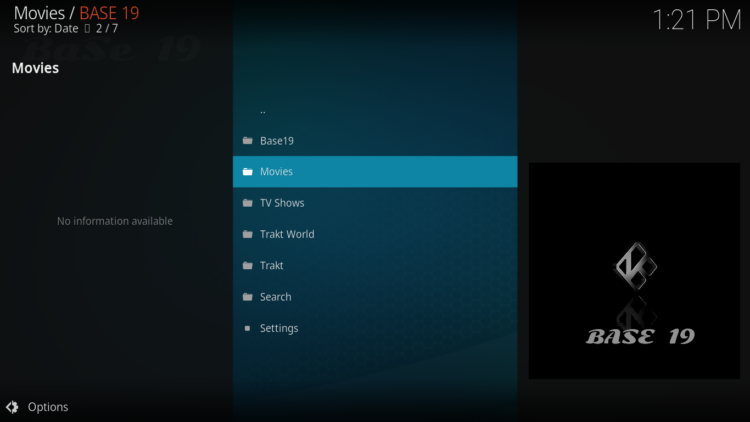
NOTE: Base 19 addon offers video content in English for most films, however, you can download subtitles. We show you how this works with OpenSubtitles addon.
Thanks to its varied content, good quality playback and smooth navigation, Base 19 kodi addon is considered among the best kodi addons for all types of media content. All you have to manage is a smooth internet connection and get Base 19 addon installed on your media center, which I will show you in details in this guide.
Install Base 19 Kodi addon
This section will guide you through the necessary steps to install Base 19 addon on Kodi. The process is quite simple and consists of three main steps:
- Enable installation from unknown sources
- Install the hosting repository
- Install Base 19 Kodi addon
Enable installation from unknown sources.
Keep in mind that the most interesting Kodi addons exist in third-party repositories. This means that before installing a third-party addon, you should allow Kodi to install from unknown sources. This option is disabled by default for security reasons.
- Follow this guide to enable unknown sources on Kodi.
Install the hosting repository
With the unknown sources option enabled, Kodi is now ready to install any addon or repository, regardless of its source.
Base 19 Kodi addon is hosted in The The Crew Repository and provides high-quality content with regular updates
- The source URL: http://team-crew.github.io
Our next step will be to install the repository. For this, a media source needs to be added. We have already explained in our corresponding guide how to do this. Otherwise, follow the instructions below:
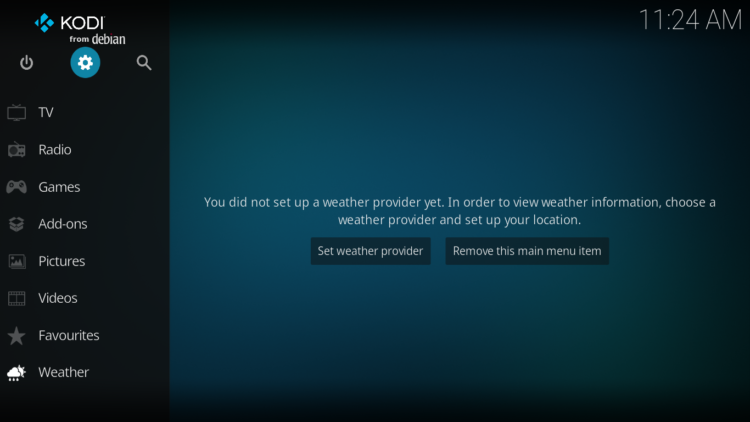
- Launch Kodi and from the home screen, click on the gear icon to access the settings.
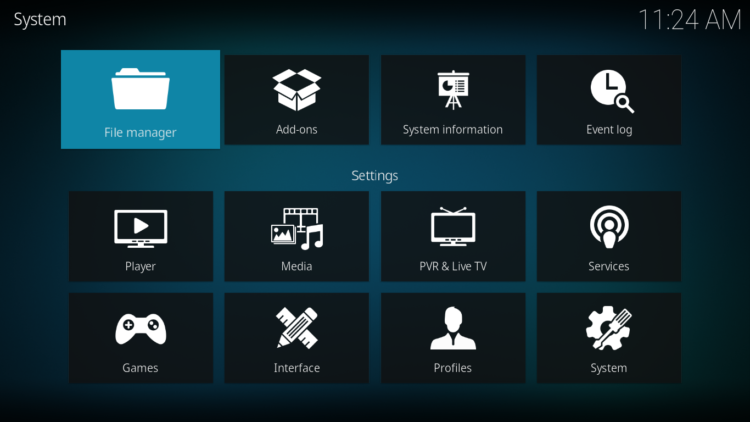
- Enter the File Manager
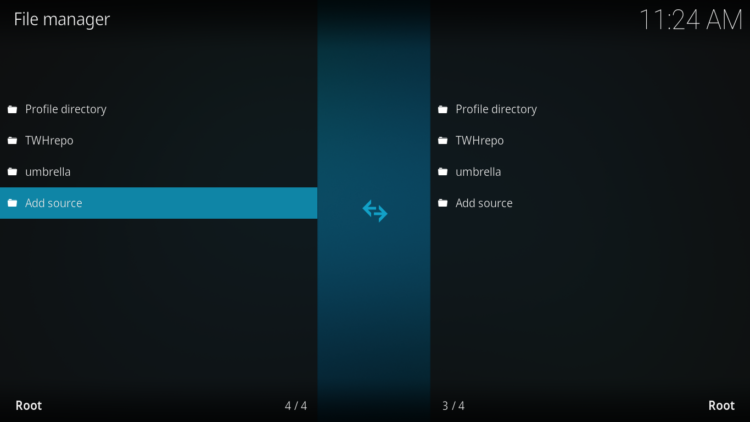
- Select Add Source
- Double click on “< None >”.
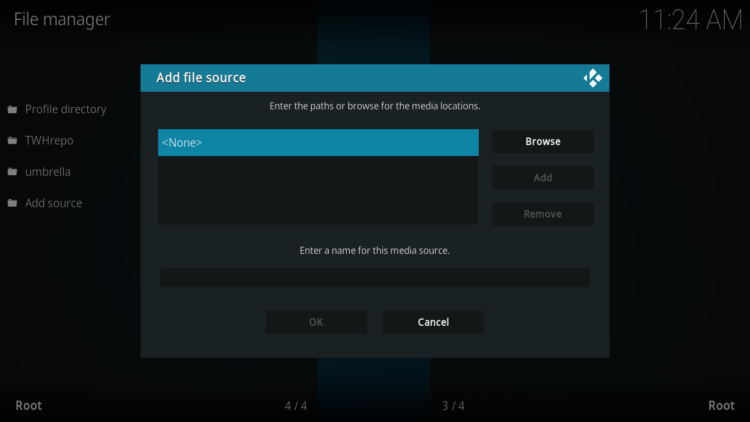
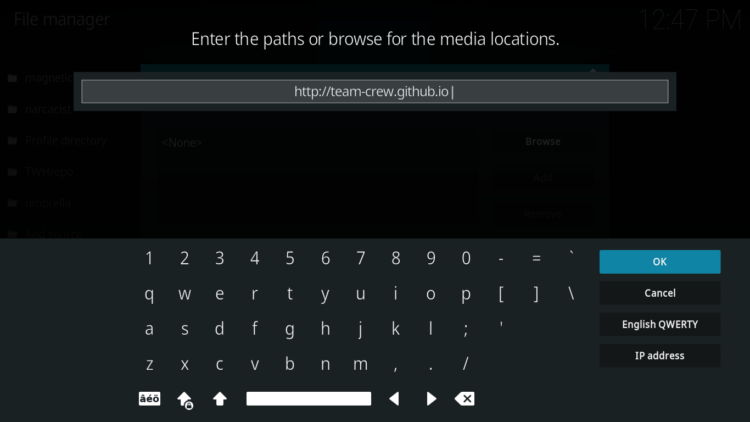
- In the URL bar, type the URL of the media source and press OK :
- http://team-crew.github.io
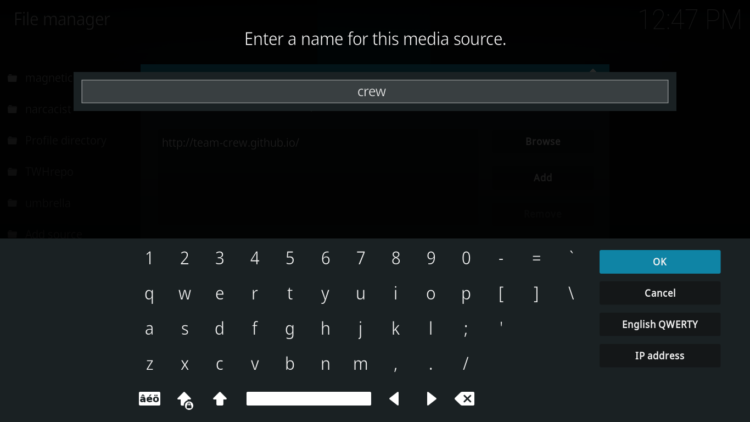
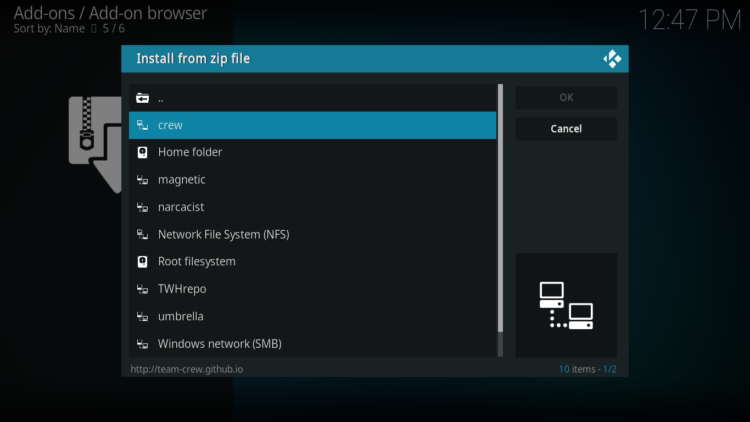
- Enter a name for this source so you can easily recognize it later, and press OK. In this case we put “Crew“.
- Again, click OK to confirm
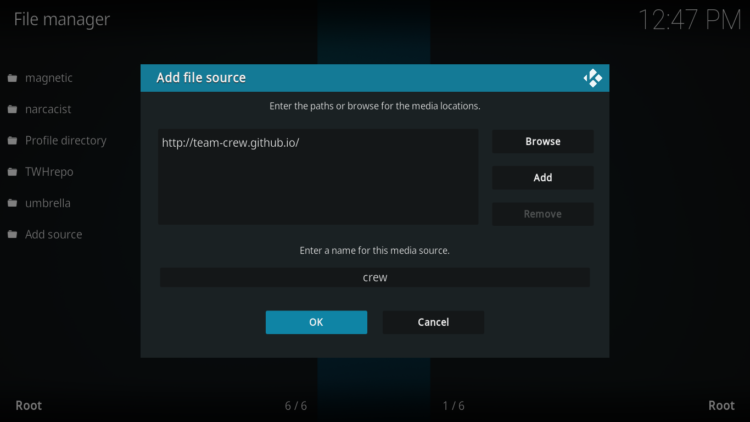
- Now, from the settings page, enter the Add-ons browser “Open box icon“.
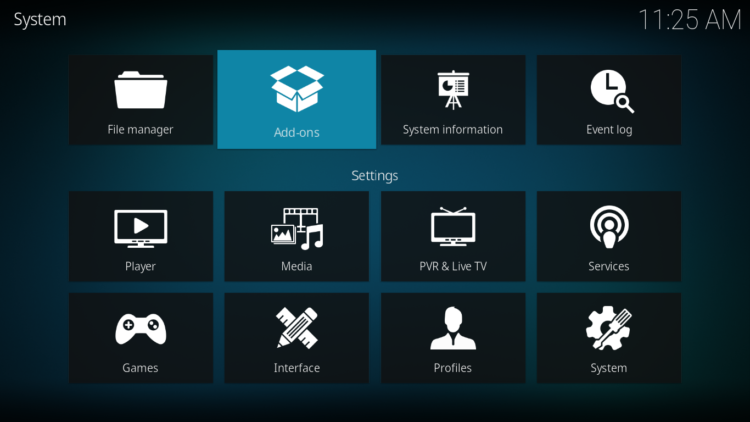
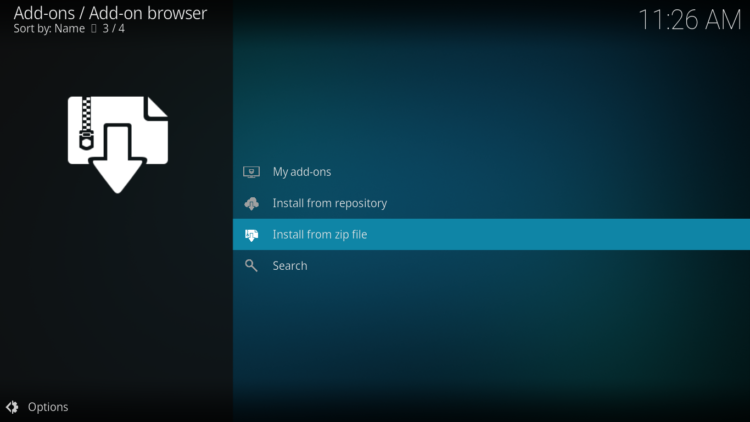
- Select “Install from a Zip file“.
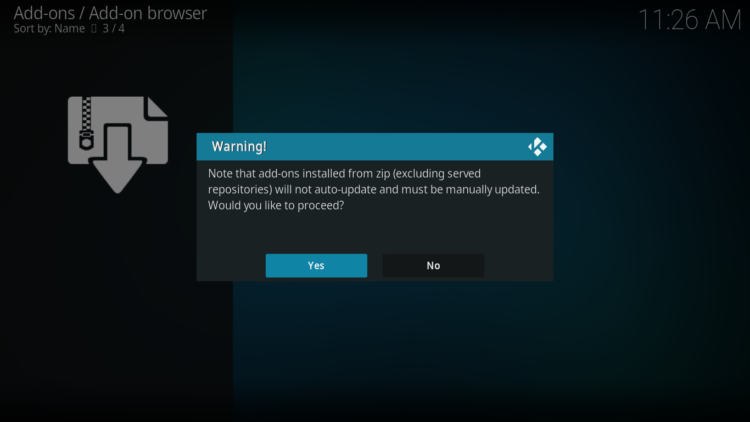
- Click OK to bypass this warning
- Find the name of the source you just added in the previous step and click on it.
- Select “repository.thecrew-xxx.zip” and click on it.
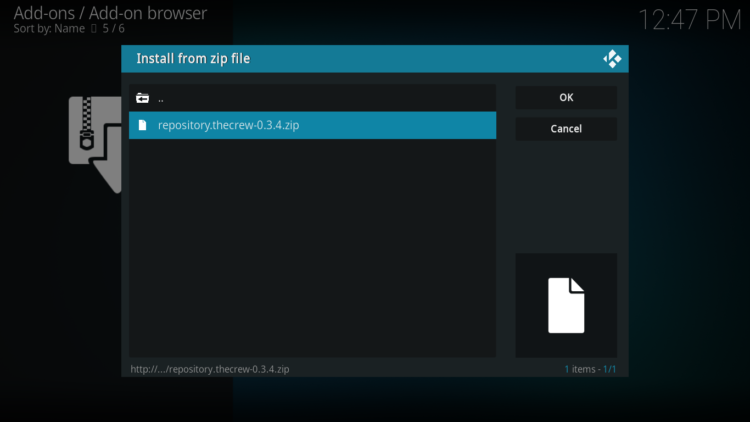
- Wait a few seconds until a popup message appears in the upper right corner telling you that the Repository is installed.
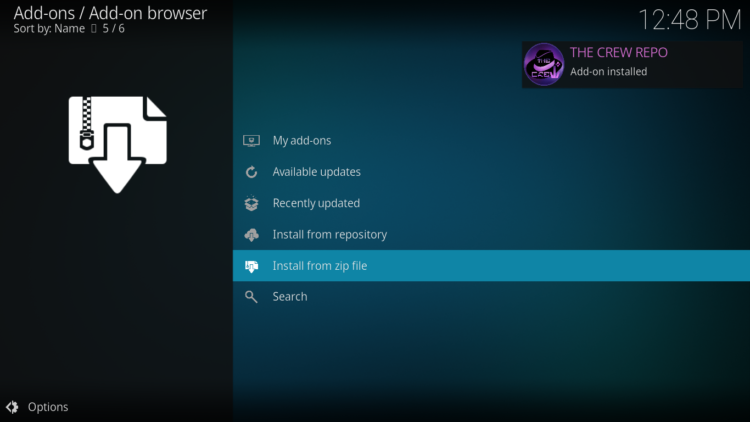
Install Base 19 Kodi addon
After successfully installing The Crew repository, we need to install Base 19 Kodi addon:
- Again, on the settings page, go to the Add-ons browser and select Install from a repository
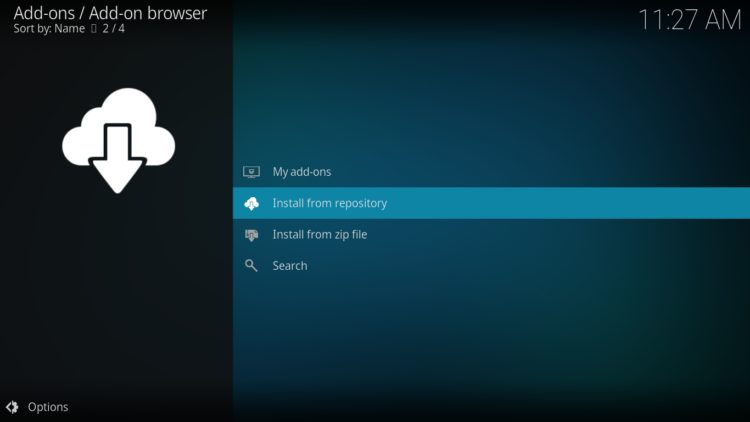
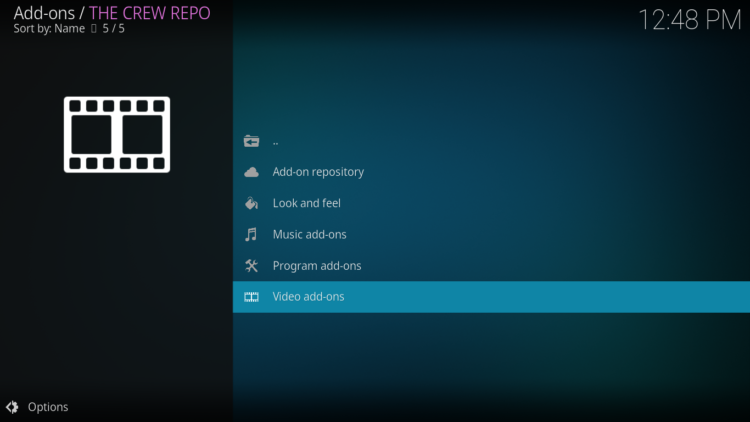
- Select The Crew Repository
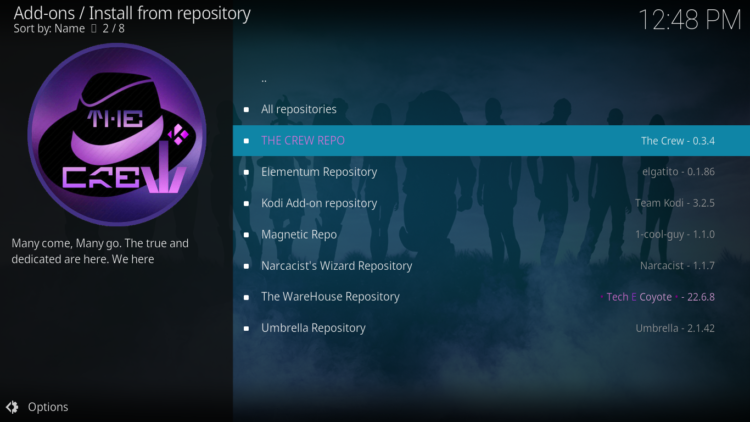
- Then, Video Add-ons
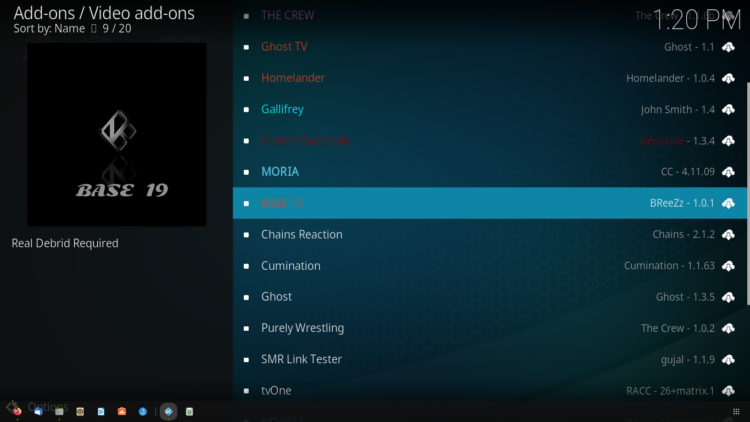
- Find the “Base 19” addon and click on it
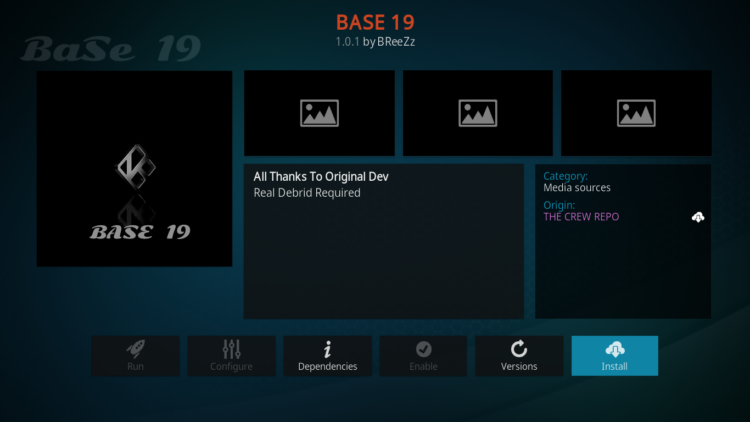
- Click on Install
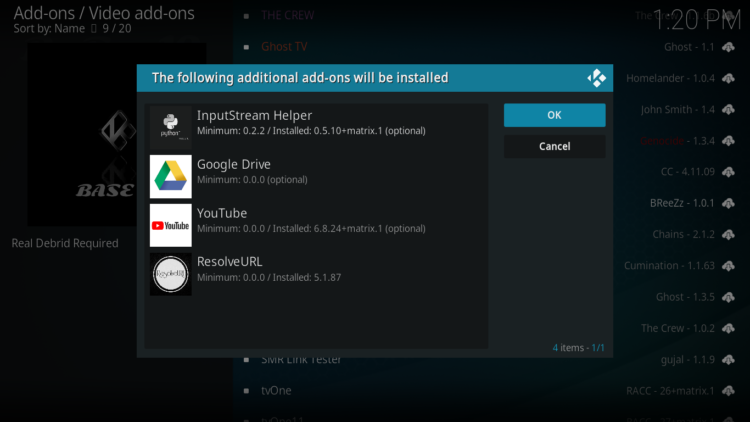
- Click OK to install the additional addons needed for Base 19 addon work smoothly.
- In a few seconds, a popup message will inform you that Base 19 addon is installed.
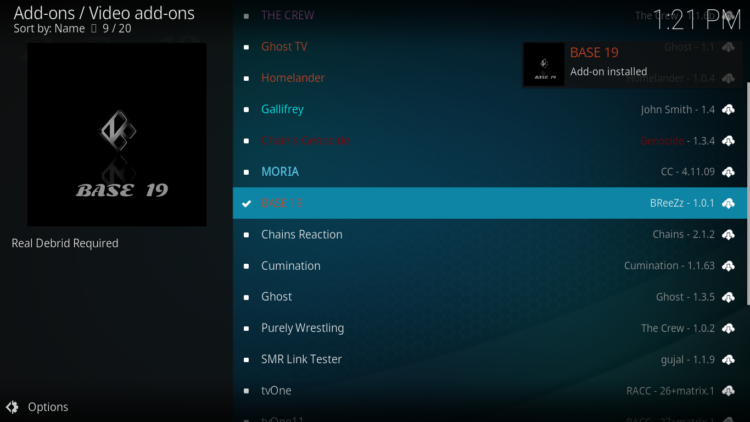
And that’s all for the installation of Base 19 Kodi addon
To access your newly installed addon, return to the Kodi home screen. In the main menu on the left, scroll down and find the Add-ons option, under the Video Add-ons category, you should find Base 19 addon
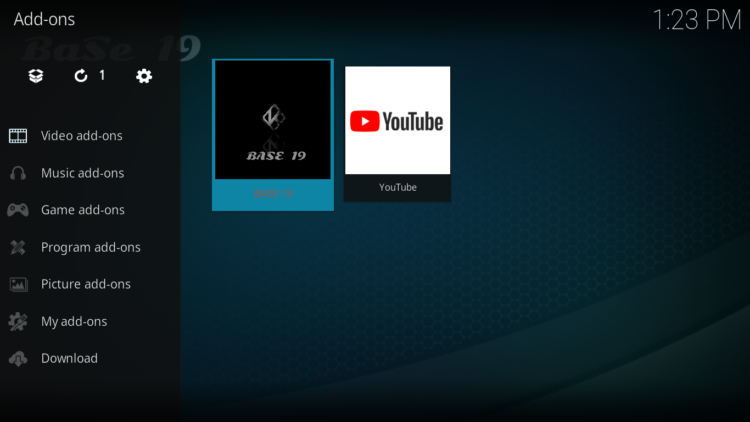
Configure Real-Debrid in Base 19 Kodi addon
Base 19 Kodi addon is a streaming addon for watching movies and TV series on Kodi that requires Debrid Links. This addon supports premium services such as Real-Debrid, All-Debrid, and Premiumize.
However, among all these services, Real-Debrid is the most recommended.
Real-Debrid is an online service that allows you to link your Kodi addon with your real-debrid account. The service is paid and offers unlimited access to multiple file hosts and can greatly improve the quality and quantity of available sources.
Before starting, make sure you have created a Real Debrid account, in case you don’t already have one. Then, start Base 19 addon
- In the main menu, click Settings.
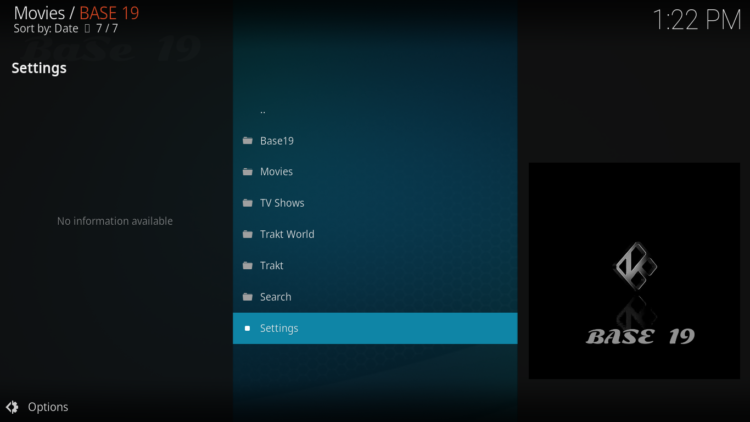
- Under the Debrid tab, make sure real-debrid service is enabled then press Re-Auth Real-Debrid
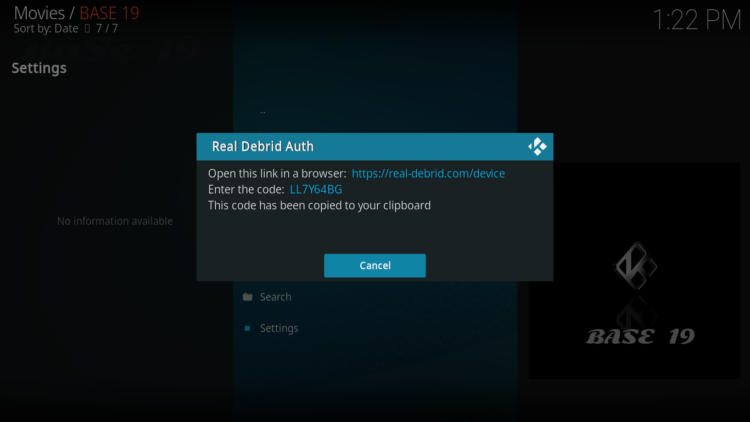
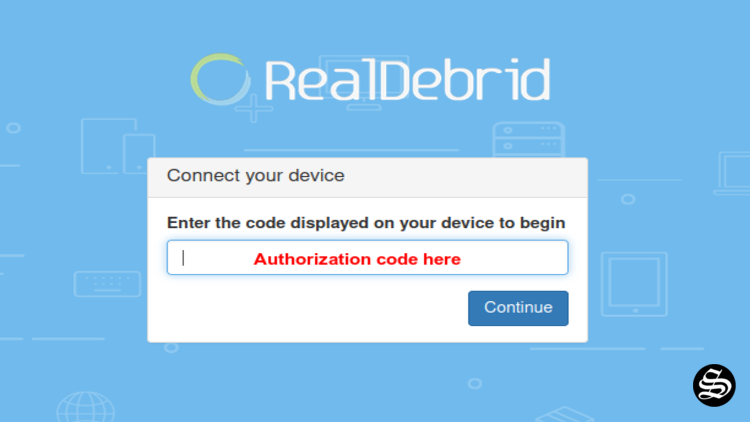
- Next, you will see a message showing an authorization code.
- You must enter the given code in your Real Debrid account to authorize Base 19 addon access. To do this, go to this URL, enter the code displayed on Kodi and click Continue.
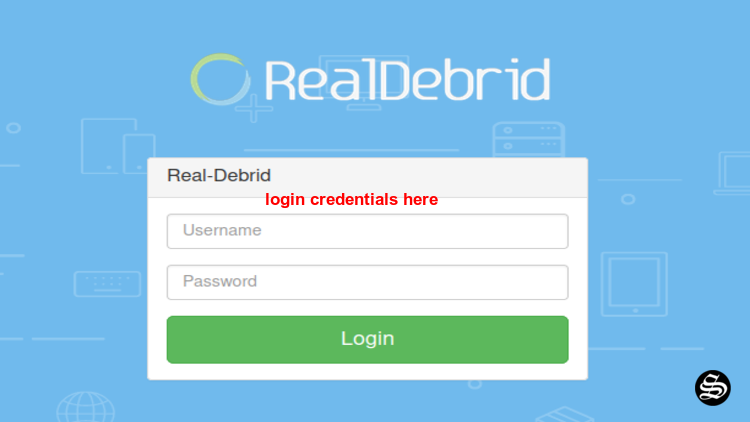
- In case you have not accessed your Real Debrid account, you will be asked to enter your access credentials.
- You may want to give a name to this new entry to easily identify it later
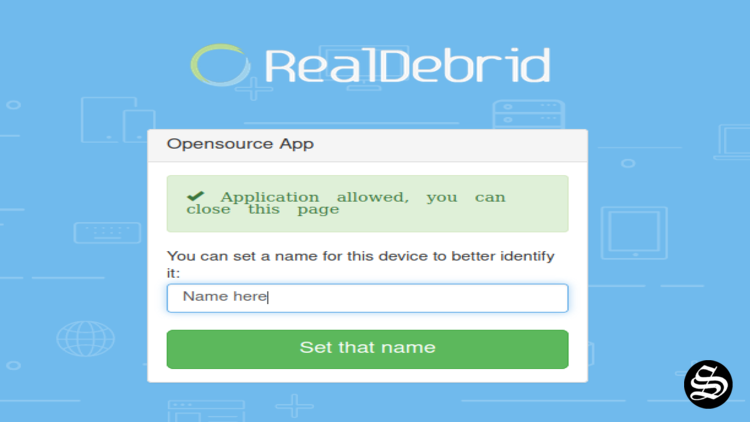
- If everything goes well, you will see a confirmation message on Kodi indicating that the authentication in Real Debrid was successful.
And with this, you will have already configured Real Debrid in Base 19 Kodi addon.
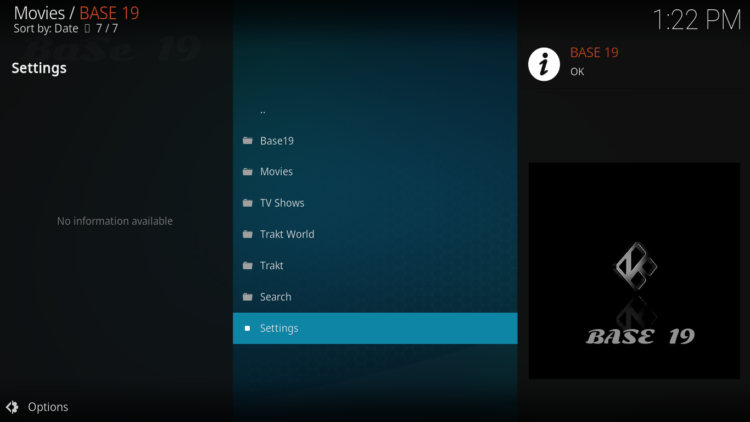
This was all about installing et setting up Base 19 addon on Kodi. However, don’t forget to use a VPN before streaming anything on kodi to protect your online streaming activities and avoid copyright infringement issues.
With a good VPN you will prevent yourself from malware. It masks your original IP and assigns you a new one to maintain anonymity while streaming. Our best recommendations are :