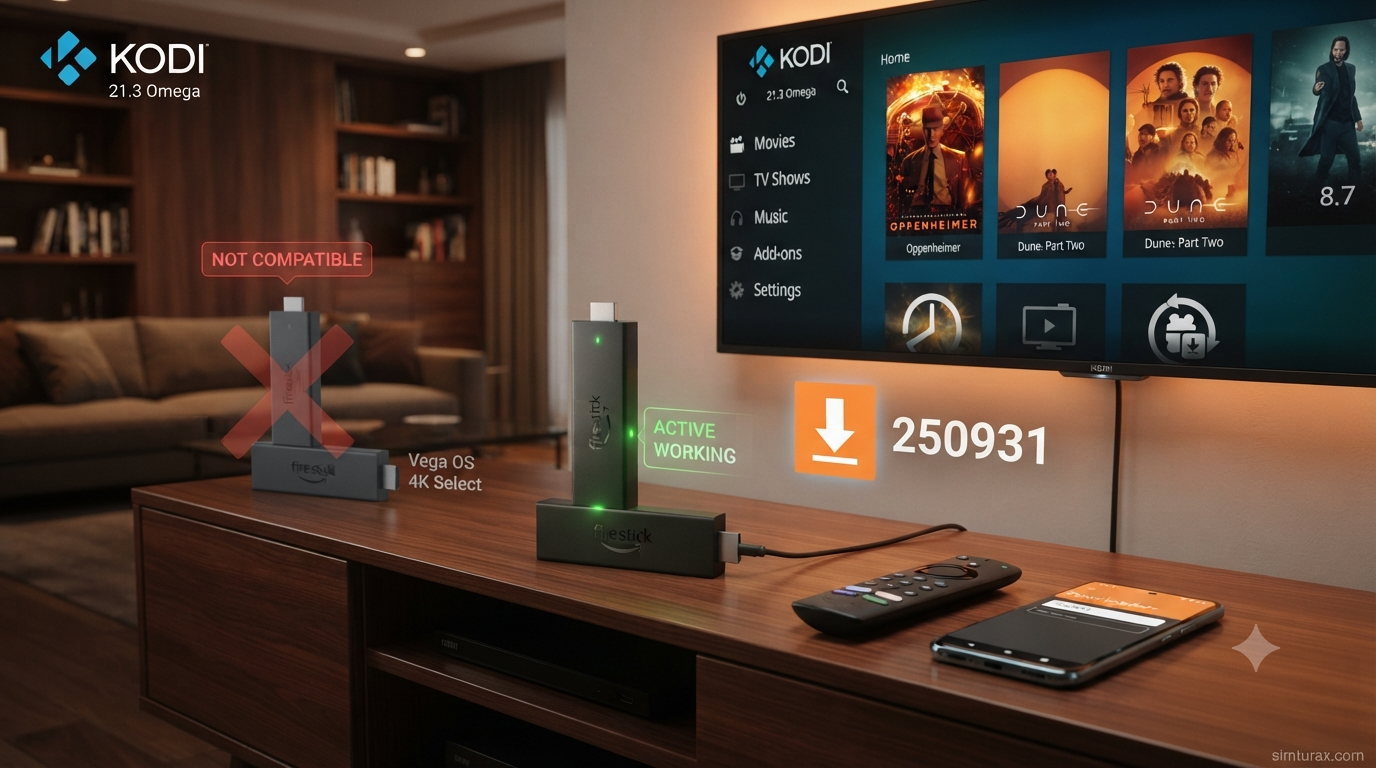
⚠️ STATUS DISCLAIMER
Current Kodi Status: 🟢 WORKING (on compatible devices)
Last Verified: August 3, 2026
🚨 CRITICAL — READ BEFORE PROCEEDING:
Amazon has begun shipping new Fire TV Stick models with Vega OS, a proprietary Linux-based operating system that does not support Android APK files and completely blocks sideloading.
Vega OS devices CANNOT install Kodi. These include:
- ❌ Fire TV Stick 4K Select (released October 2025)
- ❌ Fire TV Stick HD (released April 2026)
✅ CONFIRMED WORKING DEVICES (Fire OS):
- ✅ Fire TV Stick 4K Max — the only current-gen Fire TV that runs Kodi
- ✅ Fire TV Stick 4K (previous generation)
- ✅ Fire TV Stick Lite
- ✅ Fire TV Stick (standard)
- ✅ Fire TV Cube
How to check your device: Go to
Settings>My Fire TV>About. If the version number starts with “1” and says “OS”, you have Vega OS and cannot install Kodi. If you see Fire OS 7 or 8, you’re good to go.If your device is incompatible, consider these alternatives: Plex, Emby, Jellyfin, or stick with Fire OS devices like the 4K Max.
What Is Kodi?
Kodi is a free, open-source media center that transforms your Firestick into a powerful entertainment hub. Originally known as Xbox Media Center (XBMC), it has evolved into one of the most versatile media players available.
What Kodi can do:
- 🎬 Play virtually any video, audio, and image format
- 📺 Stream movies, TV shows, live TV, sports, and anime
- 🎨 Customize with skins, themes, and widgets
- 📱 Works across Android, Windows, Linux, iOS, macOS, and more
- 🔌 Extend functionality with hundreds of add-ons and builds
Kodi itself is 100% legal. It’s listed on Google Play and the Microsoft Store. Legal concerns only arise depending on which third-party add-ons you choose to install.
📋 “No-Click” Quick-Reference Cheatsheet
For experienced users — skip the reading and install now.
| Item | Details |
|---|---|
| Fire OS Compatibility Check | Settings > My Fire TV > About — look for Fire OS 7/8 (NOT Vega OS) |
| Downloader App | Install from Amazon Appstore via Find > Search |
| Downloader Code | 250931 (quickest method) |
| Direct URL | kodi.tv/download/android |
| Recommended Version | ARMV7A (32BIT) — works on most Fire TV devices |
| Current Stable Version | Kodi 21.3 Omega (released December 14, 2025) |
| APK File Size | ~65 MB |
| Storage Requirement | Minimum 1 GB free space recommended |
🟢 Kodi Status Report & Testing Log
| Metric | Status |
|---|---|
| Current Stable Version | 21.3 Omega (December 14, 2025) |
| Beta Version | 22.0 “Piers” Beta 1 available (June 2026) |
| Recommended Version for Firestick | ARMV7A (32BIT) |
| Stream Quality | Up to 4K (device and content dependent) |
| Tested Hardware | Fire TV Stick 4K Max, Fire TV Stick 4K, Fire TV Stick Lite, Fire TV Cube |
| Fire OS Compatibility | Fire OS 7 and 8 only |
| Vega OS Compatibility | ❌ NOT COMPATIBLE |
| VPN Requirement | ⚠️ Recommended — hides streaming activity from ISP |
| VirusTotal Scan | ✅ Clean — all 65+ security vendors mark it safe |
🔧 Prerequisite: Enable “Unknown Sources”
Before installing Kodi, you must allow your Fire TV device to install apps from outside the Amazon Appstore.
⚠️ IMPORTANT: If you don’t see “Developer Options” in your settings menu, you may have a Vega OS device that cannot sideload Kodi.
Step-by-Step Instructions:
- From the Firestick home screen, navigate to
Settings(gear icon). - Select
My Fire TV(orDevice & Softwareon some versions). - Click
About. - Quickly click on
Fire TV Stick7 times until you see “No need, you are already a developer“. - Press the back button. You will now see
Developer Optionsin the menu. - Click
Developer Options. - Select
Install Unknown Apps(orApps from Unknown Sourceson older Fire OS versions). - Find the
Downloaderapp in the list and turn it ON.
Note: On older Fire OS versions, this may appear as a single toggle for “Apps from Unknown Sources” rather than per-app permissions.
📥 Installation Tutorial: Kodi on Firestick & Fire TV
Part 1: Install the Downloader App
The Downloader app is the essential tool for sideloading Kodi.
- From the Firestick home screen, go to
Find(magnifying glass icon) →Search. - Type
Downloaderand search. - Select the Downloader app (orange icon) by AFTVnews.
- Click
GetorDownloadand wait for installation. - Click
Opento launch Downloader.
Part 2: Download the Kodi APK
You have two options for downloading the official Kodi APK:
Option A — Using SIMTURAX APP-CENTER:
- In the Downloader app, click the URL/search bar at the top.
- Enter the URL: https://simturax.com/app-center/ and click
Go. - This opens the APP-CENTER home screen.
- Scroll down to find Kodi 21.3 Omega and click
Download. - Select the 32BIT version for most devices.
Option B — Using Direct URL:
- In the Downloader app, enter the URL:
kodi.tv/download/androidand clickGo. - Select the
Androidicon. - Choose
ARMV7A (32BIT)— this works on most Fire TV devices.- Note: Some newer devices like Fire TV Stick 4K Max may support the 64-bit (ARMV8A) version, but the 32-bit version is the safest choice for universal compatibility.


Part 3: Install Kodi
- Wait for the APK to finish downloading.
- Tap
Installwhen prompted. - Wait for installation to complete.
- Tap
Opento launch Kodi immediately, orDoneto finish.
Part 4: Cleanup Phase (Crucial!)
Deleting the APK file frees up valuable storage space on your device.
- After installation, click
Deleteto remove the APK file. - Tap
Deleteagain to confirm.
Part 5: First Launch
- When Kodi opens for the first time, click
Continue. - When prompted for storage permissions, click
Allow. - Wait for Kodi to complete its first-time setup.
Finding Kodi Later: Sideloaded apps don’t always appear in the main row immediately. Go to Your Apps & Games or Applications to find Kodi. You can move it to the top row by highlighting it, pressing the menu button (three lines) on your remote, and selecting Move.
🎮 Post-Installation UI/UX Walkthrough
Once Kodi is installed and launched, here’s what to expect:
- Home Screen: Clean, intuitive interface with categories for Movies, TV Shows, Music, and more.
- Settings: Accessible via the gear icon — where you’ll configure display, audio, and network settings.
- Add-ons: The heart of Kodi’s functionality. Access via the puzzle piece icon.
- System Information: Check your version by going to
Settings>System Information. - Skins & Customization: Change the look and feel via
Settings>Interface>Skin.
Recommended First-Time Settings:
- Set Time Zone:
Settings>System>Time— ensure your local time zone is correct. - Adjust Display Resolution:
Settings>System>Display— match your TV’s capabilities (1080p or 4K). - Refresh Rate: Enable “Adjust refresh rate on start/stop” for smoother playback.
- Audio:
Settings>System>Audio— configure speaker setup and enable passthrough if you have external audio equipment.
🧰 Troubleshooting: Common Kodi Errors
❌ “App Not Installed” Error
Possible causes: Insufficient storage, corrupted APK, or incompatible version.
Solutions:
• Free up storage: Settings > My Fire TV > About > Storage — uninstall unused apps.
• Re-download the APK from a trusted source.
• Ensure you’re downloading the ARMV7A (32BIT) version.
• Restart your Firestick and try again.
📶 Buffering or Lag During Playback
Possible causes: Weak Wi-Fi connection, ISP throttling, or insufficient Kodi cache.
Solutions:
• Connect to 5 GHz Wi-Fi if available.
• Move closer to your router.
• Use a VPN to prevent ISP throttling.
• Adjust Kodi’s advanced cache settings.
• Stop background downloads and close unused apps.
🔄 App Crashes on Launch
Possible causes: Corrupted cache, incompatible add-ons, or system issues.
Solutions:
• Clear cache: Settings > Applications > Manage Installed Applications > Kodi > Clear Cache.
• If clearing cache doesn’t work, try Clear Data (this will reset Kodi to factory settings).
• Uninstall and reinstall Kodi.
📺 “Kodi Not Working” — Vega OS Incompatibility
Possible causes: Your device runs Vega OS, which does not support Android APKs.
Solutions:
• Check your OS: Settings > My Fire TV > About — if the version starts with “1” and says “OS”, you have Vega OS.
• Unfortunately, there is no workaround — Vega OS devices cannot run Kodi.
• Consider purchasing a Fire TV Stick 4K Max, which still runs Fire OS.
⬆️ How to Update Kodi
Kodi does not update automatically on Fire TV devices. To update:
1. Open Downloader.
2. Enter the TROYPOINT Toolbox code 250931 or go to kodi.tv/download/android.
3. Download the latest version (currently 21.3 Omega).
4. Install the new version — your existing data will not be lost.
5. Relaunch Kodi.
🔍 Can’t Find Kodi After Installation
Sideloaded apps don’t always appear in the main row.
Solutions:
• Go to Your Apps & Games or Applications.
• Highlight Kodi, press the menu button (three lines) on your remote.
• Select Move and move it to the top row.
❓ Frequently Asked Questions (FAQ)
Is Kodi legal?
Yes, Kodi itself is completely legal. It’s an open-source media player available on official app stores. Legal concerns only arise depending on which third-party add-ons you install and what content you access through them.
Is Kodi safe?
The official Kodi APK is safe — VirusTotal scans show all 65+ security vendors mark it clean. However, third-party add-ons from unverified sources may pose security risks. Only install add-ons from trusted repositories.
Do I need a VPN for Kodi?
A VPN is strongly recommended. It hides your IP address, prevents ISP throttling, and protects your privacy while streaming. This is especially important if you use third-party add-ons.
Why can’t I find Kodi in the Amazon Appstore?
Kodi is not available in the Amazon Appstore. It must be sideloaded using the Downloader app or similar tools.
What’s the difference between 32-bit and 64-bit Kodi?
• ARMV7A (32BIT) — works on all Fire TV devices. This is the recommended version.
• ARMV8A (64BIT) — works on some newer devices like Fire TV Stick 4K Max, but may cause installation issues. Stick with 32-bit for guaranteed compatibility.
Can I install Kodi on a Vega OS Firestick?
No. Vega OS devices (Fire TV Stick 4K Select, Fire TV Stick HD) cannot install Kodi. The operating system doesn’t recognize Android APK files.
Which Firestick should I buy for Kodi in 2026?
The Fire TV Stick 4K Max is the only current-gen Fire TV that supports Kodi. It runs Fire OS, supports Dolby Vision, Dolby Atmos, Wi-Fi 6E, and has 16GB storage.
How do I check if my Firestick runs Fire OS or Vega OS?
Go to Settings > My Fire TV > About. If the version number starts with “1” and says “OS”, you have Vega OS. If you see Fire OS 7 or 8, you have a compatible device.
✅ Conclusion
Installing Kodi on a Firestick or Fire TV is a straightforward process that takes just a few minutes — provided you have a compatible device.
Key takeaways:
- ✅ Check your device — Vega OS devices (4K Select, HD) cannot install Kodi. Only Fire OS devices work.
- 🔓 Enable Unknown Sources in Developer Options before starting.
- 📥 Install Downloader from the Amazon Appstore.
- 🔢 Use code
250931for the TROYPOINT Toolbox, or go tokodi.tv/download/android. - 📦 Download ARMV7A (32BIT) — the most compatible version.
- 🗑️ Delete the APK after installation to free up storage.
- 🔒 Use a VPN to protect your privacy while streaming.
For 2026 buyers: The Fire TV Stick 4K Max ($59.99) is the only current-gen Fire TV that runs Kodi. If you already own a Vega OS device, unfortunately, there’s no workaround — Kodi simply won’t run.
Enjoy your new media center!