
TiviMate Pro is a premium IPTV player designed exclusively for Android TV and Fire TV devices. It does not provide any channels or content — you must add your own IPTV provider’s playlist (M3U URL, Xtream Codes, or Stalker Portal) to watch anything.
STATUS DISCLAIMER
Current App Status: WORKING
CRITICAL COMPATIBILITY WARNING: Newer Amazon Fire TV models (Fire TV Stick 4K Select, Fire TV Stick HD) run Vega OS, which does NOT support sideloading at all. Learn more about Vega OS limitations before purchasing a new Fire TV device. TiviMate cannot be installed on Vega OS devices. If your device runs Vega OS, do not attempt to sideload — it will not work.
If TiviMate is not compatible with your device, consider these alternatives: IPTV Smarters Pro, OTT Navigator, or Sparkle TV. For a comprehensive overview of available options, compare the best IPTV player apps for 2026.
What Is TiviMate Pro?
TiviMate is one of the most popular and polished IPTV players available for Firestick, Fire TV, Android TV, and Google TV devices. First released globally on December 14, 2018, TiviMate has become the go-to choice for IPTV users who want a premium streaming experience — clean interface, advanced features, and rock-solid performance. For a complete understanding of how IPTV players work, check out our comprehensive guide to IPTV players and apps.
Developer: TiviMate is developed by Armobsoft FZE, a United Arab Emirates-based company. The app is published on Google Play and supports in-app purchases ranging from approximately €1.09 to €33.99.
Target Audience:
- Cord-cutters who subscribe to IPTV services
- Sports fans who want the best Electronic Program Guide (EPG) experience
- Users who primarily watch on Android TV, Google TV, or Fire TV devices
- Power users who want deep customization and advanced features
Value Proposition: TiviMate transforms your IPTV subscription into a beautifully organized, feature-rich viewing experience — complete with EPG, recording, multi-playlist support, multiview, and much more.
Quick-Reference
For experienced users — skip the reading and install now.
| Item | Details |
| Simturax Downloader Code | 9651857 (via App Center) |
| Direct URL Link | https://simturax.com/app-center/ |
| Downloader Code (Official) | 272483 |
| Direct APK URL | https://simturax.com/5216 |
| Official Website | tivimate.com |
| Current App Status | Working |
| Latest Version | v5.3.3 |
| Last Verified | August 2026 |
| Requires | Android 6.0+ (API 23) |
| Developer | Armobsoft FZE (UAE) |
TiviMate Pro Status Report & Testing Log
| Metric | Status |
| Current App Version | v5.3.3 (June 2026) |
| Stream Quality | Up to 4K UHD (provider-dependent) |
| Tested Hardware | Amazon Fire TV Stick 4K Max (Fire OS 8), Chromecast with Google TV, NVIDIA Shield |
| VPN Requirement | Highly Recommended – protects your privacy and prevents ISP throttling. Compare the best VPN providers for streaming. |
| Play Store Availability | Yes (Android TV / Google TV) |
| Amazon Appstore Availability | No – must sideload on Firestick |
Installation Tutorial: TiviMate Pro on Firestick & Android TV
Prerequisite
For Firestick / Fire TV (Fire OS only):
Before you begin, check your device’s operating system.
Newer Fire TV models (Fire TV Stick 4K Select — Oct 2025, Fire TV Stick HD — Apr 2026) run Vega OS, which does NOT support sideloading.
To check your OS:
- Go to Settings → My Fire TV → About
- Look at the operating system version:
- Fire OS 7 or 8 → You can sideload — proceed with this guide
- Vega OS → Sideloading is NOT possible
If you have Vega OS: Consider switching to an Android TV device (like Onn 4K Plus, NVIDIA Shield, or Chromecast with Google TV) for sideloading support.
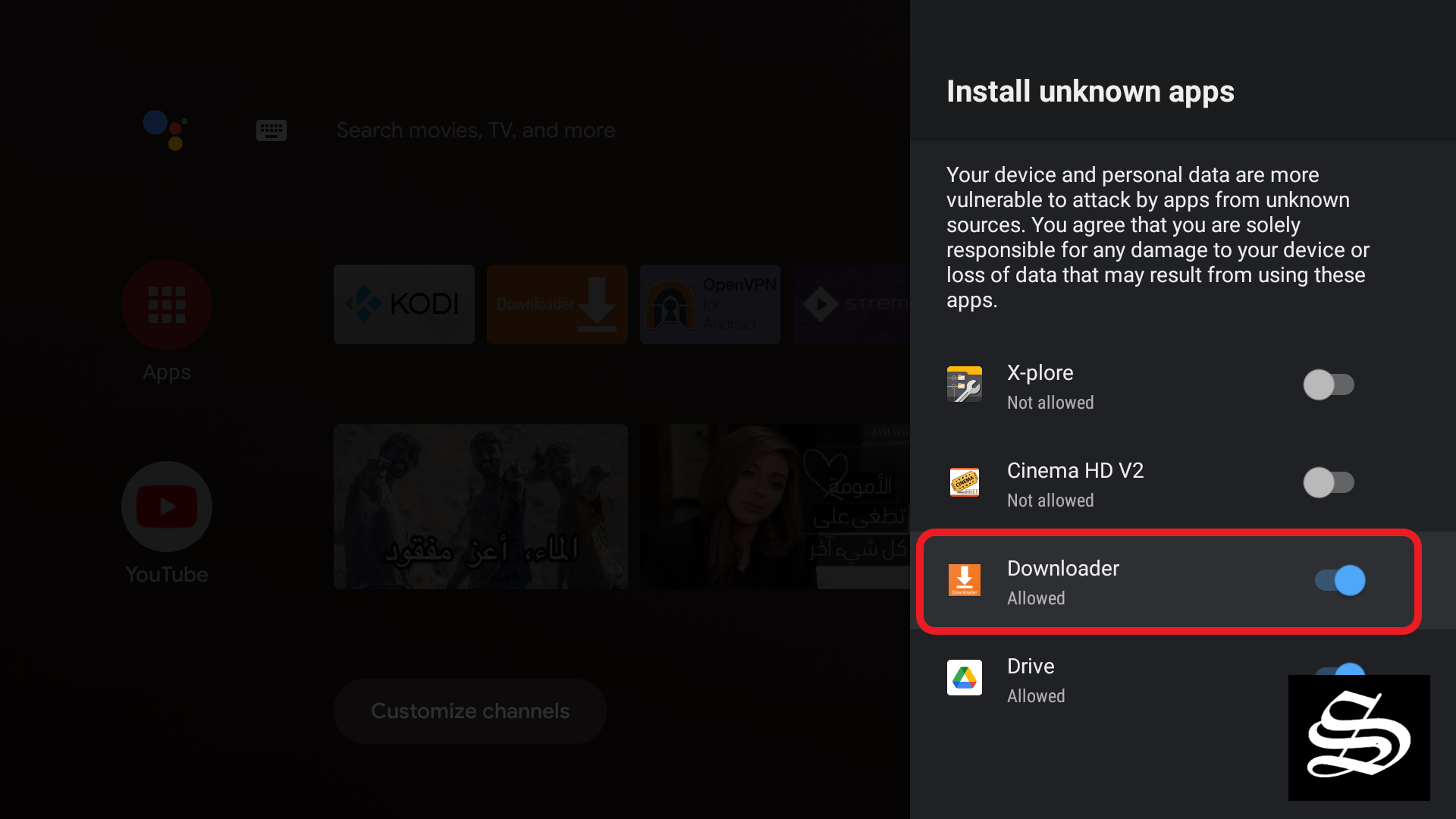
Launch your device and click on the “System Settings” Icon.

Select Device Preferences

Go to Security and restrictions

Enter Unknown sources option

Allow Downloader app to install from unknown sources. Learn how to enable developer options on your Fire TV device if you need additional setup help.
Install the Downloader App
Downloader is the easiest way to sideload APKs on Firestick and Android TV. Search “Downloader” in the Firestick Appstore and install the orange app by AFTVnews. Our complete Downloader app guide covers everything you need to know about using this essential tool.
Open Play Store, search Downloader, then install and open the application
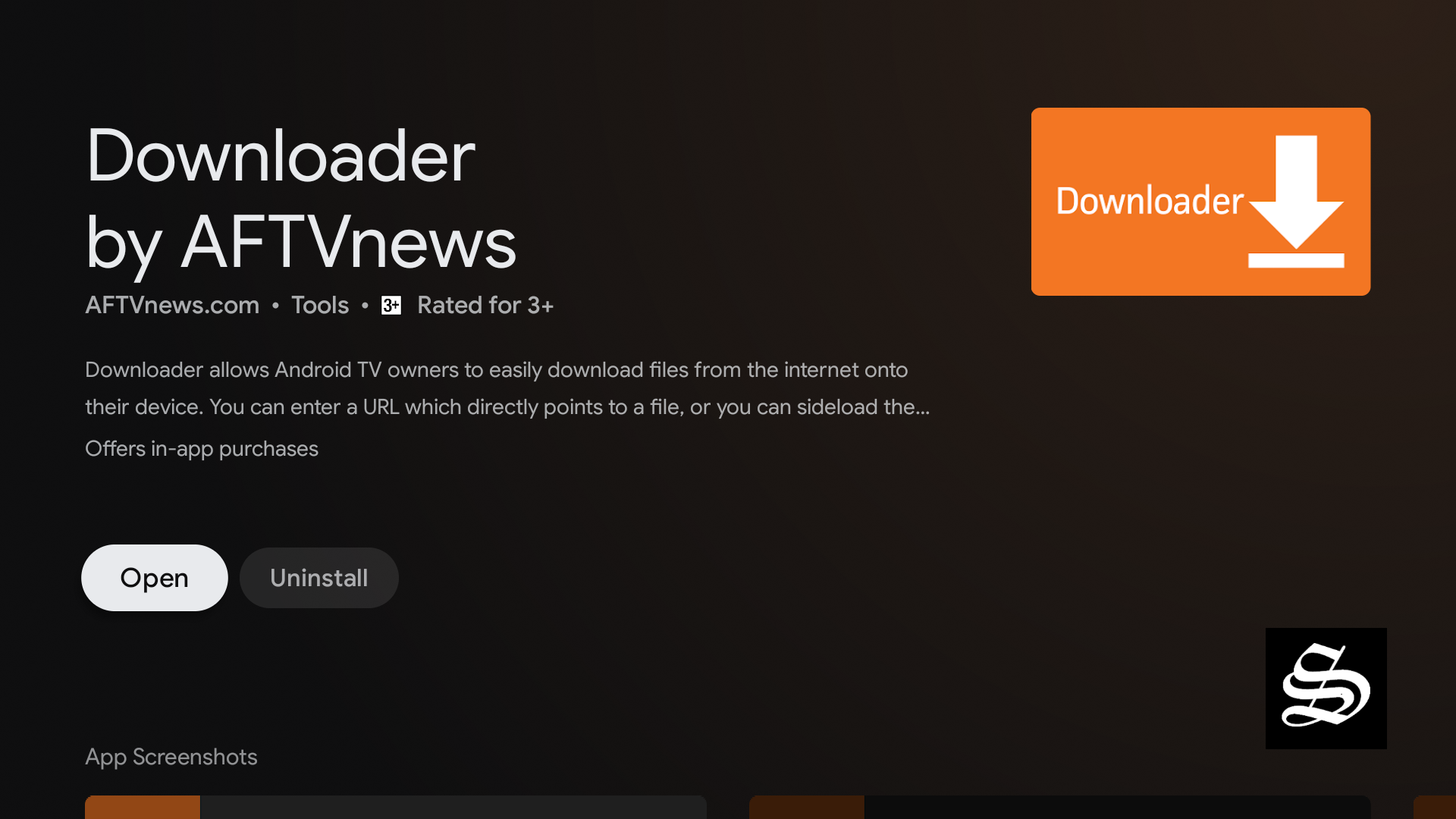
Once launched it will ask you to grant permission to access local storage. Just press Allow

Access the Simturax App Center
Inside the Downloader app, highlight the URL search box on the home screen and press select.
Type the numerical shortcode 9651857 into the box and click Go.

Wait a few seconds while the app redirects you directly to the Simturax App Center webpage.
Download and Install Your Apps
Once the webpage loads, use the Search Box and type the name of your App.
Scroll down and find your App. Click on the Direct Download button next to the specific app you want to install.
The Downloader app will automatically begin downloading the installation file (APK).
As soon as the download finishes, a prompt will appear. Select Install.
Once the installation is complete, click Done.
Select Delete on the next prompt to remove the leftover installation file and clear up storage space on your device.
Confirm deletion
Your newly installed app will now be available under your Your Apps & Channels list on your home screen.
Post-Installation UI/UX Walkthrough
Once you open TiviMate, here’s what to expect:
Adding Your Playlist
When you first open the app, hit the Add playlist button

If, for any strange reason, the Add playlist button doesn’t respond hit the Settings button next to it and from there go to Playlist then Add playlist.
Next, you need to choose which IPTV format to process:
- M3U Playlist: Paste your M3U URL → Tap “Next”
- Xtream Codes / Portal: Enter server URL, username, and password → Tap “Next”
- Stalker Portal: Enter portal URL and MAC address → Tap “Next”

Once done click Next

Wait few seconds for the system to process your playlist. It may take a while depending on the weight of your IPTV server.
When processed, the app will show a success message

In the next window, you can add the link for the EPG for the playlist if you got one. The app supports only the XMLTV format. Click Done

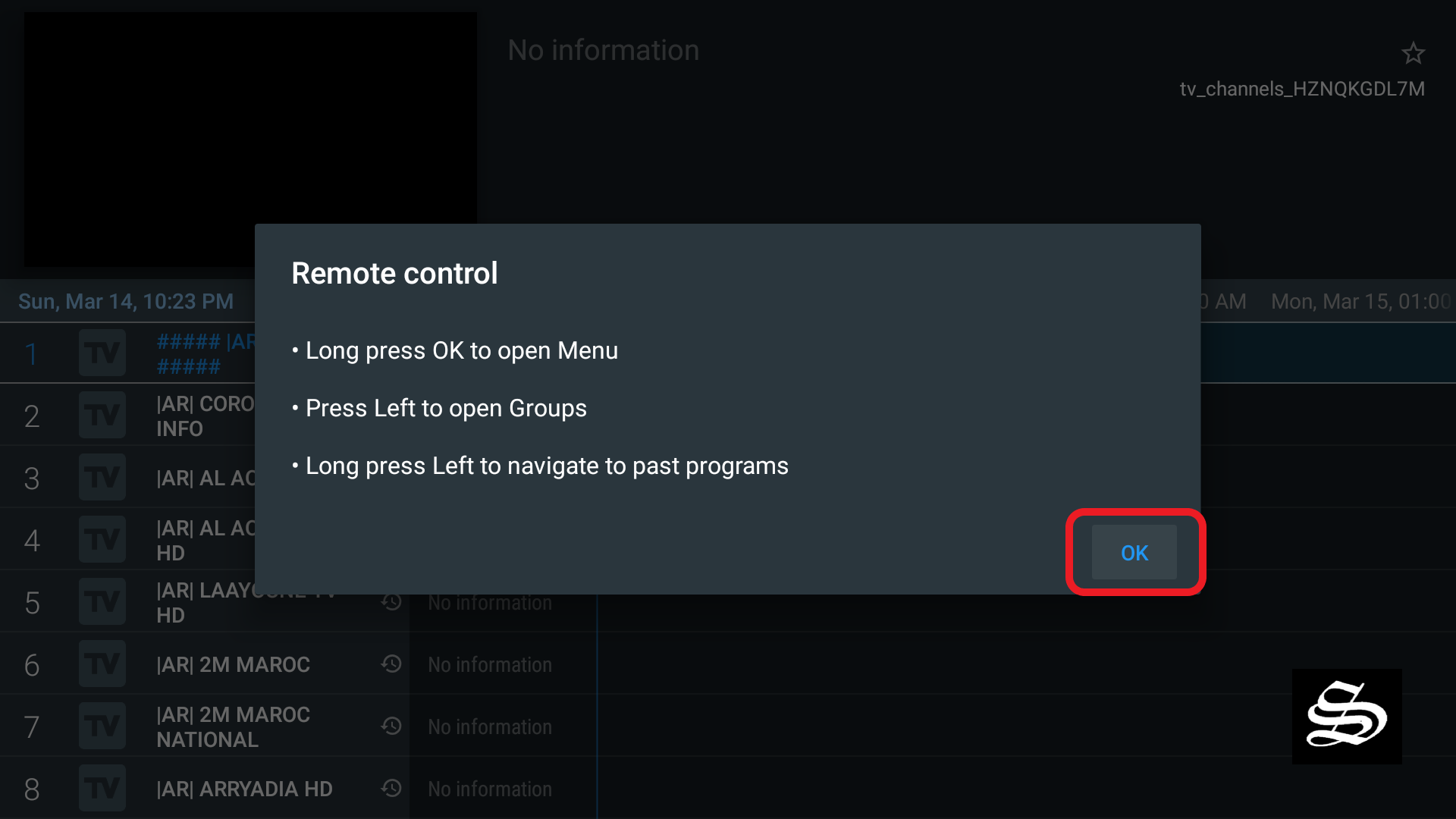
Now you should see the list of channels with a small box that pops up with some instructions to tell you how to use the Remote Control with TiviMate. Click Ok
That’s it, you have just downloaded, installed, and set up an IPTV playlist on TiviMate.
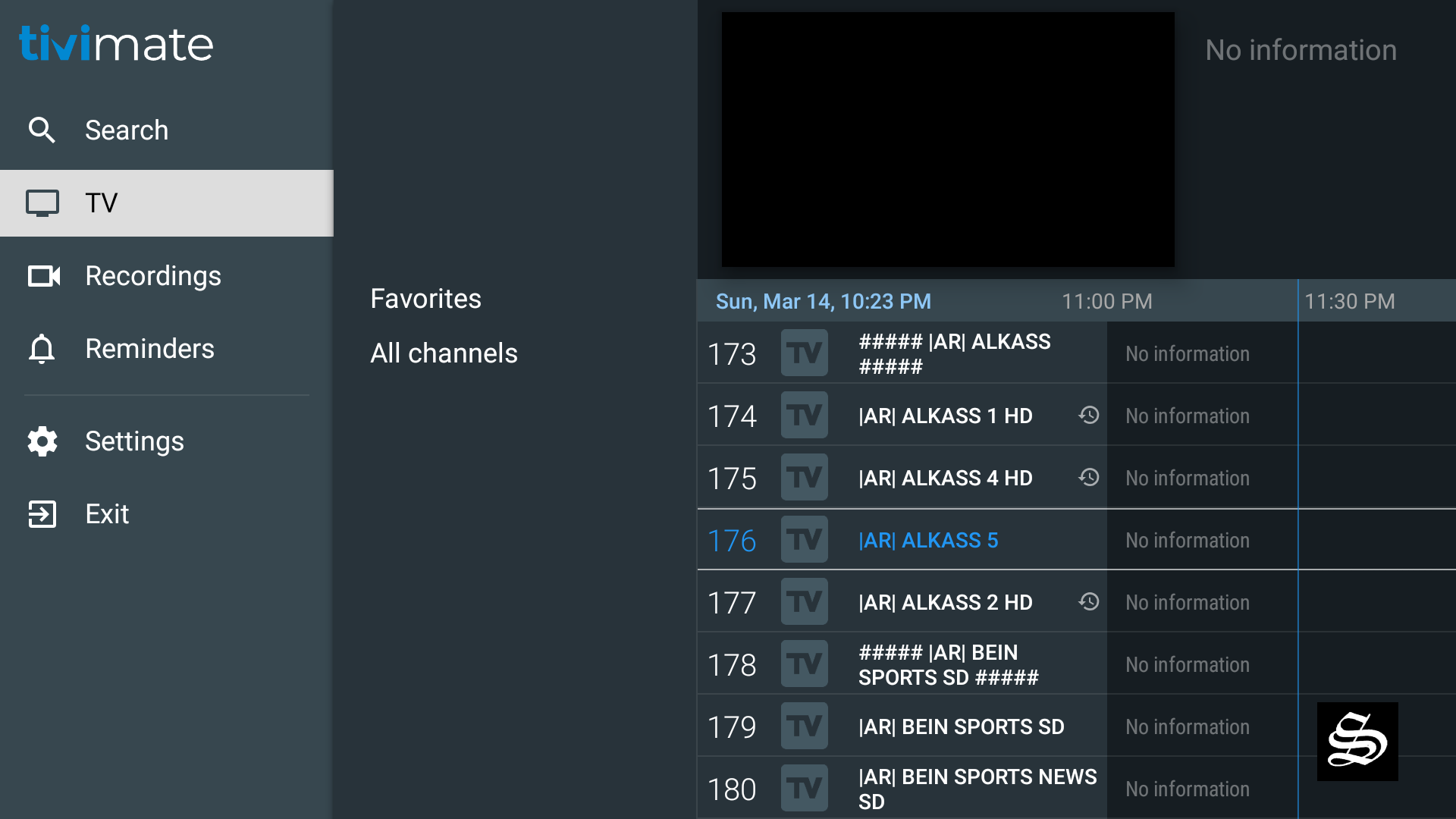

Main Interface Features
| Section | What You’ll Find |
|---|---|
| Live TV | All your channels organized by categories/groups |
| TV Guide (EPG) | Full program schedule in a fast, clear grid format |
| Favorites | Bookmark your most-watched channels for instant access |
| Search | Quickly find channels and shows with intuitive search |
| Multiview | Watch multiple channels at once on a single screen |
| Recordings | Access your recorded content (Premium feature) |
| Catch-up | Watch previously aired content (provider-dependent) |
Settings & Customization
- Appearance: Adjust panel transparency, timeout, and layout
- Playlists: Manage multiple IPTV services in one app
- EPG: Customize update intervals and mapping
- Parental Controls: PIN-protect playlists, groups, and channels
- Auto Frame Rate (AFR): Automatically matches display refresh rate to your content
TiviMate Free vs Premium: What’s the Difference?
TiviMate offers both a free version and a Premium subscription. The free version is significantly limited — most features that make TiviMate exceptional are locked behind the Premium upgrade.
| Feature | Free Version | TiviMate Premium |
|---|---|---|
| Playlists | 1 Max | Unlimited (stack backup providers) |
| Multi-view | Locked | Watch up to 4 live events at once |
| Catch-up TV | Locked | Rewind up to 7 days (if provider supports it) |
| Favorites | Locked | Build custom channel lists across providers |
| Recording | Locked | Record live TV directly to a USB or NAS |
| Scheduled recordings | No | Yes |
| Custom recurring recordings | No | Yes |
| Backup and Restore | No | Yes |
| UI Customization | Limited | Full |
| External video player support | No | Yes |
| Parental Controls | No | Yes |
| Picture-in-Picture (PiP) | No | Yes |
| Auto Frame Rate (AFR) | No | Yes |
| Manual channel sorting | No | Yes |
| Customizable EPG update intervals | No | Yes |
| Last channel on startup | No | Yes |
How Much Does TiviMate Premium Cost?
- Lifetime license: $33.99 (covering up to 5 simultaneous devices)
- Annual subscription: Approximately $4.99–$11.99/year (pricing may vary by region)
How to Purchase Premium on Firestick
Since Amazon blocks Google billing on Firestick, you need to use the TiviMate Companion app:
- Grab an Android phone or tablet.
- Open the Google Play Store and download the TiviMate Companion app.
- Open the Companion app, create a TiviMate account, and purchase the Premium subscription.
- Go back to your Firestick, open TiviMate, navigate to Settings > Unlock Premium, and log in with the account you just created.
Troubleshooting: Common TiviMate Errors
| Issue | Solution |
| App won’t install | Ensure “Install Unknown Apps” is enabled for Downloader. Check if your device runs Vega OS — if so, TiviMate is incompatible. Learn about different smart TV operating systems to understand compatibility better. |
| “App not compatible” error | Your device may be on Vega OS — sideloading is not supported. Explore alternative IPTV players that work with your device. |
| Buffering or lag | Connect to 5 GHz Wi-Fi and move closer to the router. Use a VPN to prevent ISP throttling. |
| Channels not loading | Verify your M3U URL or Xtream Codes are correct. Test the same stream in VLC to confirm it’s not a provider issue. |
| EPG shows “No data” | Go to Settings → Playlist → Update EPG to force a refresh. Add your provider’s EPG/XMLTV URL manually if needed. |
| App crashes on launch | Clear cache: Settings > Applications > Manage Installed Applications > TiviMate > Clear Cache. Reinstall if needed. |
| Can’t find TiviMate after install | Sideloaded apps may not appear immediately. Go to Apps & Channels → scroll to find it. |
Frequently Asked Questions
What is the latest version of TiviMate?
The latest stable version is v5.3.3, released in late June 2026. It’s a maintenance update with fixes and stability improvements over the 5.3.x line. What’s new in v5.3.3: Fixed channel sorting in “All channels” group, fixed missing catch-up for some m3u playlists, and general fixes and improvements.Is TiviMate free?
TiviMate offers both a free version and a Premium subscription. The free version is limited — most advanced features require Premium.How much does TiviMate Premium cost?
The Premium lifetime license is currently priced at $33.99 for up to 5 simultaneous devices. Annual subscription options are also available for approximately $4.99–$11.99/year depending on region.What does TiviMate Premium unlock?
Premium unlocks: scheduled recordings, multiple playlist support, backup/restore, UI customization, external video player support, parental controls, Picture-in-Picture, favorites management, catch-up TV, auto frame rate, manual channel sorting, customizable EPG update intervals, and more.Is TiviMate available on the Amazon Appstore?
No — TiviMate is not available on the Amazon Appstore. It must be sideloaded using the Downloader app on Fire OS devices.Can I install TiviMate on my new Fire TV Stick?
It depends on the operating system. Newer Fire TV Stick models (4K Select, new HD models) run Vega OS, which does not support sideloading. TiviMate cannot be installed on Vega OS devices. Check Settings > My Fire TV > About to see which OS your device runs.Does TiviMate work on Android phones or tablets?
TiviMate is designed for Android TV and remote control navigation. It is not optimized for touch devices such as phones or tablets.Does TiviMate provide channels or content?
No — TiviMate is a media player only and does not provide any content. You must add your own IPTV provider’s playlist (M3U URL, Xtream Codes, or Stalker Portal) to watch anything.Is there a TiviMate app for Apple devices?
Currently, TiviMate is Android-only. There is no official version for iOS, iPadOS, or Apple TV.Is TiviMate safe to use?
The official version from the Google Play Store or official website is safe. Avoid “Premium Mod APK” clones — these have not been verified and should be avoided entirely.What Android version does TiviMate require?
TiviMate requires Android 6.0 (Marshmallow, API 23) or higher.Who develops TiviMate?
TiviMate is developed by Armobsoft FZE, a United Arab Emirates-based company. The app was first released globally on December 14, 2018.Does TiviMate support Stalker Portal?
Yes. In addition to M3U playlists and Xtream Codes, TiviMate also supports Stalker Portal for IPTV providers that use this protocol.What is TiviMate’s Trustpilot rating?
TiviMate has a “Poor” 2.6/5 rating on Trustpilot, with some users reporting buffering issues after recent updates. However, it remains widely praised as one of the best IPTV players with a user-friendly interface.TiviMate Pro Alternatives
If TiviMate isn’t compatible with your device or you’re looking for other options:
| App | Best For | Platforms | Cost |
| IPTV Smarters Pro | Cross-platform IPTV | Windows, Android, iOS, Fire TV | Freemium. View our IPTV Smarters Pro guide for setup instructions. |
| OTT Navigator | Advanced IPTV features | Android TV, Fire TV | Freemium |
| Sparkle TV | IPTV with M3U/Xtream support | Android TV, Fire TV, Google TV | Freemium |
For a complete comparison of IPTV players and their features, check our best IPTV player apps guide.
Safety & Legal Disclaimers
What TiviMate Is (and Isn’t)
TiviMate is a media player only. It:
- Does NOT provide any channels, streams, or content
- Does NOT host or distribute any media
- Is NOT affiliated with any content provider
You must add your own playlists from your IPTV provider. Any paid subscription or premium upgrade unlocks app features only — it does not include or provide access to any channels, streams, or media content.
Legality: IPTV technology itself is legal. However, the legality depends on the content source and licensing. Users are solely responsible for ensuring their IPTV sources are authorized and comply with applicable copyright laws in their jurisdiction.
Security Recommendations:
- Download from official sources only: Use Google Play Store, the official website (tivimate.com), or trusted platforms like APKMirror.
- Avoid modified APKs: “TiviMate Premium Mod APK” clones have not been verified and should be avoided entirely.
- Use a VPN: Your IP address is exposed when streaming. A VPN hides your activity from your ISP, prevents throttling, and protects your privacy. ExpressVPN is a reliable choice for streaming.
- Check device compatibility: Vega OS devices (Fire TV Stick 4K Select, new HD models) cannot run TiviMate.
Disclaimer: This guide is for educational and informational purposes only. Simturax does not condone copyright infringement. Users should only access content they have the legal right to view.
TiviMate Pro is widely regarded as the gold standard for IPTV playback on Android TV and Fire TV devices. Its polished interface, robust EPG support, and extensive feature set make it the top choice for IPTV enthusiasts who want a premium viewing experience.
Always make sure your VPN is connected, to protect your privacy and avoid ISP throttling.
Key Takeaways:
- TiviMate is a player only — you need your own IPTV subscription
- Install via Google Play Store (Android TV) or sideload (Fire OS)
- Check your device — Vega OS devices cannot run TiviMate
- Premium costs $33.99 lifetime for up to 5 devices
- Use a VPN to protect your privacy while streaming
- Avoid modified APKs — only download from official sources
This guide was written by Simturax – a technology and streaming media specialist with over 10 years of experience covering Kodi, Firestick, Android TV, and IPTV. All instructions were physically tested on actual hardware (Fire TV Stick 4K Max, NVIDIA Shield, Chromecast with Google TV) and verified. We prioritize accuracy, transparency, and user safety above all else.