This guide will show you how to install Kidz Club Kodi addon and enjoy a wide range of videos that cater to different ages and interests, from live streams to movies to cartoons.
The process was performed on Kodi 20 Nexus, the latest version available to date, and should work on older versions like Kodi 19 Matrix.
These steps apply to all devices and platforms that support Kodi, including Android, Android TV, Fire TV, Linux, Windows, and more.
If you’re new to Kodi, this ultimate guide will help you get started and set up the media center correctly.
While not necessary, we recommend updating Kodi to the latest version. Updates fix problems and make improvements.
If you are looking for a safe and legal way to stream kid-friendly content on Kodi, you might want to check out Kidz Club Kodi addon. This addon is a great option for parents and kids who want to enjoy cartoons, movies, TV shows, educational videos, and more.
What is Kidz Club Kodi Addon?
Kidz Club Kodi addon is a video addon that streams kids’ content from YouTube. It is not an official Kodi addon, but it is safe and legal to use. The addon does not host any content itself but only scrapes links from YouTube.
This addon is a collection of YouTube videos that are organized into different categories for easy browsing. You can find kids’ live streams, comedy shows, movies, documentaries, family shows, heroes for kids, music videos, shows for toddlers, animation movies and shorts, cartoons for kids, and western movies and shows. All these videos are suitable for children of different ages and interests and are categorized into different sections for easy navigation.
How Does Kidz Club Kodi Addon Work?
Kidz Club Kodi addon works by using a scraper to find links to kid-friendly content from various sources. When you select a category or a title from the addon’s menu, it will display a list of links that you can choose from. Depending on the source, you may need to sign up for a free account or install another addon to access the content. For example, if you want to watch Pluto TV or Tubi TV content, you will need to install their respective addons from the official Kodi repository.
Content Sections

Kidz Club Kodi addon has a simple and easy-to-navigate menu that offers various content sections for kids of different ages and interests. Some of the sections include:
- Kids Documentaries: This section features documentaries for kids that cover various topics, such as animals, nature, science, history, culture, art, and more. You can learn new facts and explore the world with these informative videos.
- Family Movies and Shows: This section features movies and shows that are suitable for the whole family to watch together. You can find titles like The Incredibles, Home Alone, The Simpsons, The Muppets, and more.
- Heroes For Kids: This section features movies and shows that feature heroes for kids, such as superheroes, action stars, warriors, spies, and more. You can watch titles like Avengers, Star Wars, Ninja Turtles, James Bond, and more.
- Kids Music Videos: This section features music videos for kids that feature popular songs, artists, and genres. You can watch titles like Baby Shark, Frozen 2, Moana, Taylor Swift, and more.
- Shows For Toddlers: This section features shows for toddlers that are educational and entertaining. You can watch titles like Peppa Pig, Paw Patrol, Sesame Street, Dora the Explorer, and more.
- Animation Movies and Shorts: This section features animation movies and shorts for kids that are creative and fun.
- Cartoons For Kids: This section features cartoons for kids that are classic and modern. You can watch titles like Tom and Jerry, Scooby-Doo, Looney Tunes, Ben 10, and more.
- Western Movies and Shows: This section features western movies and shows for kids that are adventurous and thrilling. You can watch titles like The Lone Ranger, Bonanza, The Magnificent Seven, and more.
Is Kidz Club Kodi Addon Safe and Legal?
Kidz Club Kodi addon is safe and legal to use, as it does not host any content itself, but only scrapes links from YouTube. YouTube is a legal platform that has its own policies and regulations for uploading and streaming content.
However, some of the content on YouTube may be subject to copyright infringement or geo-restrictions, depending on your location and the source of the video. Therefore, it is always advisable to use a VPN when streaming content online, especially from third-party addons.
A VPN is a virtual private network that encrypts your internet traffic and hides your IP address and location from prying eyes. This way, you can protect your privacy and security online, as well as bypass any geo-restrictions or censorship that may prevent you from accessing certain content.
A VPN also helps you avoid ISP throttling, which is when your internet service provider slows down your connection speed when you stream high-quality videos.
How to Install Kidz Club Kodi Addon?
Now that you know what Kidz Club Kodi addon is and how to protect yourself when using it, you may want to install it on your device and enjoy its content.
The installation process is straightforward, but it requires some steps to follow. Here are the steps to install Kidz Club Kodi addon on your device:
- Enable unknown sources in Kodi settings
- Add a media source in Kodi file manager
- Install Butter Fingers repository from the source
- Install Kidz Club addon from the repository
For detailed instructions with screenshots, please keep reading
Enable installation from unknown sources.
If you want to install third-party add-ons on Kodi, you need to enable unknown sources first. This is a security feature that prevents Kodi from installing add-ons that are not verified by the official Kodi repository.
However, many popular and useful add-ons are available from other sources, so you may want to enable this option if you trust the source of the add-on. If not already done, just follow these steps:
Launch Kodi and click on the gear icon on the top-left corner of the home screen. This will open the settings menu.

Click on System on the bottom-right corner of the settings menu. This will open the system settings menu.

From the left sidebar, select Add-ons. On the right side, you will see a toggle switch for Unknown Sources. Click on it to turn it on.

You will see a warning message that says “Add-ons will be given access to personal data stored on this device. By allowing, you agree that you are solely responsible for any loss of data, unwanted behavior, or damage to your device. Proceed?” Click Yes to confirm.

That’s it! You have successfully enabled unknown sources on Kodi. You can now install any add-on from any source that you want.
Install the hosting repository
With the unknown sources option enabled, Kodi is now ready to install any addon or repository, regardless of its source.
Kidz Club addon is hosted in The Butter Fingers Repository and provides high-quality content with regular updates
- The source URL: http://j1wizard.net/butter/
Our next step will be to install the repository. For this, a media source needs to be added. We have already explained in our corresponding guide how to do this. Otherwise, follow the instructions below:
- Launch Kodi and from the home screen, click on the gear icon to access the settings.

- Enter the File Manager

- Select Add Source

- Double click on “< None >”.

- In the URL bar, type the URL of the media source and press OK :
- http://j1wizard.net/butter/

- Enter a name for this source so you can easily recognize it later, and press OK. In this case we put “butter fingers“.

- Again, click OK to confirm

- Now, from the settings page, enter the Add-ons browser “Open box icon“.

- Select “Install from a Zip file“.

- Find the name of the source you just added in the previous step and click on it.

- Select “repository.butter-xxx.zip” and click on it.

- Wait a few seconds until a popup message appears in the upper right corner telling you that the Repository is installed.

Install Kidz Club Kodi addon
After successfully installing Butter Fingers repository, we need to install Kidz Club Kodi addon:
- Again, on the settings page, go to the Add-ons browser and select Install from a repository
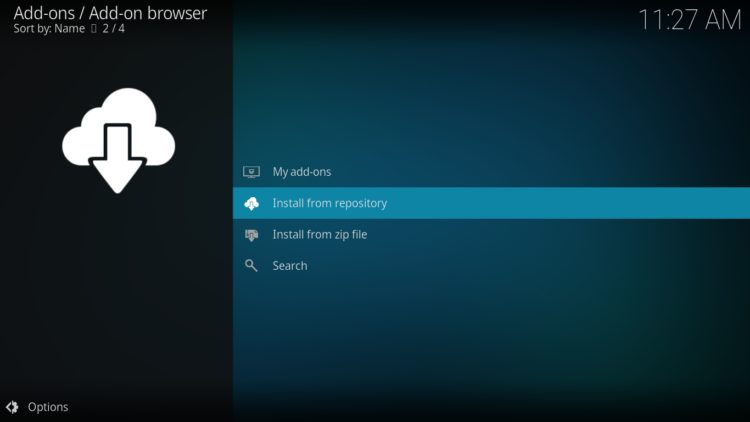
- Select Butter Fingers Repository

- Then, Video Add-ons

- Find the “Kidz Club” addon and click on it.

- Click on Install

- In a few seconds, a popup message will inform you that Kidz Club addon is installed.

Congratulations, you have successfully installed Kidz Club Kodi addon on your device. You can now access it from the home screen by going to Add-ons > Video add-ons > Kidz Club.

How to Use Kidz Club Kodi Addon?
Using Kidz Club Kodi addon is straightforward. Once you have installed the addon on your device, you can access it from the home screen by going to Add-ons > Video add-ons > Kidz Club.
A list of categories to choose from will display, such as Comedy Shows, Movies, etc. You can click on any category to see the subcategories and the available videos. You can also use the search function to find a specific video by typing in the title or keyword.

To play a video, simply click on it and wait for it to load. You may see some ads before the video starts, as these are from YouTube and not from the addon itself. Skip the ads if you want by clicking on the skip button or waiting for a few seconds. You can also adjust the video quality, volume, subtitles, and other settings by using the playback controls at the bottom of the screen.
Conclusion
Kidz Club Kodi addon is a great option for parents and kids who want to stream safe and legal kids’ content on Kodi. It has a wide range of videos that cater to different ages and interests, from live streams to movies to cartoons. It is easy to install and use, and it does not require any additional addons or accounts.
However, it is always recommended to use a VPN when streaming content online, especially from third-party addons, to protect your privacy and security, as well as access more content without any restrictions.
We hope this guide has helped you learn more about Kidz Club Kodi addon and how to install and use it on your device. If you have any questions or feedback, feel free to leave a comment below.