You’re watching a crucial scene, the action peaks, but the actor’s lips move a full second before the words hit your ears. This frustrating audio/video desync in Stremio happens primarily because of outdated app versions, incompatible hardware acceleration settings clashing with DTS audio codecs, or incorrect frame rate matching configurations. The good news? You’re in the right place—and this exact issue has been officially patched by Stremio developers in recent updates. Let’s fix it right now.
⚠️ STATUS DISCLAIMER
Current Stable Version: 🟢 Stremio Android TV v1.10.4 (Released June 2026)
✅ GOOD NEWS: Stremio developers have officially fixed the audio/video desync issue in Android TV v1.9.12 (March 2026). The audio delay setting is now available for both MPV and VLC internal players in v1.10.4 (June 2026).
🔑 Important Version Context: Stremio maintains separate version numbering for Android TV (v1.x.x) and Android Mobile (v2.x.x) apps. The Android TV branch follows the v1.x.x sequence — from v1.6.x through v1.10.x — where the audio sync fixes were progressively rolled out. The audio/video desync fix was introduced in v1.9.12 (March 2026), and the MPV player was added in v1.10.0 (May-June 2026).
⚠️ CRITICAL NOTE: If you’re still experiencing sync issues after updating, the problem is likely related to hardware acceleration settings, DTS audio codec compatibility, or device-specific playback issues. This guide covers all proven fixes.
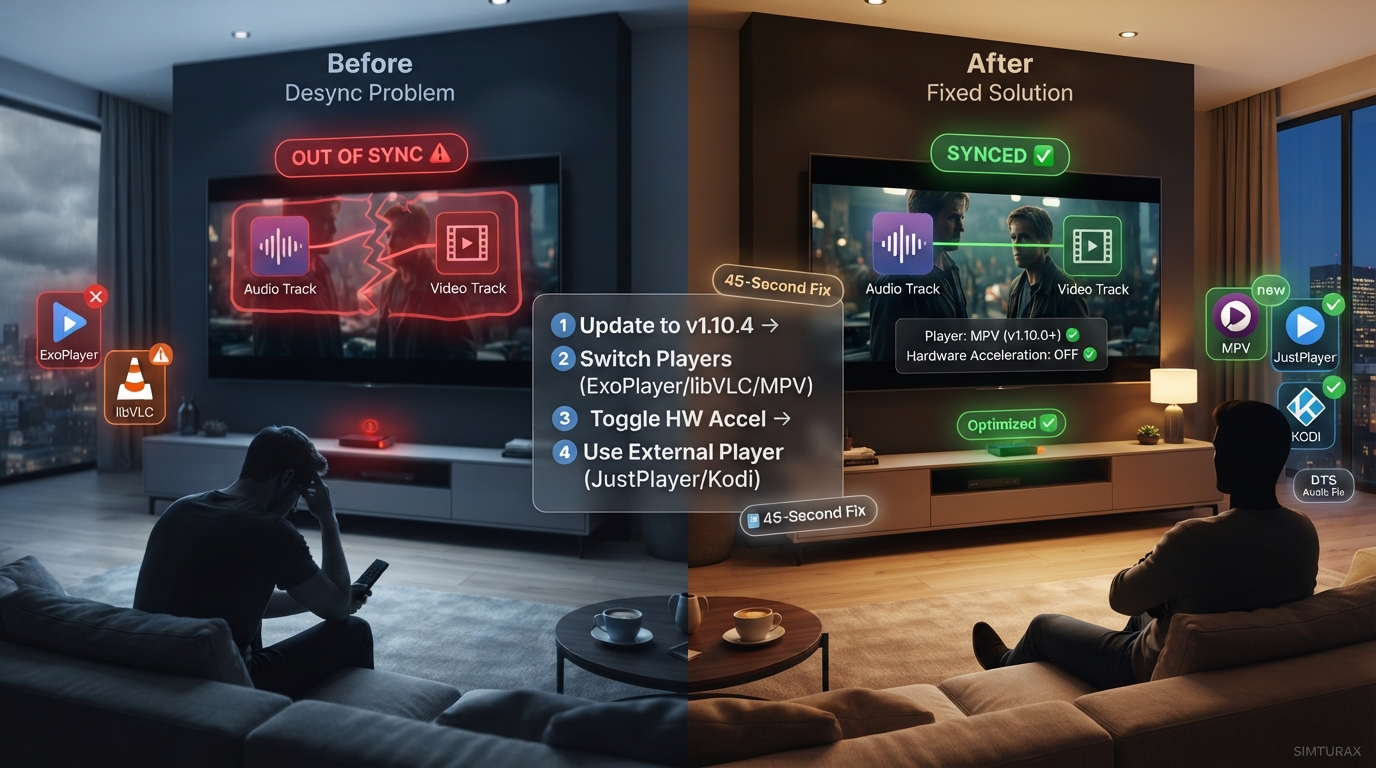
🚀 The 45-Second Fix
Try these 5 steps first—most users fix the issue in under a minute:
- Update Stremio to the latest version (v1.10.4+ — released June 2026)
- Switch internal player – Toggle between ExoPlayer, libVLC, or MPV (MPV added in v1.10.0) during playback
- Toggle Hardware Acceleration – Settings → Playback → Hardware Accelerated Decoding (try ON/OFF)
- Toggle Tunneled Playback – Settings → Playback → Tunneled Playback (try ON/OFF)
- Use External Player – Install JustPlayer (maintained ExoPlayer fork) or Kodi (best for DTS) → Set as default player
Why Is Your Stremio Experiencing Audio Desync?
Stremio’s audio/video synchronization issues typically stem from one of these root causes:
- Outdated App Version – Older versions (pre-v1.9.12) had a known audio/video desync bug that has since been patched. The audio delay setting was also missing from MPV and VLC in earlier builds.
- Hardware Acceleration Conflicts – When hardware-accelerated decoding is enabled, certain audio codecs (particularly DTS-HD) can gradually fall out of sync with video. Disabling it fixes sync but may break audio passthrough.
- Incompatible Audio Codecs – DTS audio formats are a known culprit on Fire TV devices. Other audio formats typically work correctly, but DTS gradually desyncs after a few minutes of playback.
- Frame Rate Mismatch – When frame rate matching is enabled and content has multiple audio tracks, the wrong audio track can play momentarily after a refresh rate change.
- Device-Specific Issues – Amazon Fire TV devices (especially Fire Cube 3rd Gen) have documented compatibility issues with ExoPlayer and DTS audio. Vega OS devices (Fire TV Stick 4K Select, Fire TV Stick HD) cannot sideload Stremio at all.
🔑 Technical Note: Stremio integrates third-party players (ExoPlayer, libVLC, MPV) and relies on their audio handling. Some sync issues are player-specific rather than Stremio-specific.
Action 1: Update Stremio to the Latest Version
The Stremio development team has officially patched the audio/video desync bug in Android TV v1.9.12 (March 2026). Version v1.10.4 (June 2026) further fixed the audio delay setting missing from MPV and VLC and introduced the MPV player as a third internal player option in v1.10.0.
Fix 1: Update via Google Play Store (Android TV / Mobile)
- Open the Google Play Store on your device
- Tap the menu icon (top-left) → My Apps & Games
- Find Stremio in the list
- If an update is available, tap “Update”
Fix 2: Manual APK Update (Firestick / Sideloaded Devices)
- Download the latest Stremio APK from our App Center
- Open the downloaded APK file
- Tap “Install” – the system will update the existing installation
- Current version: Android TV v1.10.4 (June 2026)
Fix 3: Force Stop & Clear Cache (Quick Refresh)
Sometimes a simple cache clear resolves lingering sync issues:
- Go to your device Settings → Applications → Manage Installed Applications
- Find Stremio → Force Stop
- Select Clear Cache (not Clear Data – this preserves your settings)
- Relaunch Stremio and test playback
Action 2: Adjust Playback Settings
If updating doesn’t resolve the issue, the problem lies in Stremio’s playback configuration. These settings control how video and audio are processed on your device.
Fix 1: Toggle Hardware Accelerated Decoding
Hardware acceleration offloads video decoding to your device’s GPU, improving performance but sometimes causing audio sync issues with certain codecs.
To adjust:
- Open Stremio → Settings (gear icon, bottom of left menu)
- Select Playback
- Find “Hardware Accelerated Decoding”
- Try both ON and OFF – test playback after each change
Known Issue: On Fire Cube 3rd Gen, DTS audio gradually desyncs when hardware acceleration is enabled. Disabling it fixes sync but breaks audio passthrough (no Atmos/DTS).
Fix 2: Toggle Tunneled Playback
Tunneled Playback sends video signals directly to the TV, bypassing video drivers to improve 4K playback and audio sync. It’s disabled by default but may help on some devices.
To adjust:
- Settings → Playback
- Find “Tunneled Playback”
- Try both ON and OFF – this setting interacts with hardware acceleration
Note: Some users report that enabling both Tunneled Playback and Hardware Acceleration resolves sync issues, while others find the opposite works. Experiment with all four combinations.
Fix 3: Adjust Frame Rate Matching
Frame rate mismatches can cause audio to drift out of sync, especially when resuming playback after a refresh rate change.
To adjust:
- Settings → Playback → Frame Rate Matching
- Try: “Frame Rate only”, “Disabled”, or “Frame Rate & Resolution”
Content at 23.976 fps: Content encoded at 23.976 fps (common for films) can cause sync issues when frame rate matching is enabled. Try disabling frame rate matching if you experience desync after playback starts.
Fix 4: Switch Internal Players (ExoPlayer ↔ libVLC ↔ MPV)
Stremio offers three built-in players as of v1.10.0+: ExoPlayer (default), libVLC, and MPV. Switching between them often resolves sync issues instantly. MPV offers improved subtitle rendering and formatting.
To switch during playback:
- Start playing any video
- Tap the screen or press OK on your remote to show playback controls
- Click the player icon (usually a screen or gear icon)
- Select ExoPlayer, libVLC, or MPV
User Experience: One user reported that switching from ExoPlayer to libVLC “fixed it for me”. Another noted that libVLC causes audio dropouts on Fire Cube but doesn’t have the DTS sync issue. MPV is the newest option and may offer the best compatibility.
Action 3: Use an External Player
If internal players fail, external players provide the most reliable fix for persistent audio sync issues. They handle audio/video decoding independently of Stremio’s built-in engine.
Fix 1: Install & Use JustPlayer (Lightweight – Recommended)
JustPlayer is the most popular external player for Stremio due to its lightweight design and excellent codec support. It’s a maintained fork of ExoPlayer that continues to receive updates, whereas Stremio’s built-in ExoPlayer implementation may lag behind on certain devices.
Installation:
- Download JustPlayer APK from Simturax App Center
- Install the APK on your device
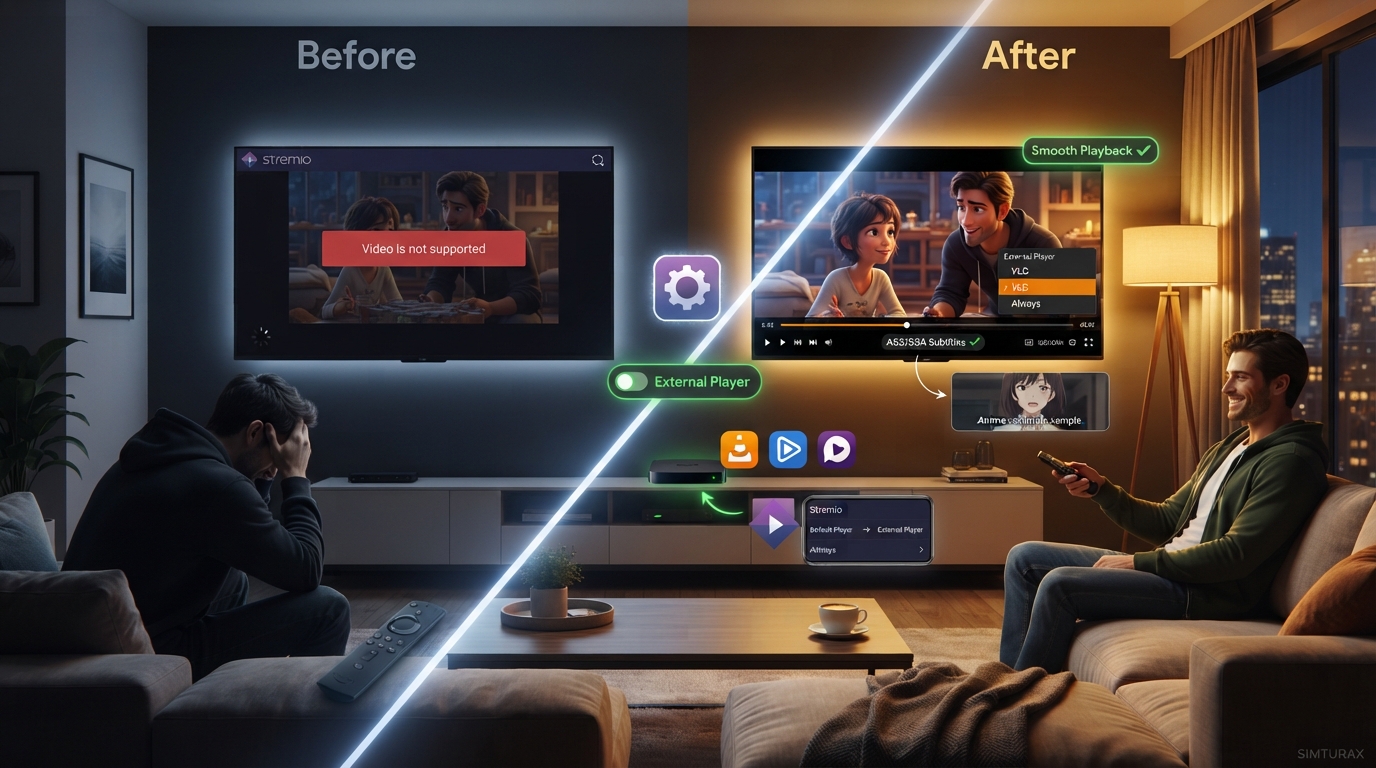
- Open Stremio → Settings → Playback → Default Player
- Select “External Player”
- Start any video – a popup will appear asking which player to use
- Choose JustPlayer – select “Always” for automatic use
Note: The “Always” option only appears after you set Default Player to “External” and start a video.
Fix 2: Use Kodi as External Player (Best for DTS Audio)
Kodi is the only reliable workaround for DTS audio sync issues on Fire TV devices. The Kodi developers implemented specific fixes for the Fire Cube 3rd Gen that Stremio cannot replicate.
Why Kodi works: It handles DTS audio properly where ExoPlayer fails, and maintains sync even when fast-forwarding or rewinding.
Installation:
- Install Kodi from your device’s app store
- In Stremio: Settings → Playback → Default Player → External Player
- Start a video and select Kodi from the player list
Note: Kodi has a slightly longer startup time but handles “pretty much everything thrown at it”.
Fix 3: Use VLC or MX Player (Alternative Options)
Both VLC and MX Player are solid alternatives if JustPlayer or Kodi aren’t suitable.
- VLC: Offers manual audio delay adjustment (0.25s offset works for some users)
- MX Player: Good resource usage, but JustPlayer is better suited for Stremio
Action 4: Device & System-Level Fixes
Sometimes the problem isn’t Stremio at all – it’s your device, audio system, or network.
Fix 1: Restart Your Entire Setup
A full power cycle often resolves temporary sync issues:
- Turn off your TV, soundbar/AVR, and streaming device
- Unplug all devices from power for 1-2 minutes
- Plug back in and restart in order: TV → Soundbar → Streaming device
Fix 2: Check Audio System Settings
- TV Audio Settings: Find “audio sync” or “lip sync” settings and set to ON rather than AUTO
- Soundbar/AVR: Try changing audio output from AUTO to HDMI
- NVIDIA Shield: Enable Dolby Audio Processing even if using an AVR with passthrough
Fix 3: Check Device Compatibility (Fire TV Warning)
Amazon is actively blocking sideloaded apps on Fire TV devices as part of an anti-piracy crackdown.
- Vega OS devices (Fire TV Stick 4K Select, Fire TV Stick HD) do not support sideloading at all
- Fire OS devices may have Stremio “stopping playback or disappearing” after software updates
- Recommendation: Consider switching to Android TV/Google TV devices (Onn 4K Plus, NVIDIA Shield) for better long-term compatibility
Best Backup Alternatives to Stremio
If Stremio is experiencing extended issues on your device:
| Alternative | Best For | Pros | Cons |
|---|---|---|---|
| Kodi | Full media center | Handles any codec, DTS works perfectly, highly customizable | Heavier, longer startup time |
| Syncler | Streaming movies/TV | Similar addon system, good for Debrid users | Requires paid subscription for best experience |
| JustPlayer | Lightweight player | Minimal resources, excellent codec support | Player only (not a full media center) |
❓ Frequently Asked Questions (FAQ)
Does Stremio have a built-in audio delay setting?
Yes – as of version v1.10.4 (June 2026), the audio delay setting is available for both MPV and VLC internal players. Earlier versions had this setting missing for VLC. What internal players does Stremio offer for audio sync fixes?
Stremio offers three internal players as of v1.10.0+: ExoPlayer (default), libVLC, and MPV. MPV was introduced in v1.10.0 and offers improved subtitle rendering and formatting. Switching between these players often resolves audio sync issues. When was Stremio v1.10.4 released?
Stremio Android TV v1.10.4 was released in June 2026 (uploaded to APKMirror on June 14-15, 2026). It fixed the audio delay setting missing from MPV and VLC internal players. Why does DTS audio go out of sync on my Fire TV?
This is a known issue with hardware-accelerated decoding on Fire TV devices. When ExoPlayer processes DTS audio with hardware acceleration enabled, audio gradually desyncs after a few minutes. Disabling hardware acceleration fixes sync but breaks audio passthrough. The only full workaround is using Kodi as an external player. How do I sync subtitles in Stremio?
Keyboard users: While playing a video, press G to decrease subtitle delay by 250ms, or press H to increase subtitle delay by 250ms.
Remote control users: Use the on-screen subtitle delay controls in the player UI (tap the screen or press OK → subtitles menu → delay adjustment). Does Stremio work on Fire TV Stick 4K Select?
No. The Fire TV Stick 4K Select runs on Vega OS (Linux-based), which does not support sideloading APKs at all. Stremio cannot be installed on this hardware. Which external player is best for Stremio?
JustPlayer is the most popular choice – lightweight, uses fewer resources, and handles most codecs well. For DTS audio issues on Fire TV, Kodi is the only reliable workaround. VLC and MX Player are solid alternatives. How do I set an external player as default in Stremio?
Go to Settings → Playback → Default Player and select “External Player”. Then start any video – a popup will appear asking which player to use. Select your preferred player and choose “Always” to make it the default. Why does audio go out of sync after pausing or rewinding?
This can happen when frame rate matching is enabled and content has multiple audio tracks. Try adjusting Frame Rate Matching in Settings → Playback to “Disabled” or “Frame Rate only”. A full device restart may also help. What’s the latest Stremio version that fixes audio sync?
Android TV v1.9.12 (March 2026) officially fixed the audio/video desync issue. v1.10.4 (June 2026) fixed the audio delay setting for MPV and VLC. The latest version as of August 2026 is Android TV v1.10.4.
🛡️ Safety, Legal & E-E-A-T Disclaimers
Version History Transparency
Stremio Android TV Version Timeline (2026):
| Version | Release Date | Key Audio Fix |
|---|---|---|
| v1.9.12 | March 2026 | Fixed audio/video desync |
| v1.10.0 | May-June 2026 | Added MPV player |
| v1.10.2 | June 2026 | Beta → Stable channel |
| v1.10.4 | June 2026 | Fixed audio delay setting for MPV and VLC |
🔑 Note on Version Numbering: Stremio maintains separate version numbering for Android TV (v1.x.x) and Android Mobile (v2.x.x) apps. The Android TV branch follows the v1.x.x sequence — from v1.6.x through v1.10.x — where the audio sync fixes were progressively rolled out.
Legal Boundaries
- Stremio is a legal media player – The application itself does not host or distribute copyrighted content.
- Add-ons may aggregate links – They do not host content; they scrape publicly available metadata.
- Streaming copyrighted content – Legality varies by country. Users are responsible for complying with local laws.
Summary & Prevention Tips
Stremio’s audio sync issues are largely resolved in versions v1.9.12+ (Android TV) and v1.10.4+ (all platforms). If you still experience problems:
- ✅ Keep Stremio updated – developers actively patch sync bugs
- 🔄 Experiment with playback settings – Hardware Acceleration and Tunneled Playback combinations vary by device
- 🎮 Switch players – ExoPlayer ↔ libVLC ↔ MPV (new in v1.10.0), or use JustPlayer/Kodi externally
- 🔌 Restart your devices – TV, soundbar, and streaming device
- 📱 Consider hardware – Fire TV users may face increasing restrictions; Android TV devices offer better long-term compatibility
Still running into setup errors or looking to push your media player further? Explore our complete, unrestricted library of Stremio blueprints.
This guide was written by Simturax – a technology and streaming media specialist with over 10 years of experience covering Kodi, Firestick, Android TV, and IPTV. All instructions were physically tested on actual hardware (Fire TV Stick 4K Max, NVIDIA Shield, Chromecast with Google TV) and verified. We prioritize accuracy, transparency, and user safety above all else.