
This guide will show how to install RedBox TV APK On Android TV & Firestick to watch free live TV Channels. The steps described below apply to all devices and platforms that run Android and Android TV Operating Systems such as mobiles, tablets, Android boxes, and Smart TVs with Android TV.
Watching TV has always been a reliable means of entertainment for people around the world. WE all remember those family gathering in front of TV watching a TV program or one of those breathtaking world cup games. But the old way of following TV Programs sounds a little bit outdated, at least for some whose time is most often taken by work or studies.
If you are one of those and still you want to follow your favorite TV channels, you need something handy and more practical than cables and dishes. This is where live TV streaming applications come to play. RedBox TV APK is one of the best options available for you to stream LIve channels for free.
WHAT IS REDBOX TV APK?
RedBox TV APK is an awesome TV streaming app that lets you watch over 700 live channels worldwide! It’s a one of a kind apps that lets you watch unlimited content for free
RedBox TV offers a huge collection of interesting and exciting TV channels from all over the world. The channels are selected among the most common and famous channels in different countries, which will allow you to enjoy the app to the fullest.
Feel free to browse between different channels from varied categories, each having its own amazing content for you to follow. Simply select the channels that you want to watch and enjoy them in real-time, thanks to the useful streaming option on RedBox TV. And most importantly, the free and accessible channels will make sure that you can always enjoy the app.
REDBOX TV APK KEY FEATURES:
Here are all the exciting features that the app has to offer:
- A massive collection of TV channels
- Many different categories of entertainment to choose from
- Suitable content for users of all ages
- Support many external video players
- Work well in various regions in the world
- Intuitive UI with accessible features
- Create your favorite channel lists
- Regularly updated: Expect new channels in the app
- High-quality streaming services with no lags
- Lightweight and responsive app
DOWNLOAD REDBOX TV APK?
The RedBox TV Android app is compatible with all devices that use Android as their operating system, including Amazon Fire TV, Nvidia Shield, smartphones, tablets, and Android TV boxes.
RedBox TV cannot be found in the official Google Play Store but must be downloaded and installed as an APK file. Since most Android apps of this type come with advertisements and services, the download links lead to a modified version of the APK.
The modified RedBox TV APK has the following changes:
- Ads disabled
- Removed placeholder for advertising
- AdBlock detection removed
- Google Analytics / Crashlytics deactivated
- Background services removed / disabled
- Optimized presentation
The modified version of RedBox TV Pro APK can be downloaded from the following links (external):
HOW TO INSTALL REDBOX TV ON ANDROID MOBILE
- First, you need to download the APK file from the below-given link using the browser on your android device. Make sure you have the necessary storage space in your device before download/installation.
- To install an app using the APK file you need to enable the “Unknown sources” option. Go to Settings -> Security -> Device and Management -> Unknown Sources. Turn ON this option to let the device allow you to install the app.
- Now open the Downloads folder and find the location of the downloaded APK file.
- Click on the APK file and the app will proceed to install. During installation, the app will request permissions to access Media files and file storage.
- Grant them access and the installation will be complete.
- You can now launch the app from the home screen of the device.
- Select your favorite movies using the search bar on the home page of the app and enjoy streaming.
Note: If you get an error called “Blocked by play protect” then you can just click on install anyway to proceed with the installation
HOW TO INSTALL REDBOX TV APK ON ANDROID TV
This guide accompanied by screenshots will show how to install RedBox TV APK on Mi TV stick. The process can apply to all devices sharing the same Android TV OS.
The process will take you through three steps:
- First, we will install the Downloader app from the play store
- Second, we will enable installation from unknown sources for the Downloader app
- Finally, we will find, download and install the APK file
If the first two steps are already done for you, then skip directly to the third one
For this guide, we are going to use go through the Downloader app to directly sideload the RedBox TV APK on Mi TV Stick, but you can install the APK on your mobile then transfer it to your Android TV device to be installed. See how you can do that in this guide.
>>> Check out : the best easy methods to sideload APKs on Android TV.
Install the Downloader App
The first thing you need to do is to install Downloader, a powerful browser, and file manager specifically designed for android TV-based devices, and this is the element that interests us the most since we will use it to download any APK on the net.
Say that Downloader is available in the official play store, so you can download it directly to your Android TV device.
>>> Check out : the best easy methods to sideload APKs on Android TV.
Open Play Store, search Downloader, then install and open the application
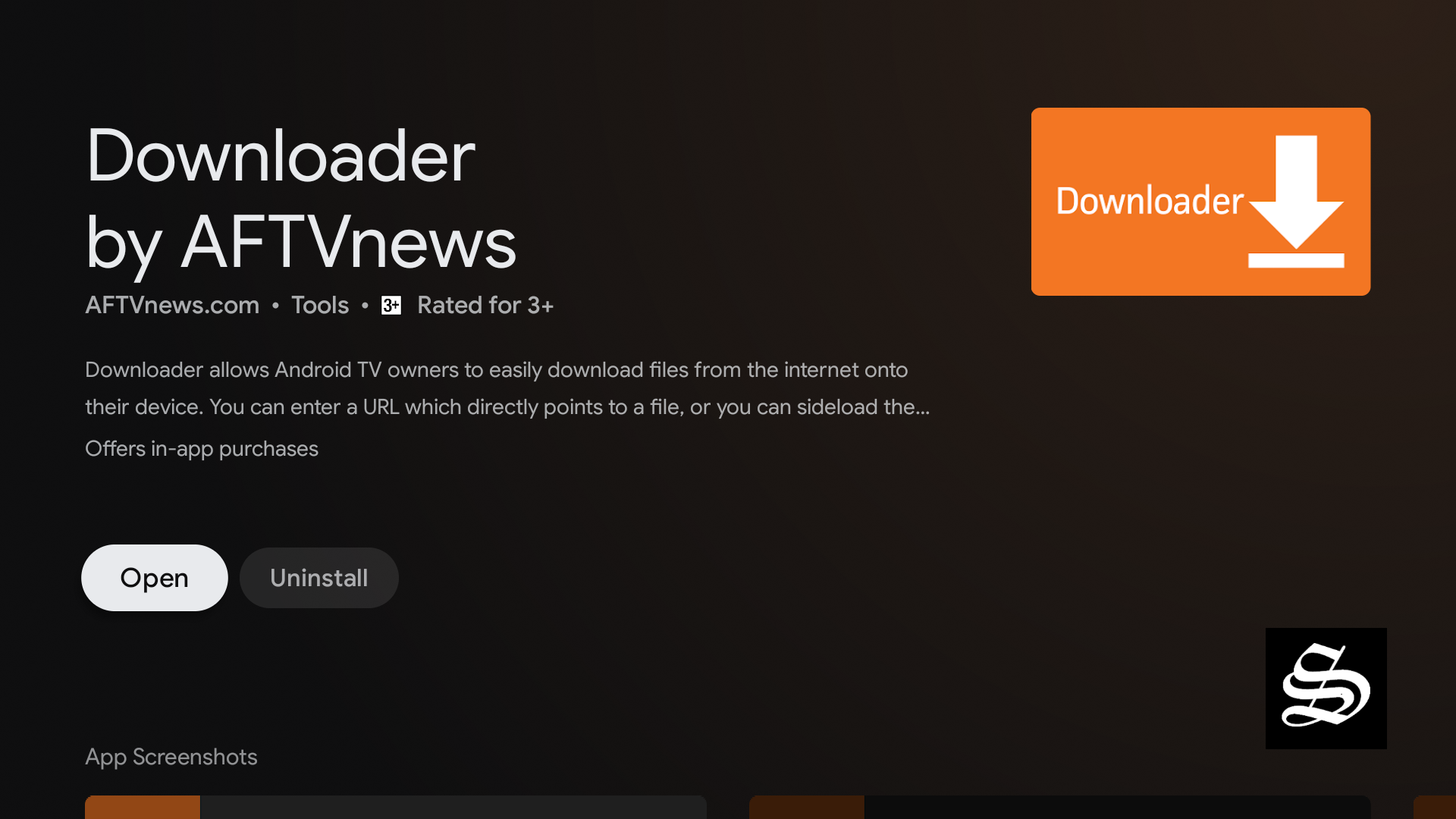
Once launched it will ask you to grant permission to access local storage. Since this is a file manager, it will need that permission to function. Just press Allow
That’s it, your browser is now ready to use. Just go to the search box, type an address, or a query to start surfing the net. And this is exactly how we are going to find and install APKs on Mi TV Stick device.
Enable installation from unknown sources
The most interesting apps for Android TV are found in third-party sources. So, the first thing you have to do is enable installation from unknown sources. If not already done, just follow these steps:
Launch Mi TV Stick and click on the “System Settings” Icon.

Select Device Preferences

Go to Security and restrictions

Enter Unknown sources option

Allow Downloader app to install from unknown sources
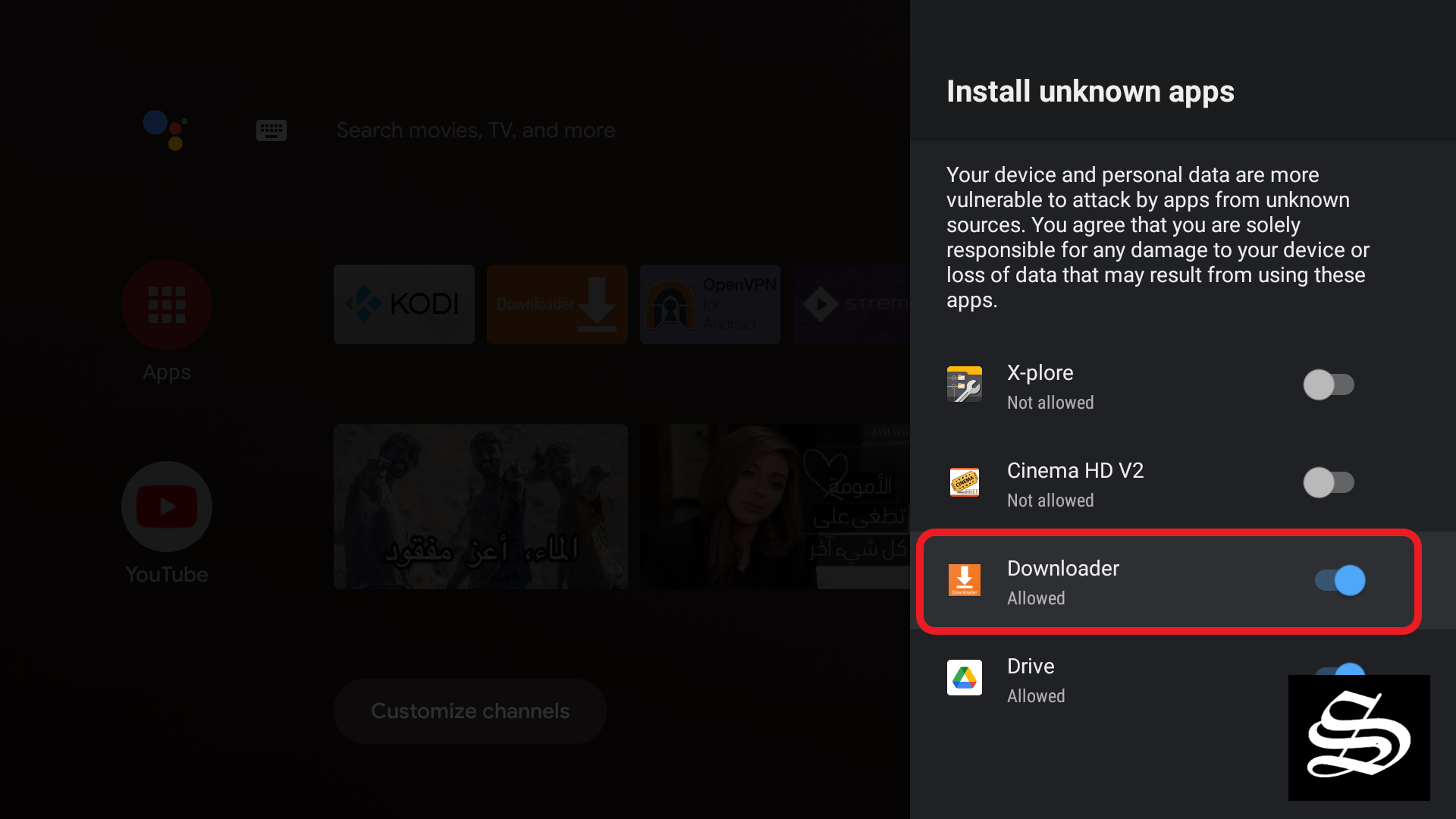
Install RedBox TV APK
After having enabled installation from unknown sources, your device can now install any app you want from outside the official Play Store.
Once the Downloader app is ready to use, all you have to do is click on the Browser option and use the web browser to download any application in APK format.
To install RedBox TV APK follow the steps below:
Launch Downloader app and in the search box and enter the following address: https://simturax.com/rbox

Press Go and the APK will start downloading at once

Wait for Download to finish and press install

Now click Done to go back to the previous screen

Delete the installation package

Again, select Delete to confirm your action

That’s it, you can now use your RedBox TV app.
Go back to the home screen, in the app drawer, find and open your app normally
Since RedBox TV was sideloaded from outside the Official Play Store, it may not appear in the app drawer like other apps. This is why it is important to use a launcher app that will allow you to find all the installed apps on your device regardless if they come from the Play Store or from some other source. Check our list of the best launcher apps for Android TV.

Otherwise, you can find your AstonCine app following these tedious steps:
Go to Setting Icon >>> Apps >>> See all apps >>> System Apps >>> Scroll down the list of apps and find RedBox TV >>>> Click Open
With the guide above, you can install any APK in just a few minutes.
HOW TO INSTALL REDBOX TV APK ON FIRESTICK & FIRE TV?
RedBox TV Apk is not officially available on the Amazon app store. Therefore, you need to rely on the sideloading method to download this streaming app on your Firestick or Fire TV. Before installing any APK file, enable applications from unknown sources:
1# Launch your Firestick and open the Settings option ( Gear icon )

2# Scroll down and select My Fire TV Click on it.

3# Select Developer options.

4# Turn on ADB debugging and Apps from Unknown Sources.

5# Select the Turn On option when the pop-up appears.

6# Now, back to the Home screen and press on FIND.

7# Click on Search and type “Downloader

8# Click on the suggestion ” Downloader app “ when it appears.
9# Click on the Downloader Icon.

10# Tap on Download.

11# Open the app and press on the Allow button.

12# Use the Downloader search tab.
13# Type in: simturax.com//rbox
14# The Download will start and you will have to wait till it finish downloading.
15# Click on Install.

16# Then click on Open
17# Now go back to your home screen and you will see the RedBox App icon
REDBOX TV APK REVIEW
RedBox comes loaded with a massive collection of amazing TV channels from various countries, different languages, genres, and so on. Up to 1000 TV channels from 20 different countries and regions all over the world: India, UK, US, Pakistan, Spain, France, and many others.
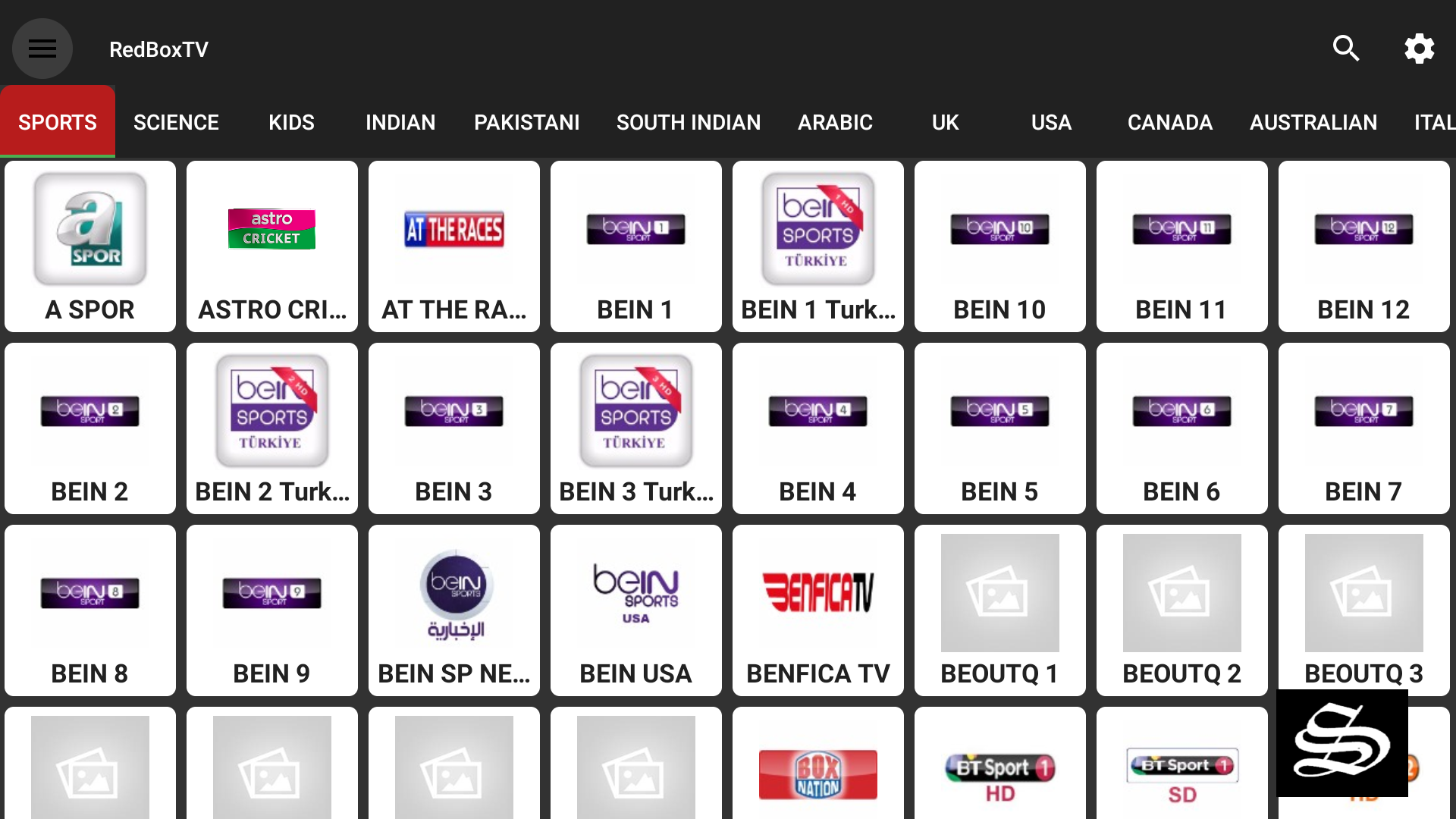
To make it easier to select your favorite channels in RedBox TV, the app also provides its content under more than 22 different categories. Here, you can also hide categories or set passwords for certain channel collections, which will guarantee your personal experiences. This is extremely important when you’re using the app on your Android TVs or the family’s tablet.
The app doesn’t come with a built-in player but you can easily connect to many external video player apps on your device. You can choose between apps like MX Player, Web Player, XYZ Player, XM player, and many more.



![Install HDtv APK on Firestick & Android TV [Live TV] (2026 Updated Guide)](https://simturax.com/wp-content/uploads/2026/07/HDTV-APK.jpeg)
