⚡ Status & Alternative Solutions
Current Status: 🟢 Fully Functional (Last Verified: August 4, 2026)
Core Tip: This guide covers three main solutions: Kore (official free app), Yatse (most powerful third-party app), and Web Interface (no app installation required). If one solution doesn’t work for you, simply switch to another.
📱 Control Kodi with Your Phone: Official, Third-Party & Web Solutions
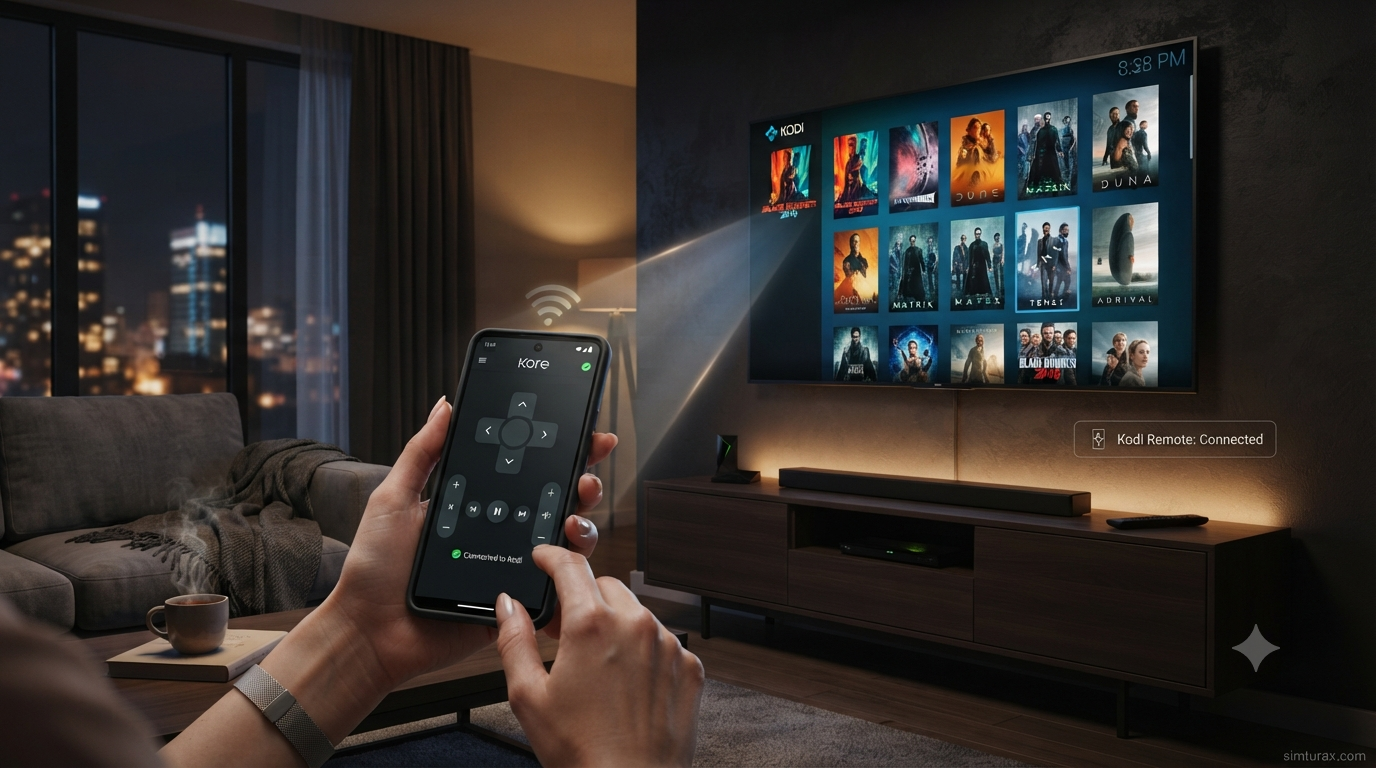
Tired of searching for your Kodi remote? Or frustrated with navigating your TV using a keyboard and mouse? Whether you’re on Android or iOS, you can transform your smartphone into a powerful Kodi remote control.
Core Value:
- 📲 Full Platform Coverage: Works on Android and iOS (iPhone/iPad) devices.
- 🎮 Multi-Function Control: Not just playback control—browse your media library, manage playlists, and input text effortlessly.
- 🚀 Enhanced Experience: Say goodbye to clunky keyboard and mouse operations and enjoy the smooth, intuitive feel of touchscreen control.
📋 Quick-Reference Cheatsheet
For experienced users—skip the reading and get started now!
| Item | Details |
|---|---|
| Official App (Android) | Kore – Developed by the Kodi Foundation, free and open-source |
| Official App (iOS) | Official Kodi Remote – Free download on the App Store |
| Third-Party App (Android) | Yatse – Most feature-rich, supports casting, offline media, and more |
| Third-Party App (Android) | CastLink – Built-in browser, can cast web videos directly |
| Web Remote | Browser access to http://[Kodi's IP Address]:8080 |
| Kodi Settings Path | Settings → Services → Control |
| Key Setting | Enable “Allow remote control via HTTP” |
🟢 Solution Status & Testing Log
| Metric | Status |
|---|---|
| Current Kodi Version | v21.x “Omega” and above |
| Tested Platforms | Android 14, iOS 17, Windows 11, macOS Sonoma |
| Connection Method | Local Network (Wi-Fi) |
| Core Requirement | Kodi and phone on the same Wi-Fi network |
⚙️ Part 1: Kodi Server Prerequisite Setup
Regardless of which remote solution you choose, you need to complete a one-time setup on Kodi to enable remote control functionality.
- Open Kodi and click the
Settings(gear icon) in the top-left corner of the home screen. - In the Settings page, select
Services. - In the left-hand menu, click
Control. - In the
Web Serversection on the right, turnAllow remote control via HTTPON.- (Optional) Make a note of the Port number (default is
8080). You can also set a username and password for added security.
- (Optional) Make a note of the Port number (default is
- Scroll down slightly on the same page and find
Allow remote control from applications on other systemsand turn it ON.
That’s it! The Kodi server-side basic configuration is now complete.
📲 Part 2: Choose & Set Up Your Phone Remote Solution
Option 1: Official App – Kore (Android) / Official Kodi Remote (iOS)
This is the most straightforward and reliable method, completely free and maintained by the official Kodi team.
- Download & Install:
- Android: Search for “Kore” in the Google Play Store and install it.
- iOS: Search for “Official Kodi Remote” in the Apple App Store and install it.
- Connection Setup:
- Open the app and tap
Add Media Center. - The app will automatically search for Kodi devices on the same network.
- If your Kodi device is found, simply select it and tap
Finish. - (Manual Connection) If automatic discovery fails, tap
Add manuallyand enter your Kodi device’s IP address and Port (default is 8080).
- Open the app and tap
Option 2: Third-Party App – Yatse (Android)
Yatse is considered by many to be the most powerful Kodi remote app available. In addition to Kodi, it also supports Plex, Emby, and Jellyfin.
- Download & Install: Search for “Yatse” in the Google Play Store and install it.
- Key Advantages:
- Powerful Casting: Cast media from your phone or online videos directly to Kodi.
- Offline Media: Sync media from Kodi to your phone for offline viewing.
- Voice Control: Control Kodi using voice commands.
- Highly Customizable: Supports custom commands, themes, and more.
- Connection Setup: Yatse’s setup process is similar to Kore—it usually auto-discovers your Kodi device. If not, you can manually enter the IP address and port.
Option 3: CastLink (Android) – Remote with Built-in Browser
CastLink is not just a remote; it includes a full web browser. Browse websites on your phone and cast videos directly to Kodi with a single tap.
- Download & Install: Search for “CastLink” in the Google Play Store and install it.
- Key Advantages:
- Built-in Browser: Browse any website and automatically detect and cast video streams.
- Full Kodi Remote Functionality.
- Auto-Discovery: Uses Zeroconf to automatically find Kodi on your network.
- Connection Setup: Similar to Kore and Yatse, supports auto-discovery or manual configuration.
Option 4: Web Interface (No App Installation Required)
This is the lightest method—no app installation is needed on your phone, making it perfect for temporary use.
- Make sure you’ve completed the “Kodi Server Prerequisite Setup” above.
- In Kodi, go to
Settings→System Information→Networkand note your Kodi device’s IP address. - In your phone’s browser, enter
http://[Your Kodi IP Address]:8080(e.g.,http://192.168.1.100:8080). - Once the page loads, you’ll see a fully functional web-based remote control.
🎮 Part 3: User Experience & Core Features
Once connected, you’ll enjoy a far superior experience compared to a traditional remote:
- 🎮 Virtual Remote: Provides all core buttons—play/pause, volume control, directional navigation, and more.
- 📚 Media Library Browsing: Browse your entire Kodi movie, TV show, music, and picture library from your phone.
- 📋 Playlist Management: View, add, or manage your current playback queue.
- ⌨️ Text Input: Type directly on your phone—no more hunting for letters on the TV screen.
- 📺 Casting: Cast videos, photos, or music from your phone to your TV.
🧰 Troubleshooting: Common Issues & Solutions
❓ App can’t discover my Kodi device
Make sure your phone and the device running Kodi are on the same Wi-Fi network. Double-check that Kodi’s Allow remote control via HTTP is enabled. Try manually entering Kodi’s IP address and port number in the remote app.❓ Connection refused
Check your Kodi device’s firewall settings to ensure port 8080 (or your custom port) is not blocked. If you set a username and password in Kodi, make sure you’ve entered them correctly in the app.❓ Features not working or lagging
Ensure both Kodi and your remote app are on the latest version. Try restarting both your Kodi device and your phone. For apps like Yatse, advanced features may require purchasing the Pro version to unlock. If using the web remote, try a different browser or clear your browser cache.❓ Frequently Asked Questions (FAQ)
💡 Does using a phone remote for Kodi cost money?
No. Kore and the Official Kodi Remote for iOS are completely free. Yatse offers a free version with robust core remote functionality. The web remote is also entirely free.💡 Can I control multiple Kodi devices with one phone?
Yes. Apps like Kore and Yatse allow you to add and manage multiple Kodi media centers.💡 Does using a phone remote affect Kodi’s performance?
No. Remote apps simply send commands via Kodi’s JSON-RPC API. They have virtually no impact on Kodi’s performance.💡 Is there a way to control Kodi without installing any app?
Yes! Use the web remote (Option 4). Just open your phone’s browser and navigate to Kodi’s web interface.✅ Conclusion
Using your phone as a Kodi remote is incredibly simple. Just enable remote control in Kodi, install the official app (Kore) or a more powerful alternative like Yatse on your phone, and connect them. If you’d rather not install an app, the web remote is an excellent choice.
Remember these key takeaways:
- 🔓 Enable
Allow remote control via HTTPin Kodi’s Services settings. - 🌐 Ensure both devices are on the same Wi-Fi network.
- 📱 Choose from Kore (official), Yatse (most powerful), or the Web Interface (no app needed).
- 🔄 If automatic discovery fails, connect manually using Kodi’s IP address and port.
Happy streaming and enjoy the convenience!