⚠️ STATUS DISCLAIMER
Current Service Status: 🟢 WORKING
Important Note: Real-Debrid is a paid premium service that requires an active subscription. Free accounts do not work with Kodi add-ons. You must purchase a subscription before attempting to authorize.
📱 Multi-Device Policy: Real-Debrid allows usage on multiple devices as long as they share the same public IP address (i.e., are on the same home network). Using the service simultaneously on different IP addresses may result in a temporary account suspension.
🔒 Privacy Recommendation: While Real-Debrid encrypts its traffic, using a VPN adds an extra layer of privacy and prevents your ISP from seeing your streaming activity.
What Is Real-Debrid?
Real-Debrid is a premium multi-hoster and download service that dramatically improves your Kodi streaming experience. Here’s what it does:
- High-Speed Downloads: Access files from popular one-click hosters at speeds up to 300 Mbps—far faster than standard free connections.
- Torrent Caching: Real-Debrid downloads torrents to its own servers, so you stream directly from their high-speed infrastructure instead of peer-to-peer.
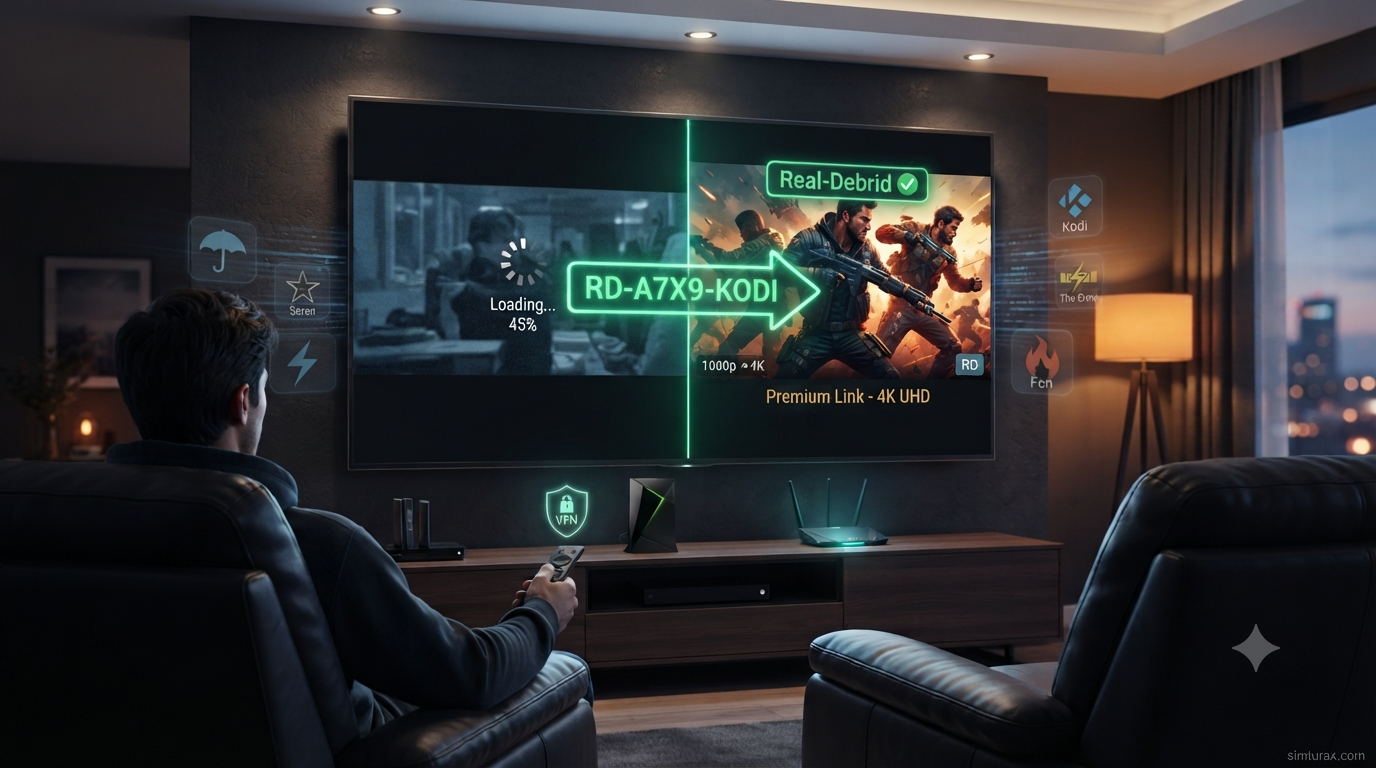
- Premium Links in Kodi: When integrated with Kodi add-ons, Real-Debrid unlocks higher-quality streams (1080p/4K) with minimal buffering that would otherwise be unavailable.
Who Is It For?
Real-Debrid is ideal for:
- Kodi users frustrated with buffering and low-quality streams
- Cord-cutters who want access to premium links without paying for multiple hoster subscriptions
- Anyone who streams frequently and wants a more reliable, higher-quality experience
Pricing
Real-Debrid is a paid service with several subscription tiers—all plans offer the same features and speeds. The only difference is the duration. Visit the official Real-Debrid website for current pricing.
📋 “No-Click” Quick-Reference Cheatsheet
For experienced users—skip the reading and configure now.
| Item | Details |
|---|---|
| Real-Debrid Website | https://real-debrid.com |
| Authorization URL | https://real-debrid.com/device |
| Manage Devices | https://real-debrid.com/devices |
| Account Required | ✅ Paid subscription (free accounts do not work) |
| Current Status | 🟢 Working |
| Last Verified | August 4, 2026 |
| IP Restriction | Same IP address for multiple devices |
🟢 Real-Debrid Status Report & Testing Log
| Metric | Status |
|---|---|
| Service Status | 🟢 Operational |
| Supported Kodi Versions | Kodi 19, 20, and 21 (Omega) |
| Integration Method | Add-on level authorization (per add-on) |
| Authorization Process | Code-based via real-debrid.com/device |
| VPN Recommended | ⚠️ Yes – for privacy and to bypass ISP throttling |
| Supported Add-ons | Umbrella, Seren, Fen, The Crew, POV, Comet, Venom, Fights on Demand, and many more |
🛠️ Prerequisites: Before You Begin
Before configuring Real-Debrid in Kodi, complete these steps:
Step 1: Create a Real-Debrid Account
- Go to the official Real-Debrid website: https://real-debrid.com
- Click “Sign Up” and create your account
- Verify your email address
Step 2: Purchase a Subscription
- Log in to your Real-Debrid account
- Navigate to the premium plans section
- Select a plan and complete payment
- Wait for confirmation – your account must show an active premium status
Step 3: Install a Compatible Kodi Add-on
Real-Debrid is configured within each add-on individually, not globally in Kodi. You need at least one compatible add-on installed. Popular options include:
| Add-on | Best For | Status (2026) |
|---|---|---|
| Umbrella | Movies & TV shows | ✅ Actively maintained |
| Seren | Movies & TV shows | ✅ Actively maintained |
| Fen / Fen Light | Movies & TV shows | ✅ Actively maintained |
| The Crew | Movies, TV, Sports | ✅ Actively maintained |
| POV | Movies & TV shows (Fen fork) | ✅ Actively maintained |
| Comet | Movies & TV shows | ✅ Newly released |
| Venom | Movies & TV shows | ⚠️ Requires Real-Debrid |
| Fights on Demand | Combat sports (UFC/MMA/Boxing) | ✅ Actively maintained |
Note: Real-Debrid integration is add-on specific. You must authorize it separately in each add-on you use.
📥 Main Setup Tutorial: Configuring Real-Debrid on Kodi
The authorization process is nearly identical across all add-ons. Follow this universal guide:
Execution Phase: Authorize Real-Debrid in Your Add-on
- Launch Kodi and navigate to the Add-ons section.
- Open your chosen add-on (e.g., Umbrella, The Crew, Seren, etc.).
- Access the Settings menu – typically by:
- Right-clicking or long-pressing the add-on
- Selecting “Settings”, “Tools”, or the gear icon
- Find the Debrid/Accounts section – look for:
- “Accounts” or “My Services”
- “Debrid” or “Debrid Services”
- “ResolveURL” (for add-ons using this dependency)
- Click “Authorize” next to Real-Debrid.
- A pop-up will appear with an authorization code (usually 8 characters)
- The code is time-sensitive – you have a limited window to enter it
- On another device (phone, tablet, or computer), open a browser and go to:
https://real-debrid.com/device - Log in to your Real-Debrid account if not already logged in.
- Enter the authorization code displayed in Kodi and click “Continue”.
- Confirm the device name – you can give it a recognizable name (e.g., “Living Room Firestick”) to easily identify it later.
- Return to Kodi – the add-on should display a success message confirming authorization.
- Click “OK” in Kodi to complete the setup.
💡 Pro Tip: If you use multiple add-ons, you’ll need to repeat this process for each one. The authorization is per add-on, not a global Kodi setting.
🎮 Post-Installation UI/UX Walkthrough
After successful authorization, here’s what to expect:
What Changes in Your Add-on
- Premium links will appear alongside or instead of free links when you search for content
- These links are typically labeled with “RD” or “Real-Debrid” tags
- Stream quality will improve significantly – often 1080p or 4K instead of 720p
Finding Content
- Search for movies or TV shows as you normally would
- The add-on will scrape multiple sources and display available links
- Real-Debrid links are usually listed first or with higher priority
Real-Debrid Cloud Feature
Some add-ons (like Umbrella) allow you to access your Real-Debrid cloud – files you’ve previously downloaded or cached through the service.
Managing Authorized Devices
You can view and revoke authorized devices at any time:
- Log in to your Real-Debrid account
- Go to:
https://real-debrid.com/devices
🧰 Troubleshooting: How to Fix Common Real-Debrid Errors
❌ Authorization Code Not Working / “Invalid Code”
Code is time-sensitive – you must enter it within the displayed time limit. Ensure you’re logged in to Real-Debrid before entering the code. Try a different browser – some browsers may have issues with the authorization page. Generate a new code – go back to Kodi and click “Authorize” again for a fresh code.🔑 “No Debrid Account Found” or “Account Not Authorized”
Your subscription may have expired – check your Real-Debrid account status. Re-authorize the add-on – sometimes the token expires and needs refreshing. If using VPN, try turning it off temporarily during authorization, then re-enable it afterward.📶 Buffering or Slow Streams Despite Real-Debrid
Check your internet speed – Real-Debrid recommends a stable connection. Adjust CDN settings – in your Real-Debrid account, try changing the “CDN Server Selection” under “My Account”. Clear Kodi cache – use a maintenance add-on like EZ Maintenance+ to clear temporary files. Restart your router and device – sometimes a simple reboot resolves connectivity issues.🔍 “No Sources Found” or No Real-Debrid Links Appearing
Ensure the add-on has scrapers enabled – some add-ons require external scraper modules (e.g., CocoScrapers for Umbrella/Fen). The add-on may require at least one debrid service to work at all. Check if the content exists – very niche or old content may have no available sources. Update the add-on – outdated versions may have broken scrapers.⚠️ “ResolveURL Error” or Authorization Reset Issues
Reset authorization – in the add-on’s ResolveURL settings, click “Reset my authorization”. Clear ResolveURL cache – look for a cache-clearing option in the ResolveURL settings. Reinstall the add-on – as a last resort, uninstall and reinstall the add-on.📱 Multiple Devices on Different IP Addresses
Real-Debrid allows multiple devices on the same public IP address (same home network). Using the service on different IP addresses simultaneously may result in a temporary suspension. If you need to use it on multiple networks, consider using a VPN to route all traffic through a single IP.🔒 Safety & Security Tips
- Use Official Sources – Install Kodi add-ons only from trusted repositories or official sources to avoid malware.
- Enable Two-Factor Authentication – Add an extra layer of security to your Real-Debrid account if available.
- Review Authorized Devices Regularly – Check
https://real-debrid.com/devicesand remove any devices you no longer use. - Consider a VPN – While Real-Debrid encrypts traffic, a VPN hides your streaming activity from your ISP.
- Keep Kodi Updated – Always use the latest stable version of Kodi for security patches and compatibility.
❓ Frequently Asked Questions
Do I need a paid Real-Debrid subscription for Kodi?
Yes. Free Real-Debrid accounts do not work with Kodi add-ons. You must purchase a premium subscription to authorize and use the service.Can I use Real-Debrid on multiple Kodi devices?
Yes, as long as they are on the same public IP address (same home network). Using them on different IPs simultaneously may trigger a suspension.Why do I need to authorize Real-Debrid in every add-on separately?
Real-Debrid authorization is add-on specific, not a global Kodi setting. Each add-on handles its own integration, so you must repeat the authorization process for each one you use.How do I revoke a Kodi add-on’s access to my Real-Debrid account?
Log in to your Real-Debrid account and visit https://real-debrid.com/devices. You’ll see a list of all authorized devices/applications – simply remove the ones you no longer use.What Kodi add-ons work with Real-Debrid in 2026?
Popular options include Umbrella, Seren, Fen, The Crew, POV, Comet, Venom, and Fights on Demand.Why am I getting “No Sources Found” after authorizing Real-Debrid?
Some add-ons require external scraper modules to find sources. For example, Umbrella and Fen require CocoScrapers. Also, ensure the add-on is up to date.Does Real-Debrid work with Kodi 21 (Omega)?
Yes. Most actively maintained add-ons are compatible with Kodi 19, 20, and 21.Is Real-Debrid legal?
Real-Debrid itself is a legal service that provides premium access to file hosters. However, the legality of streaming copyrighted content through Kodi add-ons varies by country. Always ensure you comply with local laws.✅ Conclusion
Configuring Real-Debrid on Kodi is a straightforward process that transforms your streaming experience. By following the steps in this guide, you’ll unlock:
- 🚀 Faster streaming with minimal buffering
- 📺 Higher quality links (1080p/4K)
- 🔗 More reliable sources
- 💰 Cost-effective access to premium content
Remember these key points:
- ✅ Purchase a subscription – free accounts don’t work
- ✅ Install a compatible add-on first
- ✅ Authorize within each add-on – repeat for every add-on you use
- ✅ Use
real-debrid.com/deviceto enter your authorization code - ✅ Manage devices at
real-debrid.com/devices - ✅ Use a VPN for added privacy
- ✅ Check your subscription status if links stop appearing
Happy streaming!