Introduction: Welcome to Your Future-Proof Entertainment
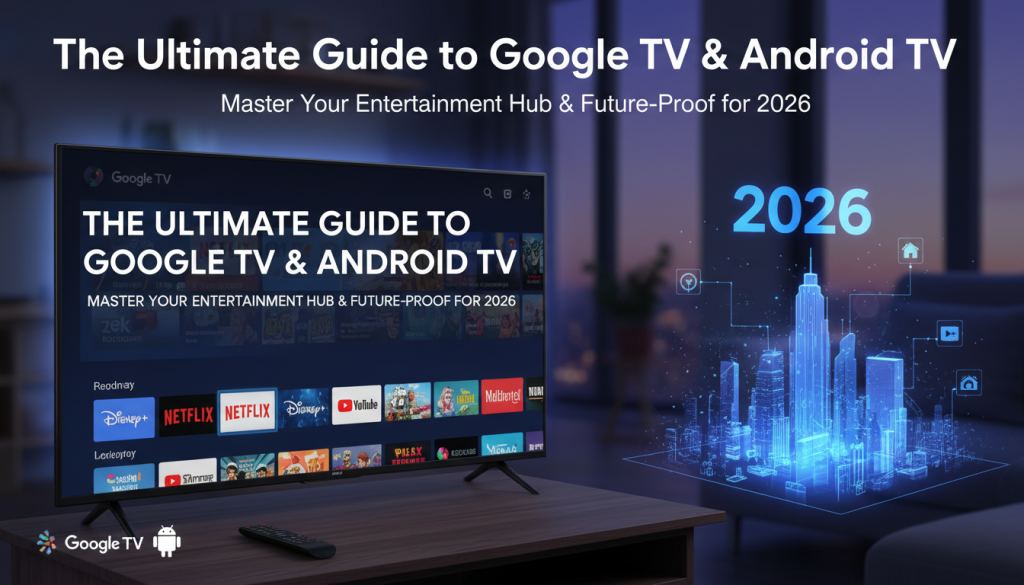
In an era defined by endless content and smart technology, Google TV and Android TV have emerged as the intelligent, adaptive, and highly personalized heart of modern home entertainment. These platforms are rapidly evolving, transforming how we discover, consume, and interact with our favorite shows, movies, music, and even smart home devices.
Looking towards 2026, the landscape of streaming is set for significant advancements. Key trends point to drastic improvements in user experience, overall performance, and enhanced compatibility with cutting-edge technologies like artificial intelligence (AI). A major foundational shift is the mandatory transition to a 64-bit app architecture for both platforms by August 2026. This isn’t just a technical detail; it’s a promise of faster performance, reduced lag, superior support for high-resolution content, and the essential groundwork for advanced AI features.
This ultimate, future-focused guide is your comprehensive roadmap to understanding, optimizing, and future-proofing your Google TV and Android TV experience. Whether you’re setting up your very first device or you’re an experienced cord-cutter looking to leverage the latest expert-level insights and optimize for the innovations coming by 2026, this guide is for you. Get ready to unlock the full potential of your entertainment hub and stay ahead of the curve.

Chapter 1: Google TV vs. Android TV – Understanding Your Entertainment Hub
While the terms “Google TV” and “Android TV” are often used interchangeably, understanding their core differences is the first step to mastering your entertainment hub.
Core differences and similarities: Navigating the ecosystem
At its heart, Android TV is the foundational operating system (OS) that powers a vast array of smart TVs and streaming devices. Think of it as the engine. It’s an open-source platform, allowing manufacturers to integrate it into their hardware and customize it to some extent.
Google TV, on the other hand, is essentially a user interface (UI) layer built on top of the underlying Android TV operating system. It’s the sleek, modern dashboard that makes content discovery a breeze. Google TV enhances the core Android TV experience by offering a more content-centric and unified interface. It intelligently aggregates content from various streaming services such as Netflix, YouTube, Disney+, and Prime Video onto a single, personalized home screen, thereby simplifying content discovery and making it smarter. This distinction highlights Google TV’s focus on content aggregation and personalized recommendations, while Android TV remains the versatile foundation providing the underlying functionality.
Key features and benefits of each platform for cord-cutters
Android TV provides:
* Access to the Google Play Store for thousands of apps.
* Built-in Chromecast functionality for casting from mobile devices.
* Google Assistant for voice control.
* Broad hardware compatibility across many brands.
Google TV builds on this by offering:
* A visually rich, content-first interface that prioritizes shows and movies over apps.
* Personalized recommendations that learn your viewing habits.
* A universal “Watchlist” to save content from different services.
* Smarter content discovery through its unified approach.
For cord-cutters, Google TV’s content-centric approach is a major benefit, as it aims to make the app-hopping experience a thing of the past, presenting all your available entertainment in one digestible feed.
Choosing the right device for you: Chromecast with Google TV, Nvidia Shield, Sony, TCL, etc.
The choice between a “pure” Android TV device and one running Google TV often comes down to preference and specific needs.
* Chromecast with Google TV: This is Google’s flagship device showcasing the Google TV interface. It’s affordable, compact, and offers a smooth, responsive user experience for most users.
* Nvidia Shield TV: Widely considered the king of Android TV devices, the Shield offers unparalleled performance, especially for gaming and advanced media playback (e.g., Plex server capabilities). It runs a slightly customized version of Android TV.
* Smart TVs from Sony, TCL, Hisense, Philips, etc.: Many major TV manufacturers integrate either Android TV or Google TV directly into their sets. Newer models, especially from late 2021 onwards, increasingly feature the Google TV interface.
When choosing, consider:
* Performance: For power users or gamers, devices like the Nvidia Shield offer superior processing power.
* Budget: Chromecast with Google TV offers excellent value.
* Integration: If you want a seamless experience baked into your TV, a smart TV with Google TV might be ideal.
Chapter 2: Getting Started: Setup, Essentials & Navigation Basics
Your journey to a future-proof entertainment hub begins here. Setting up your device and understanding its core navigation is crucial for a smooth experience.
Unboxing and initial setup walkthrough: Your first steps
Setting up a new Google TV device has become remarkably streamlined.
1. Connect Hardware: Plug in your device (if it’s a dongle or box) and connect it to your TV’s HDMI port. Power it on.
2. Remote Pairing: The device will usually prompt you to pair its remote. Follow the on-screen instructions, which often involve holding down a couple of buttons simultaneously.
3. Quick Setup: For the quickest setup, ensure your phone’s Bluetooth and Wi-Fi are turned on. Your Google TV device will display a QR code; scan it with your smartphone. Android phones may even automatically present a setup notification, guiding you through the process effortlessly. Manual setup using the TV remote is also an option if you prefer.
4. Wi-Fi Connection: Connect your device to your home Wi-Fi network. Remember, for optimal streaming, a strong, reliable connection is key (more on this in Chapter 5).
5. Google Account Sign-in: You’ll be prompted to sign in with your Google account. This is a crucial step as it grants you access to Google Play, YouTube, Google Assistant, and allows for personalized content recommendations.
Connecting to Wi-Fi, Google Account integration, and essential settings
During the initial setup, you’ll configure several essential Google TV settings:
* Voice Control: Set up Google Assistant and your preferences for voice commands.
* Location Services: Enable or disable location tracking for more relevant content and local information.
* Diagnostic Data Sharing: Decide whether to share usage data with Google to help improve the platform.
Mastering the interface: Home screen layout, app library, and personalized recommendations
Google TV’s interface is designed for smooth, fast, and responsive navigation, prioritizing content over apps.
* Home Screen: This is your central hub. It features a prominent “For You” tab with personalized recommendations, trending content, and your Watchlist. You’ll also find tabs for “Live,” “Movies,” “Shows,” and “Apps.”
* Apps: The “Apps” tab provides quick access to your installed applications. You can easily rearrange or uninstall apps here.
* Personalization: The more you use your Google TV device, the better its recommendations become. Interact with content (like/dislike, add to Watchlist) to fine-tune your feed.
* Navigation: Use your remote’s directional pad for movement, the “select” button for choices, and the “back” button to return to previous screens. For convenience, a smartphone can serve as a remote, especially useful for typing lengthy passwords. You can also install apps remotely from your phone directly to your Google TV device via the Google Play Store web interface.

Essential first apps for every new Google TV/Android TV user
Beyond the pre-installed apps like Netflix and YouTube, consider these essentials:
* Your Preferred Premium Streamers: Max, Disney+, Hulu, Prime Video, Apple TV+, etc.
* A File Manager: Essential for organizing files and, if you venture into advanced customization, sideloading. (e.g., CX File Explorer or File Manager+)
* A Web Browser: While not a primary use case, a browser like Google Chrome or Firefox can be handy.
* A VPN App: For privacy and accessing geo-restricted content (e.g., NordVPN, ExpressVPN). We’ll discuss this further in Chapter 5.
* Plex or Kodi: If you have a personal media library, these are indispensable.
Chapter 3: Mastering Free Streaming: Build Your Ultimate Entertainment Library (Deep Dive)
The world of free, ad-supported streaming (FAST) and ad-supported video on demand (AVOD) has exploded on Google TV and Android TV, offering a legal and diverse content library without subscription costs.
The ONLY Essential Streaming Apps Guide You’ll Need for 2026
Read More →The power of free: Why legal free streaming is booming on Android/Google TV
Free streaming is a game-changer for cord-cutters, providing a wealth of content across genres. It’s booming because it offers an accessible entry point to a vast media landscape, supported by advertisements, making it sustainable and attractive to content providers.
Deep dive into FAST Channels (Free Ad-Supported TV): Pluto TV, Tubi, Plex, Xumo Play
These services mimic traditional linear TV with scheduled programming but are delivered over the internet, often alongside an on-demand library.
* Pluto TV: A titan in the FAST space, Pluto TV offers over 250 live TV channels and a vast library of on-demand movies and shows. It requires no sign-up and is excellent for news, sports, and general entertainment, making it suitable for background viewing.
* Tubi: Provides thousands of Hollywood movies, TV shows, and original content, all free with minimal advertisements and HD streaming. No subscription or account is necessary, offering a robust on-demand experience.
* Plex: While famous for personal media streaming, Plex also combines over 200 free live TV channels with its extensive on-demand library. It allows users to organize and access their own media collections across devices, making it a powerful hybrid.
* Xumo Play: Offers live channels, movies, and TV shows for free, often without requiring an account. It’s a great choice for quick content discovery.
* Redbox Free Live TV: Provides a selection of live television content, expanding your options for immediate viewing.
Strategies for discovering and curating your favorite free live TV experience
* Browse by Genre: Most FAST services categorize their live channels, making it easy to find news, sports, movies, or niche content.
* Create Favorites: Many platforms allow you to mark favorite channels for quick access.
* Check Programming Guides: Utilize the built-in program guides to see what’s currently airing and what’s coming up.
* Rotate Services: Don’t stick to just one! Each service has unique offerings.
Exploring AVOD Services (Ad-Supported Video On Demand): IMDb TV, The Roku Channel, Crackle, Freevee
AVOD services focus on on-demand libraries rather than live channels, although some include both.
* Crackle: Features a selection of free movies and TV shows, often including older hits and some original content.
* Freevee (formerly IMDb TV): Amazon’s free streaming service offers a compelling mix of popular movies, TV shows, and Freevee Originals, often rotating its library to keep things fresh.
Unearthing public domain content: Classic movies, TV shows, and documentaries
Platforms like YouTube host a treasure trove of public domain content, from classic films to historical documentaries. Dedicated apps or channels within the larger free services sometimes curate these as well.
Building a robust, diverse free streaming library: Tips and tricks
* Install Multiple Apps: Don’t limit yourself. Install Pluto TV, Tubi, Plex, Xumo Play, Crackle, and Freevee.
* Explore Categories: Dive into obscure categories; you might find hidden gems.
* Use Universal Search: Google TV’s universal search can often tell you where content is available for free, even if it’s buried deep within an app.
Comparative analysis: Best free streaming services available on Android/Google TV
| Service | Key Features | Best For |
| Pluto TV | 250+ live channels, vast VOD library, no sign-up required. | Background viewing, general entertainment, news. |
| Tubi | Thousands of Hollywood movies/TV, originals, minimal ads, HD quality, no account needed. | On-demand movies, diverse TV shows. |
| Plex | 200+ live channels, VOD content, personal media server integration. | Hybrid live/on-demand, media hoarders. |
| Crackle | Curated selection of free movies and TV shows, owned by Chicken Soup for the Soul Entertainment. | Niche film discovery, older TV series. |
| Xumo Play | Live channels, movies, TV shows, often no account required. | Quick content discovery, sports (some offerings). |
| Kodi | Open-source media hub, supports local/network storage, highly extensible with add-ons. | Advanced users, personal media management, extensibility. |
| FreeFlix HQ | Recommended particularly for anime and cartoons (Note: May require sideloading or have legality concerns). | Niche animation content. |
🌟 User Ratings & Context
| Service | Additional Context (from Reviews) | Google Play Store Rating (Approx.) |
| Pluto TV | Praised for its “lean-back” cable experience and nostalgia-inducing channel grid. It is the ideal app for passive or background viewing. | Generally high (often cited as 4.0+ stars) |
| Tubi | Highly regarded for a polished, clean, and fast interface that is surprisingly effortless for a free app. Ads are considered minimal and respectful. | Generally high (often cited as 4.3+ stars) |
| Plex | Strong overall rating, though integration between free streaming and local media is sometimes noted as awkward. The media server feature is a core strength. | 3.8 stars (467K reviews) |
| Crackle | Known for its curated selection. | Not specifically located, but often grouped with other major free services. |
| Xumo Play | Known for quick content discovery. | Not specifically located. |
| Kodi | As an open-source hub, user satisfaction is highly dependent on the stability and quality of the user’s chosen add-ons and build. | Not on the standard Google Play Store for Android TV; downloaded elsewhere as an APK. |
| FreeFlix HQ | 🛑 Important Note: This app is not typically found on the official Google Play Store and must be sideloaded (downloaded as an APK). Apps downloaded this way are often associated with unauthorized/copyrighted content, which carries potential legal and security risks. Exercise caution and research your local laws before use. | N/A (Not on the standard store) |
Chapter 4: Beyond Free: Navigating Premium Streaming Services
While free content is abundant, premium streaming services remain the backbone of many cord-cutting setups, offering exclusive content, ad-free experiences, and higher quality streams. Google TV and Android TV seamlessly integrate a wide array of these services.
Integrating your subscriptions: Netflix, Disney+, Max, Hulu, Prime Video, and more
Google TV excels at bringing all your premium subscriptions together. Once you sign into an app like Netflix or Max, its content becomes discoverable through Google TV’s universal search and personalized recommendations, blurring the lines between different services.
* Netflix: Continues to be a benchmark for streaming apps on Android TV due to its smooth, fast, and responsive interface, which is well-optimized for remote navigation, and its exceptional stability. It offers 4K and HDR content, along with intelligent recommendations.
* Max (formerly HBO Max): While boasting a world-class content catalog, the app itself can sometimes be less responsive, with occasional buffering or crashes. However, its exclusive shows often make it a must-have.
* Spotify: An essential app for music streaming, offering playlist synchronization, visual lyrics, and voice control via Google Assistant, transforming your TV into a powerful sound system.
* YouTube TV: Recognized for its clean, responsive interface, stability, and innovative features like Multiview, which allows simultaneous viewing of up to four sports games. It’s a strong contender for live TV streaming.
Subscription management and cost-saving tips for cord-cutters
* Rotation Strategy: Many users strategically rotate their premium subscriptions based on new releases or specific events to manage their entertainment budget effectively. Subscribe for a month to binge a specific show, then cancel until the next season.
* Bundle Deals: Look out for bundles offered by services (e.g., Disney+, Hulu, ESPN+) or your internet provider.
* Utilize Free Trials: Always take advantage of free trials before committing to a subscription.
* Share Responsibly: If a service allows, share accounts with family members to split costs.
Overview of live TV streaming services: Sling TV, YouTube TV, FuboTV, Hulu + Live TV
For those who still want a traditional TV experience without cable, these services are excellent alternatives:
* YouTube TV: Known for its robust channel lineup, unlimited DVR, and features like Multiview.
* Sling TV: A more budget-friendly option, often with smaller, customizable channel packages.
* FuboTV: Heavily geared towards sports fans, offering a wide array of sports channels.
* Hulu + Live TV: Combines Hulu’s on-demand library with live TV channels.
Utilizing Google TV’s Watchlist and universal search for all content (free and paid)
Google TV’s Watchlist is a powerful feature that allows you to add movies and shows from across all your integrated streaming services to a single list. Its universal search means you can search for a title once, and Google TV will tell you where it’s available to stream, whether for free, included with a subscription, or for rent/purchase. This makes finding content incredibly efficient and reduces the need to jump between apps.

Chapter 5: Advanced Android/Google TV Customization & Optimization for Cord Cutters
Unlock the true potential of your device with advanced customization and optimization techniques.
Custom launchers: Personalizing your home screen experience (e.g., Projectivity, Sideload Channel Launcher)
The default Google TV interface is excellent, but for some, a custom launcher can offer a more minimalist, lightweight, and faster user experience, which can be particularly beneficial for older or budget devices.
* Leanback Launcher: A classic, simple Android TV launcher that provides a clean grid of apps.
* Projectivity Launcher: Offers advanced customization, allowing users to create highly personalized home screens with custom widgets and layouts.
* Sideload Channel Launcher: Specifically designed to surface sideloaded apps, which often don’t appear on the default Google TV home screen.
To install these, you’ll typically need to sideload them (see the next section) and then use an app like “Launcher Manager” to set them as your default.
Optimizing storage: Managing apps, clearing cache, and external storage options
Limited storage can lead to slow performance.
* Clear Cache: Regularly clear the cache for frequently used apps (Settings > Apps > Select App > Clear Cache). This frees up temporary data.
* Uninstall Unused Apps: Remove apps you no longer need.
* External Storage: Many Android TV devices support external USB drives or microSD cards for expanding storage, which is great for media files or even some apps.
Ever Wondered? The A-Z of How Does IPTV Work (Explained Simply)
Read More →Network settings for flawless streaming: Wi-Fi optimization, Ethernet considerations, QoS
Your internet connection is paramount for a smooth streaming experience.
* 5GHz Wi-Fi: If your router supports it, connect your device to the 5GHz Wi-Fi band. It offers faster speeds and less interference than 2.4GHz, ensuring sufficient bandwidth and preventing buffering, especially for 4K content.
* Wired Ethernet: For the ultimate stability and speed, a wired Ethernet connection is always recommended. This bypasses potential Wi-Fi interference and signal drops.
* Quality of Service (QoS): If your router supports QoS settings, prioritize your streaming device’s network traffic to ensure it gets the bandwidth it needs.
* Custom DNS: Setting a custom DNS server, such as 1.1.1.1 (Cloudflare DNS) or 8.8.8.8 (Google DNS), can sometimes improve stream resolution speeds and overall internet performance.
* Secure Wi-Fi: Ensure you’re connecting to a secure Wi-Fi network (WEP, WPA-PSK, WPA2-PSK), as these are the only networks visible on Google TV.
Voice commands and Google Assistant integration: Maximizing hands-free control
Google Assistant is deeply integrated into Google TV. Use your remote’s Assistant button to:
* Search for content: “Find movies with Tom Hanks.”
* Control playback: “Pause,” “Play The Office.”
* Open apps: “Open Netflix.”
* Get information: “What’s the weather?”
* Control smart home devices: “Turn off the living room lights.” (More on this in Chapter 6)
Parental controls and content restrictions specific to streaming apps
Most major streaming services (Netflix, Disney+, Max) have their own robust parental control settings within their apps, allowing you to set profiles, age ratings, and PINs. Google TV also offers broader device-level restrictions, but app-specific controls are often more granular.
Privacy settings and data management on your device
Review your Google TV settings (Settings > Privacy) to control:
* Location services: Turn off if not needed for local content.
* Usage & Diagnostics: Decide whether to send anonymous data to Google.
* Ad personalization: Opt out of personalized ads if desired.
Sideloading apps: Expanding your device’s capabilities (with necessary precautions)
Sideloading allows users to install applications not found on the Google Play Store, including custom launchers, retro gaming emulators, or alternative YouTube clients. This is where you can truly unlock hidden potential.
How to Sideload:
1. Enable “Unknown Sources”: Go to Settings > System > About > Android TV OS build (click repeatedly until Developer Options are enabled). Then go to Settings > Apps > Security & Restrictions > Unknown Sources and enable it for the apps you’ll use to transfer files (e.g., Downloader).
2. Install a File Transfer App: From the Google Play Store on your device, install “Send Files To TV” or “Downloader.”
3. Transfer APK: Use your phone/PC and the transfer app (or a cloud storage service in conjunction with a file manager like File Commander Manager & Vault) to send the APK file (Android application package) to your Google TV device.
4. Install: Use your file manager (e.g., CX File Explorer) to locate the APK and install it.
Future Changes to Sideloading (2026):
By August 2026, Google will require all new apps and updates submitted to Google TV and Android TV through the Play Store to support 64-bit architecture. Furthermore, Google is implementing a “developer verification” requirement for all Android apps, impacting sideloading on certified Android TV and Google TV devices. However, an “advanced flow” will still permit “experienced users” to sideload apps from unverified developers, albeit with warnings and additional steps, preserving some degree of user freedom.
Popular Sideloaded Apps:
* SmartTube: An excellent ad-free YouTube alternative.
* Aptoide TV: An alternative app store for discovering more Android TV apps.
* RetroArch: A powerful emulator for retro gaming.
* Syncler: A streaming aggregator (use with caution and legal content sources).
* AdAway: An ad blocker (requires root on some devices, be cautious).

Chapter 6: Elevating Your Experience: Gaming, Smart Home & More
Your Google TV or Android TV device is far more than just a streaming box; it’s a central hub for gaming, smart home control, and seamless content sharing.
Gaming on Android/Google TV: Cloud gaming, native Android games, and controller support
Android TV and Google TV devices are increasingly functioning as comprehensive entertainment systems, offering robust support for various gaming experiences.
* Native Android Games: Many games from the Google Play Store are optimized for TV, playable with a Bluetooth gamepad.
* Cloud Gaming Services:
* Nvidia GeForce Now: Fully integrated, allowing you to stream PC games from the cloud (requires a subscription and compatible games).
* Xbox Cloud Gaming: While no official app exists for these platforms yet, users can play via unofficial sideloaded apps like Better xCloud, showcasing the platform’s versatility for dedicated gamers.
* Steam Link: Allows you to stream games from your gaming PC to your TV over your local network, bringing your PC gaming library to the big screen.
* 64-bit Advantage: The transition to 64-bit apps in 2026 is anticipated to lead to optimized gaming experiences, potentially including support for higher resolutions and frame rates, making your device an even more capable gaming platform.
Ensure you have a good quality Bluetooth controller (e.g., Xbox, PlayStation, or generic Android controllers) for the best gaming experience.
Smart home integration: Controlling devices, viewing security cameras on your TV
Google TV devices seamlessly integrate with Google Home, leveraging the power of Google Assistant.
* Direct Control: You can control smart home devices like cameras, thermostats, and lights directly from your TV using voice commands or the Google TV interface, mirroring the experience of your smartphone’s Google Home app.
* Ambient Mode: The AI-powered capabilities of Google Assistant will extend to smart home control even when the TV is in ambient mode.
* Future Enhancements: New Google TV models expected in late 2025 and early 2026 will feature far-field microphones and proximity sensors, enhancing Google Assistant interactions and enabling ambient experiences like AI-generated art screensavers or proactive smart home suggestions.
Casting and mirroring: Sending content from your phone, tablet, or PC
Built-in Chromecast support is a standard feature on Google TV and Android TV devices.
* Chromecast: Easily stream content (videos, music, photos, web pages) from compatible apps on your mobile devices (Android, iOS) or Chrome browser on your PC directly to your TV. Just tap the Cast icon!
* Screen Mirroring: Android devices can mirror their entire screen to the TV, useful for presentations or showing off mobile games.
Sideloading apps: Expanding your device’s capabilities (with necessary precautions)
(As detailed in Chapter 5, this is a powerful way to add apps not found in the official Play Store, but always proceed with caution, downloading APKs only from trusted sources.)
Chapter 7: The Future of Cord Cutting on Android/Google TV by 2026: Trends & Predictions
The future of cord-cutting on Android/Google TV by 2026 is marked by several transformative trends, positioning these platforms as the definitive entertainment hubs.
The Most Reliable IPTV Providers for 2026 (Verified No-Buffering Performance)
Read More →Anticipated device advancements and hardware innovations
Expect more powerful processors, improved graphics capabilities, and enhanced connectivity like Wi-Fi 7 in new Google TV and Android TV devices launching in 2026. This hardware will be optimized for the upcoming 64-bit app architecture and advanced AI features, leading to sleeker designs and even more integrated systems. New 64-bit TV devices are anticipated to launch in 2026, setting a new standard for performance.
Evolving streaming service landscape: Consolidation, new players, and content wars
The streaming landscape will continue to evolve with potential service consolidations, new niche players emerging, and intensified “content wars” as platforms vie for exclusive programming. Google TV’s strength in content aggregation will become even more valuable in this fragmented environment.
The rise of AI in content discovery and personalization
This remains the most significant development. Android TV and Google TV will leverage advanced machine learning, driven by Gemini AI integration, to deliver highly relevant content recommendations and adapt to user viewing patterns in real-time. Personalized screen savers, including future AI-generated art, will offer customizable visual experiences when the TV is idle.
Future of interactivity and immersive experiences on your TV
* Advanced AI Voice Assistants: Google Assistant on Android TV is evolving to be more conversational and context-aware. Gemini AI is poised to handle more complex queries, such as finding specific movies based on vague descriptions (“show me that sci-fi movie with the guy who travels through time, it came out recently”) or summarizing news, potentially rendering traditional remote navigation obsolete. Gemini is expected to roll out across most Google TV devices throughout 2026.
* Multitasking: Future improvements are expected in multitasking capabilities, such as simultaneous video viewing and app usage, enhancing productivity or multi-screen sports viewing.
* Integrated Ecosystem: Google’s strategic focus is on connecting its various platforms, ensuring better integration between Google TV and its other services, creating a more seamless smart home and digital life experience.
How to future-proof your setup today for what’s coming next
1. Prioritize 64-bit compatible apps: By August 2026, all new apps and updates for Google TV and Android TV must be 64-bit. This will lead to faster app loading, improved memory utilization (crucial for 4K/8K content), and support for new AI features. Ensure your favorite apps are regularly updated.
2. Invest in robust hardware: If buying new, opt for devices with ample RAM and processing power to handle future advancements.
3. Optimize your network: A fast, stable home network (consider Wi-Fi 6/7 or Ethernet) is critical for cloud-based optimization and next-gen streaming.
4. Stay updated: Regularly check for OS and app updates to ensure you benefit from the latest features and security enhancements.
5. Embrace evolving sideloading policies: While initial plans for stricter developer verification for sideloaded apps were met with concern, Google has indicated an “advanced flow” for “experienced users” to continue installing apps from unverified developers with appropriate warnings, preserving some degree of user freedom. Stay informed about these policy shifts.
Chapter 8: Troubleshooting Common Issues & FAQs
Even the most optimized setup can encounter a hiccup. Here’s how to tackle common problems and answer frequent questions.
Fixing buffering and connectivity problems
Common Problems: Video buffering, slow app loading, internet disconnection.
Solutions:
* Check Wi-Fi Signal: Ensure your router is functioning correctly and your device has a strong Wi-Fi signal. Move the router closer to the TV if possible.
* 5GHz vs. 2.4GHz: Connect to a 5GHz Wi-Fi network for better speed and less interference.
* Wired Ethernet: For the most stable connection, use a wired Ethernet cable.
* Restart Router/Modem: Unplug your router and modem for 30 seconds, then plug them back in.
* Forget and Reconnect Wi-Fi: On your Google TV/Android TV, forget your Wi-Fi network and then reconnect.
* Custom DNS: Experiment with a custom DNS server like 1.1.1.1 (Cloudflare) or 8.8.8.8 (Google) via your device’s network settings or router settings.
App crashes and freezing solutions
Common Problems: Apps close unexpectedly, device freezes, slow performance.
Solutions:
* Restart Device: The simplest fix. Unplug your device from power for 30 seconds or use the system menu option (Settings > System > Restart). This resolves many minor glitches.
* Update Software: Keep both the Google TV OS and all installed apps updated. Go to Settings > System > About > System update and check for app updates in the Google Play Store. Updates fix compatibility issues and improve stability.
* Clear App Cache: If a specific app is crashing, go to Settings > Apps > [Crashing App] > Clear cache. If the problem persists, try “Clear data” (this will log you out of the app) or “Uninstall updates.”
* Reinstall App: If clearing cache/data doesn’t work, uninstall and reinstall the problematic app from the Google Play Store.
Remote control issues and alternative control methods
Common Problems: Remote unresponsive, buttons not working, voice commands not registering.
Solutions:
* Check Batteries: Replace remote batteries.
* Re-pair Remote: Go to Settings > Remotes & Accessories and re-pair your remote.
* Obstruction: Ensure there’s no obstruction between the remote and the device.
* Restart Device: A device restart can often fix remote connectivity issues.
* Smartphone as Remote: Download the Google TV or Android TV remote app to your smartphone (available for iOS and Android). This is especially useful for typing passwords or if your physical remote is lost/broken.
Common questions from new users and expert answers
* Q: Why do I need a Google account?
* A: A Google account is essential for accessing the Google Play Store, YouTube, personalized recommendations, and Google Assistant.
* Q: Can I connect a keyboard and mouse?
* A: Yes, most Android TV/Google TV devices support Bluetooth keyboards and mice, which can be useful for web browsing or specific apps.
* Q: Is Google TV always better than Android TV?
* A: Google TV offers a more refined, content-centric user interface and stronger personalization. While Android TV provides the robust core, Google TV enhances the user experience for content discovery.
* Q: How do I know if my device will support 64-bit apps?
* A: The 64-bit requirement by August 2026 primarily affects app developers submitting to the Play Store. Newer devices are more likely to have 64-bit hardware support. You don’t usually need to worry about your existing device suddenly not working, but new features and performance enhancements might be limited on older, 32-bit only hardware. New 64-bit TV devices are expected to launch in 2026.
General Tips: Regular device restarts, consistent software and app updates, and a reliable high-speed Wi-Fi or wired connection are crucial for maintaining a smooth and enjoyable Google TV/Android TV experience.
Conclusion: Your Journey to a Mastered Google TV/Android TV Experience
The journey to mastering your Google TV and Android TV entertainment hub is an ongoing one, defined by continuous innovation and increasing personalization. As we’ve explored, these platforms are not just evolving; they are rapidly transforming into intelligent, adaptive, and highly powerful centers for your digital life.
Recap: Key takeaways for maximizing your entertainment
You’ve learned to differentiate between Google TV and Android TV, streamline your setup, and navigate the intuitive interfaces. We’ve taken a deep dive into building an ultimate free streaming library, integrating premium services with smart subscription management, and unlocking advanced customization through launchers, network optimization, and even careful sideloading. We also looked at how to elevate your experience with gaming, smart home integration, and robust troubleshooting.
Staying updated: Resources for continued learning and future trends
The most crucial takeaway for future-proofing your setup for 2026 and beyond is to stay informed. With significant advancements like the mandatory shift to 64-bit apps by August 2026 and the deep integration of Gemini AI for enhanced search, discovery, and voice control throughout 2026, these platforms are becoming more intuitive, powerful, and central to the smart home ecosystem. Keep an eye on official Google blogs, technology news outlets, and community forums for the latest updates, app releases, and feature rollouts.
Enjoy your ultimate, future-proofed entertainment hub!
By leveraging the insights and strategies in this guide, you are well-equipped to navigate the dynamic world of streaming. You’re not just a passive viewer; you’re a master of your entertainment, ready to embrace the intelligent, adaptive, and truly personalized experience that Google TV and Android TV promise for today and far into the future. Enjoy your ultimate, future-proofed entertainment companion!