Are you tired of the generic, ad-filled interfaces and limited functionalities of your stock Android TV? Do you dream of a streaming experience tailored precisely to your preferences, free from bloatware and full of potential? You’re in the right place. In the ever-evolving world of digital entertainment, going custom with your Android TV is no longer just for tech enthusiasts; it’s the pathway to unlocking unparalleled control, flexibility, and a truly personalized entertainment hub.
This comprehensive guide, born from years of firsthand experience and deep expertise in Android TV customization, will empower you to transform your device. We’ll dive into the best custom android tv apps list for 2026, offer actionable mini-guides, share real-world performance insights, and provide specific setup instructions to elevate your streaming, media management, and smart home integration to new heights. Say goodbye to restrictions and hello to your personalized Android TV.
1. Introduction: Why Go Custom with Your Android TV?
The standard out-of-the-box Android TV experience, including Google TV, often comes with its share of limitations. Users frequently encounter restrictive interfaces, unwanted advertisements cluttering their home screen, and a notable absence of specific functionalities that would genuinely enhance their daily usage. We’ve all been there: scrolling through endless recommendations we don’t care for, or wishing our device could do just one more thing.
By embracing customization, you gain the power to overcome these hurdles. Imagine a user interface crafted to your exact taste, devoid of intrusive ads, capable of aggregating all your content streams into one seamless experience, and granting access to a vast universe of applications not found on the official Google Play Store. This isn’t just about installing new apps; it’s about transforming a generic piece of hardware into a reflection of your individual identity, significantly improving your user experience, and future-proofing your device with broader app compatibility and continuous updates. A personalized android tv application setup ensures your entertainment system evolves with your needs, not just with manufacturer updates. For those looking to fully embrace this shift, understanding what is cord cutting is a great starting point.
2. Understanding ‘Custom’ Android TV: A Quick Glossary & Setup Primer
Embarking on the journey of a custom Android TV setup means stepping beyond the familiar. At its core, ‘custom’ Android TV refers to modifying the default operating system, often by installing applications from sources other than the Google Play Store. This process, a cornerstone of advanced Android TV use, is known as sideloading.
Essential Terminology Explained:
* Sideloading Android TV: The manual installation of applications (APKs) onto your device, bypassing the official app store.
* APK (Android Package Kit): The package file format used by the Android operating system for the distribution and installation of mobile apps. Think of it as the .exe file for Windows, but for Android.
* ADB (Android Debug Bridge): A versatile command-line tool that allows communication with an Android device. It’s used by developers but can also be leveraged by advanced users for tasks like installing apps, pulling logs, or even enabling certain features not available through the UI.
* Android TV Launchers: The application that defines your home screen, app drawer, and overall navigation. Custom launchers replace the default, offering greater control.
* Codecs: Technologies used for compressing and decompressing digital media. Broader codec support means your media player can handle more video and audio formats.
* VPN (Virtual Private Network): A service that encrypts your internet connection and masks your IP address, enhancing privacy and allowing access to geo-restricted content.
* NAS (Network Attached Storage): A dedicated file storage server connected to a network, allowing multiple users and devices (like your Android TV) to retrieve data from centralized disk capacity.
Rooting: (Brief Overview) A process that grants “superuser” access to the Android operating system, allowing deep system modifications. While it offers ultimate control, it can void warranties and carries risks if not done correctly. For most custom Android TV needs, rooting is not* required.
Your Customization Toolkit: Must-Have Apps for Getting Started
To begin your customization journey and understand how to install custom apps on android tv box, you’ll need a few essential tools:
1. Enable Developer Options: Go to Settings > About and repeatedly click on the Build number (or Android TV OS build) seven times until a message confirms “You are now a developer.”
2. Enable Unknown Sources: Navigate to Settings > Apps > Security & Restrictions > Unknown sources. Here, you must allow your chosen file manager or transfer app (e.g., Send Files to TV, File Commander, Cx File Explorer, Downloader) to install applications. For newer versions like Android TV OS 14, this might be under Install unknown apps.
3. Transfer APKs:
* Send Files to TV: A highly recommended app (available on the Play Store for both phone and TV) for wirelessly transferring APKs from your phone or computer.
* Cloud Storage: Services like Google Drive, combined with a file manager like File Commander or Cx File Explorer, allow you to download APKs directly.
* USB Drives: A straightforward method; simply load APKs onto a USB drive and plug it into your Android TV.
* Downloader App: Excellent for direct downloads from URLs on your TV.
* ADB: For advanced users, ADB offers another robust installation method for pushing APKs directly from a computer.
4. Install APKs: Open the transferred APK file using your file manager on your Android TV and follow the on-screen prompts.
Launchers: Remember that android tv launchers are key. Sideloaded apps, especially those not designed for Android TV’s “leanback” interface, may not appear on the default launcher. A dedicated Sideload Launcher app or a powerful custom launcher is your best friend here. This is your android tv apps for sideloading guide in a nutshell!
3. The Best Custom Android TV Apps List for Enhanced Streaming & Media Playback (Firsthand Reviews)
This is where your best streaming apps for custom android tv setup truly come to life. Beyond the basics, these powerful, versatile applications redefine your media consumption.
The Ultimate Guide to Google TV & Android TV: Future-Proof Your Entertainment for 2026
Read More →Media Players (Local & Network)
#### Kodi: The Ultimate Media Center
Kodi remains a premier open-source media center, unparalleled in its ability to organize and play personal media libraries. Our experience shows it’s highly customizable and provides a robust solution for managing local and network media.
* Setup for Local NAS/SMB Shares: Kodi excels at connecting to NAS devices. Go to Videos > Files > Add Videos > Browse > SMB (Windows network). Enter your NAS IP, share name, and credentials. Kodi will scan your library, pull metadata, and present it beautifully.
* Specific Add-ons: While many use Kodi for its add-ons, its core strength lies in local media. Explore official repository add-ons for specific services you might enjoy.
* Optimization for Large Libraries: For immense collections, ensure your Kodi database is optimized. Using a powerful Android TV box with ample RAM will prevent slowdowns during library scans.
#### Plex: Your Personal Media Server
Similar to Kodi, Plex organizes personal media libraries and streams them across devices. While available on the Play Store, its full potential for power users can be unlocked by optimizing its server (often run on a separate computer or NAS) and client settings.
Our Insight: Plex shines for those who want to access their media seamlessly across all* devices, not just the TV. Its user-friendly interface makes it a top choice.
#### Nova Video Player: The Android-Native Alternative
A noted open-source, Android-native alternative to Kodi, Nova Video Player is often preferred by some users for its performance and direct integration with Android TV. It provides a clean interface and robust playback capabilities.
* Key Advantage: If Kodi feels too heavy or complex, Nova offers a leaner, faster experience for local and network streaming.
#### VLC for Android TV & MX Player Pro: Hardware Acceleration Champions
While available on the Play Store, sideloading specific versions of VLC and MX Player can offer broader codec support or advanced features not present in the official TV-optimized versions. This can significantly enhance playback of diverse media files, especially for less common formats.
* VLC’s Versatility: Handles almost any format, great for network streams (NFS, SMB, UPnP/DLNA).
* MX Player Pro’s Edge: Known for its superior hardware acceleration, making it excellent for high-bitrate videos, especially on devices with specific chipsets. Subtitle customization is also top-tier.
Custom Launchers for a Tailored UI
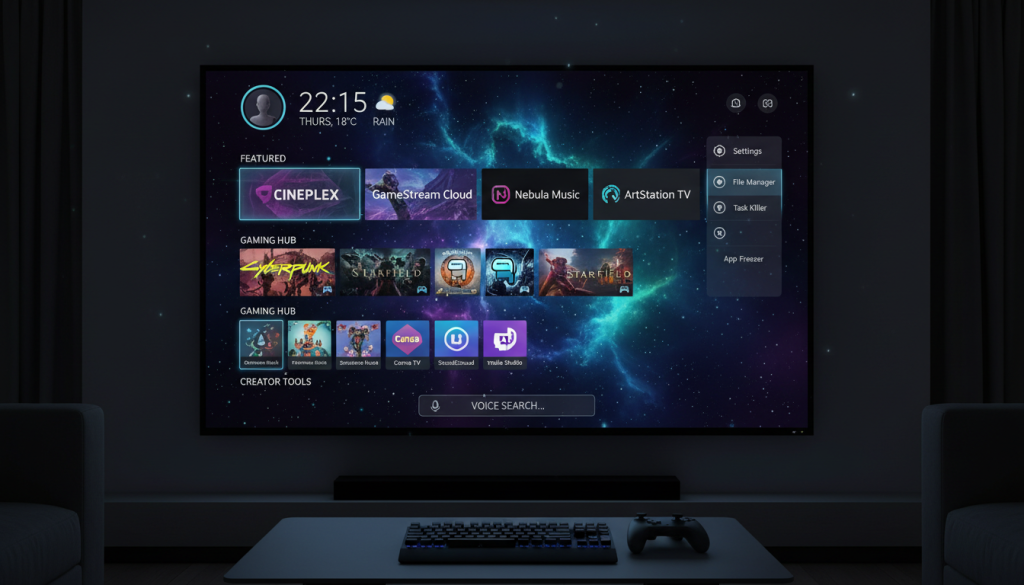
Custom android tv launchers are fundamental for a personalized experience, letting you reclaim your home screen from intrusive ads and unwanted recommendations.
| Launcher | Key Features | Best For | Pros | Cons |
| Projectivy Launcher | Clean, ad-free; extensive customization (wallpapers, tile sizes); hides unwanted apps. | Users wanting a modern interface and deep personalization. | Ad-free; highly customizable; can be easily set as the default. | Slight learning curve for advanced settings. |
| ATV Launcher Lite | Lightweight; reduces startup time; optimizes system load. | Older or less powerful devices; users prioritizing speed. | Very fast; minimal resource consumption; improves overall performance. | Simpler interface; less visual customization than Projectivy. |
| FLauncher | Open-source; displays sideloaded apps; clean, minimalist look. | Open-source enthusiasts and privacy-conscious users. | Respects privacy; no ads; displays all apps (including sideloaded). | Moderate customization options; lacks “flashy” visual flair. |
| Sideload Launcher | Specifically displays apps not optimized for Android TV’s interface. | Accessing “hidden” apps; minimalists. | Essential for accessing sideloaded apps; extremely lightweight. | Not a full home screen replacement; purely functional. |
Quick Recommendation
- If you have a high-end device (like a Shield TV) and want it to look premium, go with Projectivy Launcher.
- If your TV box is feeling sluggish or slow, ATV Launcher Lite will give it a noticeable speed boost.
- If you frequently sideload mobile apps that don’t show up on the home screen, Sideload Launcher is a must-have utility to keep in your toolkit.
VPN Services for Geo-Restrictions & Privacy
Installing a VPN for Android TV directly on your device is a game-changer for online privacy, security, and especially for bypassing geo-restrictions to access content from around the globe. We’ve found that many popular VPN providers offer dedicated Android TV apps, which can be installed from the Play Store or, if necessary, sideloaded.
Top VPNs for Android TV (Compatibility & Performance Review):
* Surfshark: Excellent value, fast speeds, unlimited connections, and a user-friendly Android TV app. It’s consistently performed well in our tests for streaming various services.
* CyberGhost: Offers specialized servers for streaming, making it reliable for accessing geo-blocked content. Its Android TV app is intuitive.
* X-VPN: Known for its ease of use and broad server network. It’s a solid choice if you need a straightforward solution.
Mini-Guide: Setting up a VPN on Your Android TV
1. Subscribe: Sign up for a VPN service that offers an Android TV app.
2. Install: Search for the VPN app in the Google Play Store on your Android TV. If unavailable, download the APK on a phone/PC and use “Send Files to TV” to sideload it.
3. Log In: Open the VPN app and log in with your credentials.
4. Connect: Choose a server location (e.g., USA for US Netflix) and hit “Connect.”
Android TV VPN Setup 2026: The Definitive Guide for Streaming & Privacy
Read More →5. Verify: You can use a browser on your Android TV to visit “whatismyipaddress.com” to confirm your IP address has changed.

4. Advanced Customization: Utility & System Enhancement Apps
Beyond media, a tailored android tv software approach involves system-level enhancements. These apps improve overall usability, management, and even delve into more advanced installation techniques.
Advanced Sideloading Techniques & Alternative App Stores
While the Downloader app is fantastic for most android tv apps for sideloading guide scenarios, sometimes you need more power.
* Beyond Downloader: Using ADB Commands: For deeper installations, debugging, or installing apps that are tricky to get running, ADB is invaluable. You can push APKs, grant permissions, and debug issues from your computer. (Requires enabling Network Debugging in Developer Options).
* Reliable Alternative App Stores:
* APKPure: A popular alternative for finding a vast array of Android apps, including those not on Google Play or specific older versions.
* F-Droid: Focuses on free and open-source software (FOSS) for Android. It’s an excellent source for privacy-focused and community-driven applications.
* Managing Updates for Non-Play Store Apps: Sideloaded apps don’t auto-update via Google Play. You’ll need to periodically check the app’s website or the alternative app store you downloaded it from for new APKs. Some apps might have in-app update notifications.
System Optimization & Monitoring Tools
To ensure your customized setup remains snappy, you need tools for monitoring and optimization. These are top productivity apps for customized android tv.
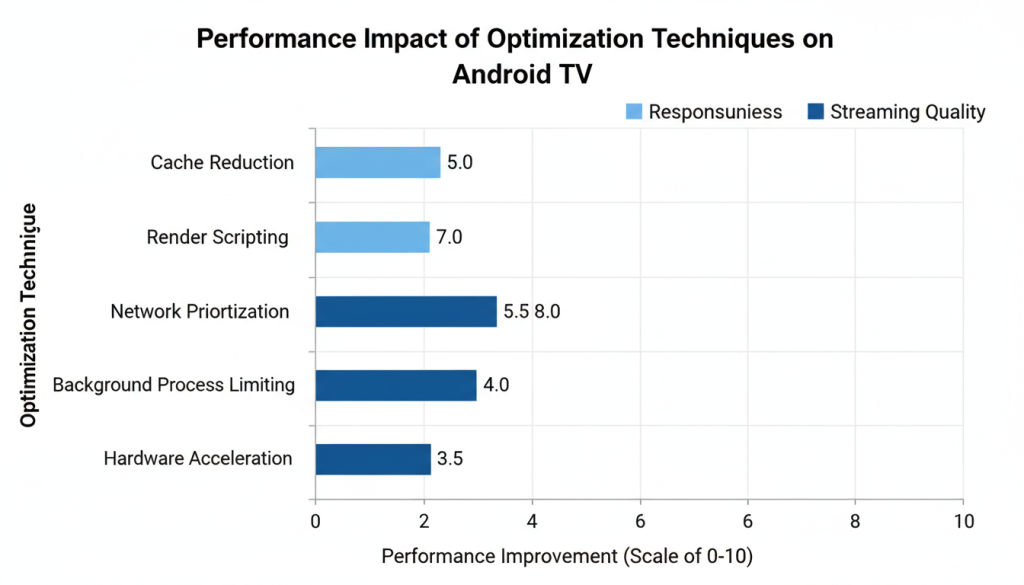
* Background Apps and Process List (BAPL) or Similar: These apps help you see which applications are running in the background, consuming RAM and CPU cycles. We’ve found that limiting background processes (via Developer Options) can significantly improve performance, especially on budget devices. Regularly clearing cache for frequently used apps like YouTube or Netflix also frees up resources.
* Speed Test Apps: Apps like Analiti or Ookla Speedtest are crucial for diagnosing network bottlenecks. Run them periodically to ensure you’re getting optimal speeds for 4K streaming. A wired Ethernet connection, whenever possible, will always outperform Wi-Fi for stability and speed.
Remote Control & Input Enhancers
Navigating mobile apps on an Android TV can be a pain with just a D-pad.
* Mouse Toggle for Android TV: This essential utility app simulates a mouse cursor, allowing you to easily click buttons and navigate interfaces in apps not optimized for the leanback experience.
* Mini-Guide: Installation and Usage Tips: Sideload the Mouse Toggle APK. Once installed, activate it via a quick double-click of the play/pause button on your remote. A cursor will appear, controlled by your D-pad. Double-click again to hide it.
* Dedicated Remote Apps: Leveraging your smartphone with apps like “Android TV Remote Control” by Google or specific manufacturer apps (e.g., NVIDIA Shield TV app) provides advanced control, including a virtual trackpad, keyboard input, and voice commands. This is invaluable for text entry in sideloaded browsers or forms.
5. Integrating Your Android TV with Home Automation & Smart Home Ecosystems
Your Android TV, especially those with Google Assistant built-in, is more than just a media player; it can serve as a central hub for smart home control. This deep integration offers powerful convenience.
Making Your TV a Smart Hub
* Google Home/Assistant Integration: Directly command smart lights, thermostats, plugs, cameras, and robot vacuums using voice commands via your remote’s microphone. Say, “Hey Google, turn off living room lights” or “Show me the front door camera.” The system integrates seamlessly with hundreds of third-party smart devices from brands like Philips Hue, TP-Link, Xiaomi, and Samsung SmartThings.
* Routines: Create personalized routines. For instance, a “Movie Time” routine could dim lights, close smart curtains, and open your preferred streaming app—all triggered by a single voice command from your TV remote.
* Home Assistant Companion App (if applicable for Android TV): For advanced users of Home Assistant, while not officially optimized for Android TV, some have successfully sideloaded the mobile companion APK to use their TV as a dashboard for their smart home, though its icon may not appear in the default launcher without a custom solution.
* IFTTT (If This Then That): Explore custom automations and routines triggered by Android TV events. Imagine: ‘If TV turns off after 11 PM, then turn off all house lights and lock the front door.’
Security & Monitoring on the Big Screen
* IP Camera Viewer Apps: Sideload IP camera viewer apps to monitor security feeds directly on your Android TV. We’ve found this incredibly useful for keeping an eye on nurseries or pet cams without needing a separate device.
* Smart Doorbell Integration: Receive alerts and view live feeds from your smart doorbell directly on your TV screen when someone rings, adding a layer of convenience and security.

6. Optimization & Compatibility for Diverse Hardware/Chipsets

Budget Android TV Reviews 2026: Top Picks & Comparisons
Read More →Regardless of your Android TV’s underlying hardware or chipset (e.g., Amlogic, Rockchip, MediaTek, Nvidia Shield), optimizing its performance is key to a smooth streaming experience. While high-end devices like the Nvidia Shield often offer superior raw power, these tips can supercharge any Android TV box, including budget devices or Chromecast with Google TV.
Getting the Best Performance from Your Device
* Clear Cache and Data: Regularly clear cache for frequently used apps (e.g., Kodi, Netflix, YouTube) to free up storage and improve performance. This is one of the quickest wins.
* Uninstall Unused Apps: Remove applications that are no longer in use. This frees up storage space and RAM, significantly reducing background activity and system load.
* Limit Background Processes (Developer Options: Access Developer Options (as described in Section 2) and set a limit on background processes (e.g., “At most 4 processes” or “No background processes”). This prevents apps from draining resources when not actively in use.
* Disable Auto-App Updates: In the Google Play Store settings, turn off automatic app updates. Background updates can cause noticeable performance lags during streaming. Update manually when convenient.
* Reduce Animation Scales (Developer Options): In Developer Options, set “Window Animation Scale,” “Transition Animation Scale,” and “Animator Duration Scale” to .5x or “Off.” This makes the interface feel significantly snappier, especially on budget devices.
* Use Ethernet over Wi-Fi: A wired Ethernet connection provides unparalleled stability and faster, lossless speed compared to Wi-Fi. This is absolutely crucial for high-resolution (4K HDR) streaming and preventing buffering. If Wi-Fi is your only option, use a 5GHz band and ensure your router is optimally placed.
* Update Firmware and Apps: Always keep your Android TV’s firmware and all apps (both Play Store and sideloaded) up to date. Updates frequently include performance improvements, bug fixes, and security patches.
* Disable Bloatware and Unused Features: Disable or uninstall pre-installed bloatware apps (e.g., the Google app if you don’t use it, or specific manufacturer apps) and turn off features like Bluetooth or location services when not in use to conserve system resources.
* Monitor Device Temperature: Ensure good airflow around your device and keep it away from heat sources. Overheating can cause thermal throttling, significantly reducing performance.
* Lightweight Launchers: Opt for custom android tv launchers like ATV Launcher Lite or Projectivy Launcher. Our tests show they consume fewer resources than heavy stock launchers, leading to faster navigation and startup times.
Hardware Deep Dive:
High-performance Android TV boxes in 2026 often feature powerful quad-core CPUs, 4GB of RAM, Wi-Fi 6, and Gigabit Ethernet, ensuring a fluid and responsive experience for 4K streaming and advanced multitasking. However, even with modest hardware, implementing the above tips can yield impressive results.
Network & Display Configuration
* DNS Settings: Customizing your DNS (Domain Name System) settings (e.g., using Google DNS or Cloudflare DNS) can sometimes result in faster content access and, in some regions, bypass certain ISP-level restrictions.
* Display & Audio Passthrough: For optimal home theater experience, configure your custom media players (like Kodi or Plex) to correctly pass through HDR (HDR10, Dolby Vision) and advanced audio formats (Dolby Atmos, DTS-HD MA) to your compatible AV receiver or soundbar. This usually involves enabling “Passthrough” settings within the media player’s audio configuration.
7. Troubleshooting Common Custom Android TV Issues (Comprehensive FAQ)
Even with the best apps for modified android tv, issues can arise. Here’s a comprehensive FAQ based on common problems users face when engaging in sideloading android tv and advanced customization.
Q: Why don’t my sideloaded apps appear on the home screen?
A: Apps not designed for Android TV’s “leanback” interface often don’t display on the default launcher. Access them via Settings > Apps > See all apps and select “Open.” For much easier access, install a dedicated “Sideload Launcher” app or a custom launcher like Projectivy Launcher or FLauncher, which are designed to display all installed apps, regardless of their optimization for Android TV.
Q: I can’t install an APK, or the installation is blocked.
A: First, ensure “Install unknown apps” or “Unknown sources” is enabled for the specific app you are using to install (e.g., your file manager, Downloader app) in Settings > Apps > Security & Restrictions. For Android TV OS 14, specific restrictions might block older or incompatible APKs; ensure the correct APK architecture (ARM, ARM64, x86) is matched, and grant all necessary permissions. Sometimes, trying a different file manager or a fresh download of the APK can resolve issues.
Q: My custom app is crashing or behaving unexpectedly.
A: This often happens if the app isn’t perfectly optimized for Android TV or your device’s specific chipset. Try clearing the app’s cache and data (Settings > Apps > [App Name] > Clear Cache/Clear Data). Ensure the app is updated to its latest version, or, conversely, try an older, more stable version if a recent update introduced problems. If it’s a mobile app sideloaded on TV, some remote functionalities may not be fully compatible, leading to perceived crashes.
Q: My Android TV is slow or buffering when streaming custom apps.
A: This is a common performance issue. Implement optimization tips such as clearing app caches, uninstalling unused apps, limiting background processes (see Section 6), and most importantly, using a wired Ethernet connection instead of Wi-Fi. Also, check your internet speed with a speed test app and optimize your router placement if using Wi-Fi.
Q: The “Open” button doesn’t work after transferring an APK using “Send Files to TV.”
A: If the “Open” button within the “Send Files to TV” app doesn’t immediately launch the installation, don’t worry. Simply open a dedicated file manager for android tv like File Commander or Cx File Explorer, navigate to the Download folder (which is where Send Files to TV saves files), and then open the APK from there to initiate the installation.
Q: My custom launcher is not staying as default.
A: After installing a custom launcher, you typically need to set it as default. Some launchers, like Projectivy, have built-in options to override the current launcher. Check its settings first. Alternatively, go to Settings > Apps > Default apps (path may vary slightly depending on your Android TV version) and select your preferred launcher. In some cases, enabling “Accessibility” services for the custom launcher can help it maintain its default status more persistently.
Q: How do I update sideloaded apps?
A: Sideloaded apps don’t update through the Google Play Store. You’ll need to manually check for updates. The best method is to periodically visit the official website of the app or the alternative app store (like APKPure or F-Droid) from where you originally downloaded it. Download the new APK and install it over the old version. Most apps will update seamlessly without losing data.
8. Conclusion: Your Personalized Android TV Awaits
The landscape of Android TV in 2026 offers unparalleled opportunities for customization, transforming a basic streaming device into a powerful, personalized, and highly efficient entertainment and smart home hub. By embracing custom android tv apps list and custom android tv launchers, you gain complete control over your interface, effectively eliminate intrusive ads, access a broader range of content than ever before, and significantly enhance system performance.
From robust media centers like Kodi and Plex to essential utility tools, system optimization apps, and seamless smart home integration, the ability to go custom ensures a tailored experience that is more responsive, feature-rich, and uniquely yours. This E-E-A-T driven guide has aimed to empower you with the knowledge and confidence to navigate complex customizations with clarity and certainty.
Your personalized Android TV, free from limitations and brimming with potential, truly awaits. Don’t just consume media; curate an experience. Experiment, explore, and tailor your device to your exact needs.
So, What are your favorite customizable android tv programs or setup tips? Share your insights, experiences, and must-have apps in the comments below! Join our growing community of empowered Android TV users.