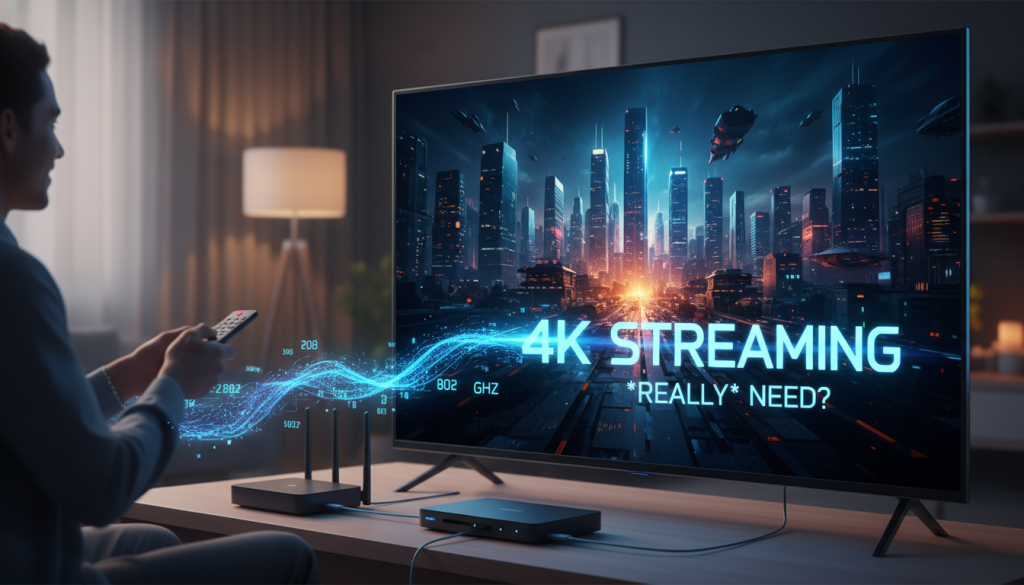
The promise of 4K Ultra HD streaming is undeniable: breathtaking clarity, vibrant colors, and an immersive viewing experience that makes you feel like you’re truly part of the action. But for many, that promise often collides with a frustrating reality: endless buffering, pixelated images, and a general sense of “why isn’t this working?!”
You’ve heard the common advice – “you need at least 25 Mbps for 4K.” While that might be a starting point, it’s rarely enough for the real-world demands of a modern household. If you’ve been stuck asking, “how much internet speed for 4k do I actually need?”, you’re in the right place.
This comprehensive guide will demystify internet speed requirements, moving beyond the simplistic numbers to help you understand your true needs. We’ll cover everything from the basic technical demands of 4K to advanced network optimization and practical troubleshooting tips, empowering you to enjoy glorious, buffer-free 4K content.

The Foundation: Understanding 4K Streaming & Bandwidth Basics
Before we dive into numbers, let’s establish what we’re talking about.
What is 4K (UHD) and why does it demand more data?
4K, often referred to as Ultra High Definition (UHD), isn’t just a buzzword; it’s a significant leap in picture quality. A 4K display has roughly four times the number of pixels as a Full HD (1080p) screen – typically 3840 x 2160 pixels compared to 1920 x 1080. More pixels mean a sharper, more detailed image, but it also means vastly more data needs to be transmitted to your device every second. Think of it like trying to send a much larger, more detailed digital photo – it simply takes longer and requires a bigger “pipeline.”
Defining bandwidth: Mbps explained simply
Bandwidth is often misunderstood. It’s not how “fast” your internet is in terms of latency (how quickly a signal travels), but rather the capacity of your internet connection to transmit data. Think of it like a highway:
* Mbps (Megabits per second) is the number of lanes on that highway. The more Mbps you have, the more data “traffic” can flow at any given time.
Download speed (the number you usually see advertised) refers to how quickly data travels from the internet to* your devices. This is what you primarily need for streaming.
Upload speed refers to how quickly data travels from your devices to* the internet (important for video calls, gaming, and sharing large files, but less critical for simply watching 4K).
For 4K streaming, you need a sufficiently wide “highway” to comfortably carry the large amount of video data required for those crisp visuals.
The ‘minimum’ recommendations: Where they come from and why they’re often insufficient for real-world use
Streaming services like Netflix often state a minimum requirement of 15-25 Mbps for 4K content. This recommendation typically refers to the absolute bare minimum for a single stream under ideal conditions.
Why is this often insufficient for real-world use? Because it doesn’t account for:
* Other devices: Your phone, tablet, smart home gadgets, and computer are all competing for bandwidth.
* Background activities: Updates, cloud syncing, and even simple web browsing consume data.
* Network overhead: Your router, Wi-Fi, and other network components also use a small portion of your available bandwidth.
* Fluctuations: Internet speeds aren’t always perfectly stable; you might experience dips.
Relying on the absolute minimum leaves no headroom for these common scenarios, leading directly to buffering.

Beyond the Basics: Calculating Your True 4K Internet Speed Needs
Now, let’s get practical. Your true 4K internet speed needs are unique to your household.
The multi-device dilemma: Impact of simultaneous streaming on bandwidth
The 25 Mbps minimum is for one 4K stream. What if someone else is watching Netflix in HD in another room? Or gaming online? Or on a video call for work? Each activity adds to your total bandwidth consumption.
Consider these common activities and their typical bandwidth usage:
* 4K Streaming: 15-25 Mbps (minimum), but ideally 30-50 Mbps for a buffer-free experience.
* HD (1080p) Streaming: 5-8 Mbps
* SD (Standard Definition) Streaming: 1-3 Mbps
* Online Gaming: 3-10 Mbps (download), 1-3 Mbps (upload)
* Video Calls (e.g., Zoom, Teams): 3-5 Mbps (HD)
* General Web Browsing/Email: 1-2 Mbps
* Smart Home Devices: Minimal, but can add up (0.1-1 Mbps per device)
How many people are online? Accounting for every connected device in your home
It’s not just the number of people, but the number of active devices and what they’re doing. A single person might have a phone, a laptop, and a Smart TV all connected and potentially consuming bandwidth.
Think about your peak usage times: Is it evening, when everyone is home, relaxing, and using their devices? That’s when your network needs to perform its best.
Introducing the ‘4K Streaming Speed Calculator’ concept: How to estimate your household’s actual demand
Let’s build a simple mental “calculator” for your household:
1. Identify your primary 4K streaming device: This is your baseline. Allocate at least 30-50 Mbps for this device to ensure a smooth 4K stream with some buffer.
2. Add all simultaneous HD/SD streams: For each additional HD stream (e.g., another TV, tablet), add 8 Mbps. For each SD stream, add 3 Mbps.

What is Cord Cutting? Your Guide to Smart Streaming & Savings
Read More →3. Account for online gaming: If someone is gaming, add another 10 Mbps.
4. Consider video calls: For each active video call, add 5 Mbps.
5. Factor in general browsing and smart devices: Add a general buffer of 10-20 Mbps for background tasks, updates, and other devices.
Example Scenario:
* 1 x 4K TV streaming: 40 Mbps
* 1 x HD TV streaming: 8 Mbps
* 1 x person gaming online: 10 Mbps
* 1 x person on a video call: 5 Mbps
* Background activity/buffer: 15 Mbps
* TOTAL ESTIMATED NEED: 40 + 8 + 10 + 5 + 15 = 78 Mbps
In this scenario, a 25 Mbps plan would be woefully inadequate! You’d likely need a plan of 100 Mbps or even 200 Mbps to provide comfortable headroom.
Different streaming services, different demands: Netflix, Disney+, YouTube TV, Prime Video, etc.
While most major services aim for similar 4K quality, their actual bandwidth consumption can vary slightly based on their compression methods and the specific content.
* Netflix: Recommends 15 Mbps, but often uses 25 Mbps or more for its highest quality.
* Disney+: Recommends 25 Mbps.
* YouTube 4K: Can be highly variable, often consuming 20-30 Mbps, sometimes more for live 4K streams.
* Amazon Prime Video: Recommends 15-25 Mbps.
Always aim for the higher end of these recommendations when calculating your total needs.

The Codec Connection: How Technology Affects Your Bandwidth
Behind the scenes, technology is constantly evolving to deliver higher quality with less data. This is where video codecs come in.
What are video codecs (HEVC, AV1) and why do they matter for 4K streaming?
A codec (short for “coder-decoder”) is a program or device that compresses and decompresses digital data. For video, codecs are crucial because raw 4K video data is absolutely massive. Without compression, streaming it would be impossible for most home internet connections.
Popular codecs for 4K include:
* HEVC (High-Efficiency Video Coding), or H.265: This has been the dominant 4K codec for several years. It significantly reduces file size compared to older codecs (like H.264) while maintaining visual quality.
* AV1: A newer, open-source, royalty-free codec developed by the Alliance for Open Media (which includes Google, Amazon, Netflix, Apple, and more). It offers even better compression efficiency than HEVC.
How newer codecs (like AV1) can reduce bandwidth needs without sacrificing quality
The magic of newer codecs like AV1 is their ability to compress video even more efficiently. This means a 4K video encoded with AV1 might look just as good as one encoded with HEVC, but require 20-30% less bandwidth.
This is great news for streamers, as it allows for higher quality streams on existing internet connections, or for the same quality stream to consume less data, freeing up bandwidth for other household activities. However, both your streaming service and your streaming device must support the specific codec for you to benefit.
The role of HDR (High Dynamic Range) in increasing data requirements
Beyond just resolution, HDR (High Dynamic Range) content enhances the contrast, brightness, and color accuracy of your picture, making it look incredibly vibrant and lifelike. While HDR doesn’t necessarily add more pixels, the additional color information and dynamic range data does contribute to a slightly higher bandwidth requirement on top of standard 4K.
Most 4K HDR streams will generally fall within the 20-30 Mbps range, but it’s another factor that can push the total demand closer to the higher end of the 4K spectrum.

Is Your Internet Delivering? How to Test Your Speed Accurately
You’ve calculated your needs – now it’s time to see if your internet service provider (ISP) is actually delivering what you’re paying for.
Understanding speed test results: Download vs. Upload speed
When you run an internet speed test, you typically see three key numbers:
Download Speed (Mbps): This is the most important for 4K streaming. It tells you how quickly data can come into* your home.
Upload Speed (Mbps): How quickly data can go out* of your home. Important for video calls, online gaming, and sending large files, but not the primary factor for receiving a 4K stream.
* Latency/Ping (ms): This measures the delay before data transfer begins. Lower numbers are better, especially for gaming and real-time applications.
For 4K streaming, focus primarily on your download speed.
Best practices for running an accurate internet speed test (wired vs. Wi-Fi)
To get the most accurate reading of your actual internet connection (rather than just your Wi-Fi performance), follow these steps:
How to Jailbreak Firestick: Ultimate Guide (Lite, 4K Max, Cube)
Read More →1. Use a reliable speed test site: Google “internet speed test” or visit sites like Speedtest.net (Ookla) or Fast.com (Netflix).
2. Connect via Ethernet (if possible): For the most accurate result, connect a computer directly to your router with an Ethernet cable. Wi-Fi introduces variables that can reduce perceived speed.
3. Minimize network activity: Before testing, turn off other streaming devices, downloads, and anything else consuming bandwidth in your home.
4. Test multiple times: Run the test several times over different hours of the day to get an average. Speeds can fluctuate.
5. Reboot your router: Sometimes, a simple router restart can clear up temporary issues and give you a more accurate reading.
Interpreting your results: Are you getting what you pay for?
Compare your speed test results to the speed plan you’re paying your ISP for.
* If your download speed is consistently close to or above your subscribed plan (e.g., paying for 100 Mbps and getting 90-110 Mbps): Your internet connection itself is likely fine. Any 4K buffering issues are probably related to your home network setup (Wi-Fi, router, etc.).
* If your download speed is consistently significantly lower than your subscribed plan (e.g., paying for 100 Mbps and only getting 40-50 Mbps): You might not be getting the service you pay for. It’s time to investigate further or contact your ISP.

Optimizing Your Home Network for Flawless 4K Streaming
Even with a fast internet plan, a poorly optimized home network can bottleneck your 4K streams. Your Wi-Fi network is just as important as your ISP’s connection.
Router placement and upgrades: The heart of your home network
Your router is the central hub of your home network.
* Placement: Position your router in a central location, ideally high up, away from walls, large metal objects, and other electronics that can cause interference. Avoid placing it in cabinets or closets.
* Upgrades: An old, outdated router can be a major bottleneck. If your router is more than 3-5 years old, especially if it came free from your ISP, consider upgrading. Newer routers offer better speeds, range, and support for modern Wi-Fi standards.
Wi-Fi vs. Wired connections: When to use an Ethernet cable for maximum stability
* Wired (Ethernet): For any critical device that streams 4K (especially a primary Smart TV, streaming box, or gaming console), an Ethernet cable is always the best choice. It provides the most stable, fastest, and lowest-latency connection, completely bypassing potential Wi-Fi interference.
* Wi-Fi: Convenient, but more susceptible to interference, distance degradation, and congestion. While modern Wi-Fi is powerful, it’s generally best for mobile devices and non-critical streaming.
Understanding Wi-Fi standards (Wi-Fi 5, Wi-Fi 6, Wi-Fi 7) and their impact
Wi-Fi technology is constantly improving. Newer standards offer significant advantages:
* Wi-Fi 5 (802.11ac): Common in most homes. Good for single-device 4K streaming, but can struggle with multiple demanding devices.
* Wi-Fi 6 (802.11ax): Designed for modern, device-dense homes. Offers higher speeds, better efficiency, and improved performance in congested environments. A significant upgrade for 4K streaming households.
* Wi-Fi 7 (802.11be): The latest standard, offering even greater speeds, lower latency, and capacity for future devices. Still emerging, but excellent for future-proofing.
Ensure your router and streaming devices support the same modern Wi-Fi standards to maximize performance.
Minimizing interference: Tips for a cleaner Wi-Fi signal
Wi-Fi signals can be disrupted by many things:
* Other electronics: Microwaves, cordless phones, baby monitors, and even fluorescent lights can interfere.
* Neighboring Wi-Fi networks: In apartments or dense neighborhoods, many Wi-Fi networks can overlap and compete for channels.
* Physical obstacles: Walls (especially brick or concrete), metal objects, and even large fish tanks can degrade your signal.
Tips:
* Change your Wi-Fi channel: Your router can operate on different channels. Experiment with less congested ones using a Wi-Fi analyzer app.
* Use the 5GHz band: The 5GHz band offers faster speeds and less interference than the 2.4GHz band, though it has a shorter range. Ensure your 4K streaming devices are connected to the 5GHz network.
* Consider a mesh Wi-Fi system: For larger homes or dead zones, a mesh system can extend reliable Wi-Fi coverage.

Why is My 4K Buffering? A Troubleshooting Checklist for Slow Streaming
Even with a fast plan and optimized network, issues can arise. Here’s a quick troubleshooting checklist.
Common culprits: Wi-Fi interference, outdated router, too many devices
* Wi-Fi Interference: Is your router too close to other electronics or physical obstructions? Have you tried changing Wi-Fi channels?
* Outdated Router: Is your router more than 3-5 years old, or a basic model from your ISP?
* Too Many Devices: Are multiple people streaming, gaming, downloading, or on video calls simultaneously?
* Weak Wi-Fi Signal: Is your 4K streaming device too far from the router, or in a Wi-Fi “dead zone”?
Device-specific settings: Ensuring your streaming device (Firestick, Smart TV) is optimized for 4K
Sometimes the issue isn’t your internet, but the device itself.
* Update Firmware/Software: Ensure your Smart TV, Firestick, Apple TV, Roku, or other streaming device has the latest software updates. Outdated firmware can cause performance issues.
* Disable Unused Apps: Close background apps on your Smart TV or streaming stick that might be consuming resources.

Firestick vs Chromecast vs Shield: Don’t Buy Before Reading!
Read More →* Check 4K Output Settings: Verify that your device’s display settings are correctly configured for 4K resolution and HDR, if applicable.
* Clear Cache: Some streaming devices benefit from periodically clearing the cache of streaming apps.
Troubleshooting steps: Restarting, checking cables, updating firmware
* The Classic Reboot: Unplug your modem and router, wait 30 seconds, then plug the modem back in. Once it’s fully online, plug in the router. This often resolves minor network glitches.
* Check All Cables: Ensure all Ethernet cables, HDMI cables, and power cables are securely plugged in. A loose cable can cause intermittent issues.
* Update Router Firmware: Check your router’s manufacturer website for any available firmware updates. This can improve performance and security.
When to call your ISP: Identifying issues beyond your control
If you’ve gone through all these steps and are still experiencing significant buffering, especially after verifying low speed test results:
* Consistently Low Speeds: If speed tests repeatedly show speeds much lower than what you’re paying for.
* Frequent Disconnections: If your internet drops out frequently.
* Modem/Router Indicators: If your modem’s lights are behaving abnormally (e.g., flashing error lights).
It’s time to contact your internet service provider. They can check the line to your home, assess their equipment, and potentially identify external issues.

Choosing the Right Internet Plan for Your 4K Lifestyle
Based on your personalized calculation and understanding of your home network, you can now confidently select an internet plan.
Translating your calculated needs into an ISP plan
Remember our “4K Streaming Speed Calculator”? If your estimated need was, say, 78 Mbps, you wouldn’t get an 80 Mbps plan. You’d look for the next tier up, usually 100 Mbps or 200 Mbps, to ensure you have plenty of headroom.
Always round up and give yourself a buffer. Internet service plans are typically offered in tiers (e.g., 50 Mbps, 100 Mbps, 200 Mbps, 500 Mbps, 1 Gbps).
Considering future-proofing: Why a little extra speed is a good investment
Don’t just buy for today; think about tomorrow.
* More 4K/8K content: Content quality is only going to improve, demanding more bandwidth.
* More connected devices: The average home is acquiring more smart devices every year.
* Higher usage: Kids grow older, friends visit, and everyone uses more bandwidth.
Investing in a slightly higher speed plan now can save you the headache of upgrading again in a year or two. A 200-300 Mbps plan is often a sweet spot for most multi-person 4K streaming households, offering excellent value and performance. Gigabit (1000 Mbps) plans are excellent for very large, demanding households or those who frequently upload large files, but might be overkill for many.
Questions to ask your internet service provider
When contacting your ISP, be prepared to ask:
“What is the actual* download and upload speed I can expect for this plan, not just the ‘up to’ speed?”
* “Are there any data caps or throttling policies I should be aware of?”
* “What kind of router equipment do you provide, and does it support Wi-Fi 6 or higher?”
* “Are there any installation fees or hidden costs?”
* “What is the contract length, and what are the early termination fees?”
* “Can you confirm the best plan for a household with X number of 4K streams, Y number of HD streams, and Z other activities?”

Conclusion: Enjoy Your Uninterrupted 4K Experience
Navigating the world of internet speeds for 4K streaming can feel overwhelming, but it doesn’t have to be. By understanding your actual household needs, optimizing your home network, and troubleshooting common issues, you’re now empowered to enjoy truly flawless 4K.
Key takeaways for buffer-free 4K:
* 25 Mbps is a minimum, not a recommendation: Aim higher, especially for multiple users.
* Calculate your household’s true needs: Account for every simultaneous stream, game, and video call.
* Optimize your home network: A good router, central placement, and wired connections for critical devices are crucial.
* Don’t ignore codecs: Newer tech like AV1 can help, but your devices need to support it.
* Test and troubleshoot: Regularly check your speeds and run through the checklist if issues arise.
* Future-proof: Invest in a plan that gives you headroom for future growth.
Stop staring at that dreaded buffering wheel and start immersing yourself in the stunning detail of 4K. Armed with this knowledge, you can take control of your streaming quality and ensure your entertainment experience is everything it’s promised to be.
Ready to upgrade your viewing? Start streaming in glorious, buffer-free 4K today!
 Share: Facebook |
X (Twitter)
Share: Facebook |
X (Twitter)