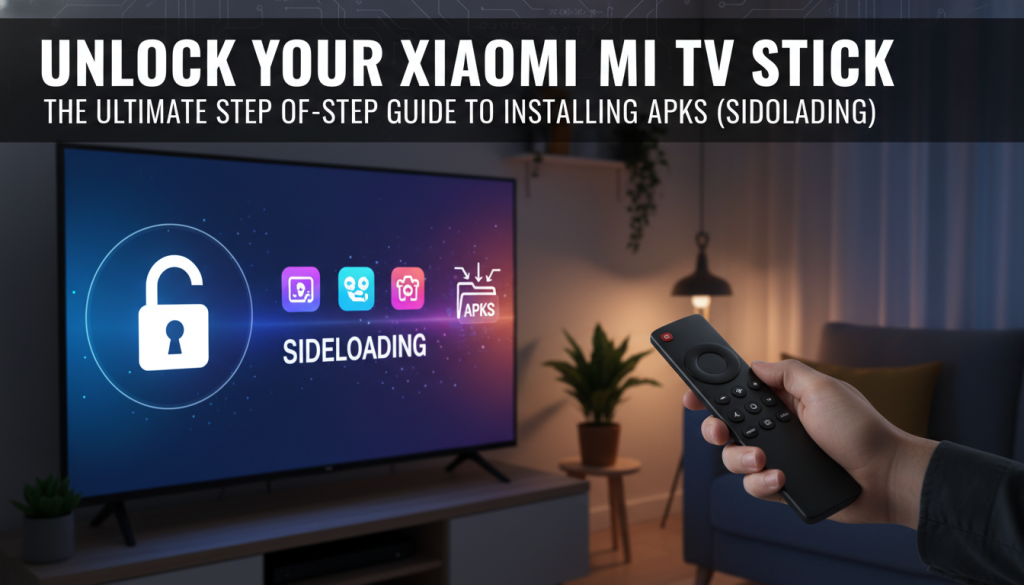
Your Xiaomi Mi TV Stick is a powerful gateway to endless entertainment, but did you know its potential extends far beyond the Google Play Store? Many users seek to install APKs on their Xiaomi Mi TV Stick to access a broader universe of applications. This process, known as “sideloading,” allows you to install apps not officially available in your region, older app versions, specialized utilities, or even alternative app stores.
This comprehensive guide is designed to empower you with the knowledge and confidence to safely and effectively sideload applications onto your Mi TV Stick. We’ll walk you through each step with crystal-clear instructions, ensuring you unlock the full potential of your device. Let’s dive in!
Introduction: Expand Your Mi TV Stick’s Potential
The Xiaomi Mi TV Stick, a compact and affordable Android TV streaming device, offers a fantastic streaming experience out of the box. However, its true versatility shines through the ability to install APKs on your Xiaomi Mi TV Stick via “sideloading” APK (Android Package Kit) files. Sideloading means installing applications from sources other than the official Google Play Store. There are several compelling reasons to consider sideloading apps on your Mi TV Stick:
* Access Geo-Restricted Apps: Install apps not available in your country.
* Find Older Versions: Revert to previous, preferred app versions if updates cause issues.
* Discover Niche Utilities: Explore apps tailored for specific functionalities not found in the Play Store.
* Utilize Alternative App Stores: Tap into a wider selection of content.
In this guide, you will learn the exact steps to prepare your Mi TV Stick, master the most popular sideloading methods, troubleshoot common issues, and understand the critical security considerations for a safe and enhanced streaming experience.
Important Pre-Installation Steps: Preparing Your Mi TV Stick
Before you can begin sideloading, you need to adjust a couple of settings on your Xiaomi Mi TV Stick. These steps are crucial for allowing your device to install apps from “unknown sources.”
Enable Developer Options (Recommended for Advanced Users)
While not strictly required for basic sideloading, enabling Developer Options can be useful for advanced debugging or specific app functionalities.
1. Navigate to Settings on your Mi TV Stick’s home screen.


2. Scroll down and select Device Preferences (or System on some versions).

3. Go to About.
4. Scroll down to Android TV OS build (or Build number).

5. Repeatedly click on Android TV OS build about seven times. You’ll see a toast message indicating “You are X steps away from being a developer,” counting down until it says “You are now a developer!”

Enable ‘Install unknown apps’ (or ‘Unknown sources’)
This is the most critical security setting. It must be enabled for any app you intend to use for downloading or installing APKs. Google has been increasing scrutiny on sideloaded apps, making it paramount to understand this setting.
1. Go to Settings from your Mi TV Stick’s home screen.
2. Select Device Preferences.
3. Scroll down and choose Security & Restrictions.

4. Select Unknown Sources (or Install unknown apps).
5. You will see a list of installed applications.
6. Toggle the switch next to the app you plan to use for sideloading (e.g., “Downloader,” “File Manager+”, or “Send Files to TV”) to Allow or On.
7. Without this crucial step, your installations will fail.
Ensure Sufficient Storage Space
APK files, especially for larger apps, can take up significant space. Before downloading, quickly check your available storage:
1. Go to Settings > Device Preferences > Storage.
2. Verify you have enough free space for the APK and the installed application. If not, consider uninstalling unused apps or clearing cache.
Method 1: Installing APKs Using the Downloader App (Recommended & Easiest)
The “Downloader by AFTVNews” app is widely regarded as the most straightforward and popular method for sideloading directly onto your Mi TV Stick. It includes a built-in browser, making it incredibly convenient.
Step-by-Step Guide to Installing the Downloader App from the Play Store
1. From your Mi TV Stick’s home screen, navigate to the Google Play Store.

2. Use the search function (magnifying glass icon) to search for “Downloader.”
3. Select “Downloader by AFTVNews” from the search results.
4. Click Install.
How to Grant Necessary Permissions to Downloader
After installing, you must allow Downloader to install apps from unknown sources.
1. Follow the steps outlined in the “Enable ‘Install unknown apps’ (or ‘Unknown sources’)” section above.
2. Locate “Downloader” in the list and toggle its switch to Allow or On.
Downloading an APK Using a Direct URL
Now, you’re ready to download your APK file directly to your Mi TV Stick.
1. Open the Downloader app. The first time, it may request file access permissions; select “Allow.”
2. In the URL field on the home screen, type the direct URL of the APK file you wish to download. Reputable sources include APKMirror or APKPure.
* Tip: For complex URLs, you might type browser.aftvnews.com first, install its browser plugin (if prompted), and then navigate to the APK source website to find the download link.
3. Click Go. The Downloader app will begin downloading the APK.
Installing the Downloaded APK File
Once the download is complete, Downloader will automatically prompt you to install it.
1. After the download finishes, a new screen will appear showing the installation prompt. Click Install.
2. If Google Play Protect warns you about an unsafe app (a growing trend as Google tightens security on sideloading), you might need to select “More details” and then “Install anyway.” This is a critical security consideration; proceed only if you trust the source.
3. Once installed, you can click Done to return to Downloader or Open to launch the new app immediately.
Deleting the APK File After Installation to Free Up Space
It’s good practice to delete the APK installation file once the app is installed to free up valuable storage space on your Mi TV Stick.
1. After installation, Downloader will often ask if you want to delete the file. Select Delete.
2. If you missed that prompt, you can find the file in the “Files” section within Downloader and manually delete it.
Method 2: Sideloading via ‘Send Files to TV’ (Convenient for Local Files)
This method is perfect if you already have the APK file on your smartphone or PC and want to transfer it wirelessly to your Mi TV Stick.
Installing ‘Send Files to TV’ on both your Mi TV Stick and your Mobile Device/PC
1. From your Mi TV Stick’s home screen, go to the Google Play Store. Search for and install “Send Files to TV.”
2. On your Android smartphone or tablet, open the Google Play Store (or App Store for iOS, if available for your device) and install “Send Files to TV.” For PC, search for “Send Files to TV” clients or use web-based alternatives.
Sending an APK File from Your Mobile/PC to the Mi TV Stick
1. First, ensure you’ve allowed “Send Files to TV” to install unknown apps on your Mi TV Stick (refer to the “Enable ‘Install unknown apps'” section).
How to Install La Deportes APK on Firestick, Android TV & Google TV
Read More →2. Open the “Send Files to TV” app on your smartphone/PC. Select Send.
3. Navigate to find the APK file you want to transfer and select it.
4. Open the “Send Files to TV” app on your Xiaomi Mi TV Stick. Select Receive.
5. Your phone/PC should detect your Mi TV Stick. Select your Mi TV Stick from the list to initiate the transfer.
Locating and Installing the Received APK File on Your Mi TV Stick
“Send Files to TV” typically saves received files to the “Download” folder. You’ll need a file manager to access and install it.
1. If you don’t have one, install a file manager app like “File Manager+” or “FX File Explorer” from the Google Play Store on your Mi TV Stick.
2. Crucially, allow your chosen File Manager app to install unknown apps (refer back to “Enable ‘Install unknown apps'” section). This is often overlooked!
3. Open your file manager app.
4. Navigate to the Download folder.
5. Find the APK file you just transferred and click on it.
6. The installation prompt will appear. Click Install.
7. Again, be mindful of Google Play Protect warnings and choose “Install anyway” if you trust the source.
Method 3: Installing APKs Using a USB Drive (For Mi TV Stick 4K or with USB Hub)
While the standard Xiaomi Mi TV Stick lacks a USB port, the Mi TV Stick 4K model often includes one, or you can use a USB hub with power delivery for older models. This method is straightforward if you have physical access to the APK file on a drive.
Preparing Your USB Drive: Formatting and Transferring APKs
1. Format: Ensure your USB drive is formatted to FAT32 or exFAT for maximum compatibility with Android TV devices. NTFS might not be fully supported.
2. Transfer APKs: Copy the desired APK files from your computer directly onto the root directory or a clearly named folder on the USB drive.
Connecting the USB Drive to Your Mi TV Stick (Requires USB Hub for non-4K models)
1. Mi TV Stick 4K: Simply plug the USB drive directly into the available USB port on your Mi TV Stick 4K.
2. Standard Mi TV Stick (with USB Hub):
* Connect a powered USB OTG (On-The-Go) hub to your Mi TV Stick’s micro-USB port.
* Connect the USB drive to one of the ports on the USB hub.
* Ensure the hub is powered, as the Mi TV Stick itself may not provide enough power for external drives.
Using a File Manager app to Navigate and Install the APK from the USB Drive
1. Install a file manager app (e.g., “File Commander,” “FX File Explorer,” or “File Manager+”) from the Play Store on your Mi TV Stick.
2. Crucially, enable ‘Install unknown apps’ for your chosen File Manager (as described in the “Pre-Installation Steps”).
3. Open the file manager app. It should detect your connected USB drive (often labeled as “USB Storage” or similar).
4. Navigate into your USB drive’s directory.
5. Locate the APK file you copied earlier and click on it.
6. The installation prompt will appear. Click Install.
7. Acknowledge any Google Play Protect warnings if they appear and you trust the source.
Common Troubleshooting & Solutions for Sideloading Errors
Sideloading, while powerful, can sometimes lead to minor hiccups. Here are solutions to the most common errors.
“App not installed” Error
This is one of the most frequent errors you might encounter.
* Common Causes:
* ‘Unknown sources’ disabled: The app used for installation lacks permission.
* App Incompatibility: APK not designed for Android TV OS or your device’s Android version.
* Corrupted File: APK file incomplete or damaged.
* Insufficient Storage: Not enough free space on your Mi TV Stick.
* Google Play Protect Interference: Google’s security features blocking installation.
* Solutions:
* Check ‘Unknown Sources’: Double-check that the installing app has permission in Settings > Device Preferences > Security & Restrictions > Unknown Sources.
* Find TV-Compatible APK: Look for APKs specifically labeled “Android TV” or “for TV” from reputable sources.
* Redownload: Try downloading the APK again from a trusted source.
* Free Up Space: Delete old apps, clear cache (Settings > Apps > See all apps > [App Name] > Clear cache/Clear data).
* Override Play Protect: If prompted by Play Protect, choose “Install anyway.”
“Parse error” or “There was a problem parsing the package”
This error usually indicates an issue with the APK file itself, preventing the system from reading it correctly.
* Explanations:
* Corrupted APK: File is damaged or incomplete.
* Incorrect Architecture: APK built for a different processor architecture (e.g., ARM64 vs. x86).
* Android Version Incompatibility: App requires a different Android version than your device has.
* Fixes:
* Redownload from Trusted Source: Always use sites like APKMirror or APKPure, paying attention to variants (e.g., arm64-v8a for modern Android TV sticks).
* Check App Requirements: Verify the app’s minimum Android version.
* Try Different Version: If available, try an older or newer version of the APK.
App Crashing or Not Launching After Installation
The app installed successfully, but you find it crashes immediately or simply won’t launch.
* Potential Solutions:
* Clear Cache/Data: Go to Settings > Apps > See all apps > [Crashing App] > Clear cache and then Clear data. Restart the app.
* Reinstall: Uninstall the app completely and try installing it again, potentially with a different APK version.
* Check App Requirements: Ensure your Mi TV Stick meets the app’s minimum RAM or processing power requirements.
* “Sideload Launcher”: Many sideloaded apps aren’t designed for the Android TV launcher. Install a “Sideload Launcher” or “ATV Launcher” from the Play Store to see and launch all installed apps, including hidden ones.
* Check for Background Services: Some apps require background services that might be restricted.
Download Issues with Downloader App
If you’re experiencing problems specifically with downloading files using the Downloader app:
* Causes:
* Network Problems: Unstable Wi-Fi or router issues.
* Incorrect URL: Typo in the direct download link.
* Server Issues: Source website or file server might be down.
* DNS Issues: Network’s DNS server failing to resolve the URL.
* Solutions:

Firestick vs Chromecast vs Shield: Don’t Buy Before Reading!
Read More →* Check Wi-Fi: Ensure a strong and stable connection.
* Verify URL: Double-check the URL for any errors.
* Try Later: If the server is down, try downloading at a later time.
* Restart Router/Mi TV Stick: A simple restart can resolve network glitches.
Security Risks & Best Practices for Sideloading APKs
While sideloading offers immense flexibility, it’s crucial to understand the inherent risks. Google is implementing stricter security measures, with Android 15 and Play Protect enhancements explicitly targeting potential fraud from sideloaded apps. A potential ban on sideloading unverified apps on Android/Google TV devices by 2026 is even on the horizon, highlighting the increasing scrutiny.
Understanding the Risks
* Malware & Spyware: Untrusted APKs can contain malicious code, compromising your device or stealing data.
* Data Theft: Malicious apps can gain access to your accounts, passwords, and sensitive information.
* System Instability: Poorly coded or malicious apps can cause crashes, slowdowns, or erratic behavior.
* Privacy Breaches: Apps may request excessive permissions to track usage, location, or private data.
How to Choose Trusted APK Sources
Mitigating risks starts with smart sourcing.
* Reputable Websites: Use trusted APK repositories like APKMirror, APKPure, or F-Droid; they often verify integrity.
* Developer Websites: Download APKs directly from official developer websites when possible.
* Community Forums: Research less common apps in Android TV communities for recommended APK sources.
* Avoid Unofficial Third-Party Sites: Be wary of generic download sites, especially those promising “free premium apps.”
Checking App Permissions Before Installation
Always review the permissions an app requests before hitting “Install.”
* Be Skeptical: A simple game asking for microphone access, contact list, or location data should raise a red flag.
* Read Carefully: Review the permissions listed during the installation prompt.
* Post-Installation Review: After installation, you can review and revoke permissions in Settings > Apps > See all apps > [App Name] > Permissions.
Using an Antivirus Scanner for Downloaded APKs (Optional but Recommended)
For an extra layer of security, especially if you’re unsure about an APK’s origin:
* Scan on PC: Download the APK to your computer first and scan it with a reputable antivirus program before transferring it to your Mi TV Stick.
* Online Scanners: Use online APK scanners (like VirusTotal) to check files before downloading or installing. Upload the APK and let it analyze for potential threats.
Recommended Essential APKs for Your Xiaomi Mi TV Stick
Once you’ve mastered sideloading, a world of possibilities opens up. Here are some categories and examples of apps commonly sideloaded by Mi TV Stick users:
Popular Streaming Apps Not on Play Store
* Region-Specific Streaming Services: Apps for local broadcasters or niche platforms not globally distributed.
* Alternative News/Content Aggregators: Apps offering different news feeds or content channels.
Utility Apps
* Alternative File Managers: Apps like “FX File Explorer” offer advanced storage management.
* VPN Clients: Install full-featured VPN apps for privacy and geo-unblocking (ensure Android TV compatibility).
* Web Browsers: Browsers like “Firefox for Android TV” or “Puffin TV Browser” for an improved browsing experience.
* Mouse Toggle for Android TV: For apps not optimized for the TV remote, this can provide a virtual mouse pointer.
Gaming Emulators and Retro Gaming Frontends
* Emulators: Sideload emulators for classic consoles (e.g., SNES, NES) to enjoy retro gaming.
* RetroArch: A powerful all-in-one frontend for various emulators.
Tips for Finding and Vetting New APKs
* Start with Reputable Sources: Always begin your search on APKMirror, APKPure, or F-Droid.
* Read Reviews and Comments: Check user comments on sites or forums for feedback on stability and safety.
* Look for Android TV Versions: Prioritize APKs designed for Android TV for better compatibility and remote control.
* Check Permissions: Always review the requested permissions before installation.
* Regularly Update: Stay informed about new versions from trusted sources for bug fixes and security.
Updating & Managing Sideloaded Applications
Sideloaded apps don’t automatically update through the Google Play Store. You’ll need to manage them manually.
How to Manually Update Sideloaded Apps
1. Monitor Sources: Regularly check the trusted source (e.g., APKMirror) where you originally downloaded the app for new versions.
2. Download New APK: When a new version is available, download the updated APK file using the same sideloading methods (Downloader, Send Files to TV, USB drive).
3. Reinstall: Install the new APK file over the existing app. In most cases, this will update the app while preserving your data and settings. The process is similar to the initial installation.
Properly Uninstalling Sideloaded Applications from Your Mi TV Stick
Uninstalling a sideloaded app is just like uninstalling any other app.
1. Go to Settings > Apps > See all apps.


2. Scroll down and select the sideloaded app you wish to uninstall.

3. Choose Uninstall and confirm.


Monitoring App Permissions and Usage
Even after installation, it’s wise to keep an eye on your apps.
1. Review Permissions: Periodically check and revoke unnecessary permissions for sideloaded apps.
2. Monitor Data Usage: Excessive data or battery consumption might indicate abnormal behavior.
3. App Not Appearing? If a sideloaded app doesn’t show up on your home screen, remember to use a “Sideload Launcher” app.
Conclusion: Enjoy Your Expanded Mi TV Stick Experience!
Congratulations! You’ve successfully navigated the world of sideloading and are now equipped to install APKs on your Xiaomi Mi TV Stick. We’ve covered enabling crucial settings, mastering popular installation methods like the Downloader app and “Send Files to TV,” and even explored the USB drive option for 4K models.
While the benefits of expanded app access and customization are clear, remember the importance of security. As Google continues to implement stricter controls on sideloading—with enhanced Play Protect and potential future restrictions by 2026—exercising extreme caution when sourcing APKs from trusted sites like APKMirror or APKPure is more critical than ever. Always be mindful of the potential security risks, understand app permissions, and stay informed about software updates.
Your Xiaomi Mi TV Stick is now more versatile than ever. Go forth and explore a wider array of applications, customize your streaming experience, and truly make your device your own!
We encourage you to share your experiences, favorite sideloaded apps, or any questions you might have in the comments below. Happy streaming!
`