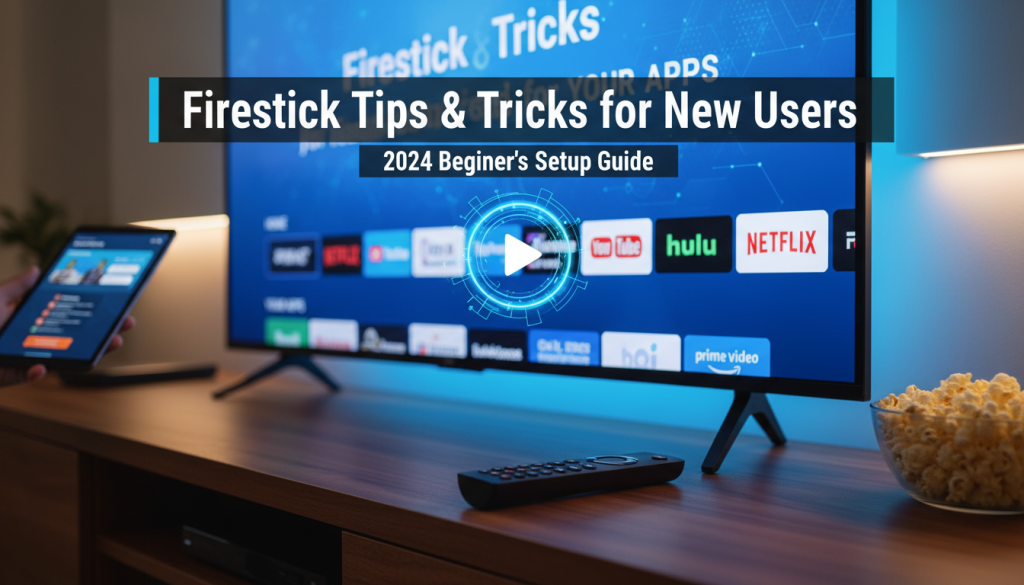
Welcome to the exciting world of smart streaming! If you’ve just unboxed your new Amazon Firestick, you’re about to transform your television into a powerful entertainment hub. This comprehensive guide, specifically designed for new users in 2026, is your friendly companion for setting up, optimizing, and getting the most out of your Firestick experience.
We understand that diving into new tech can feel a bit daunting, but don’t worry! We’re here to walk you through everything, from the initial unboxing to advanced features and troubleshooting. By the end of this guide, you’ll feel confident navigating your Firestick, discovering new content, and even integrating it into your smart home.
The Amazon Firestick is more than just a streaming device; it transforms any standard television into a smart TV, offering access to thousands of streaming applications and a growing suite of smart home features. For new users in 2026, we highly recommend considering models like the Fire TV Stick 4K or 4K Max. These versions boast better performance with 2GB of RAM and enhanced Wi-Fi (Wi-Fi 6 or 6E), ensuring future-proofing and a smoother, more responsive experience. (Note: The original Fire TV Stick has been discontinued as of 2024, replaced by the Fire TV Stick HD, though the 4K and 4K Max versions offer superior specifications). Get ready to unlock a world of entertainment!
Unboxing and Initial Setup – Your Firestick Journey Begins
Let’s start at the very beginning – unboxing your new Firestick! This chapter will guide you through connecting your device and getting it ready for its first stream.
What’s in the Box: A Quick Overview of Components
Upon unboxing, a new Firestick typically includes:
* The Fire TV streaming device itself
* An Alexa Voice Remote (check for included AAA batteries)
* A power adapter
* A micro USB cable (to connect the Firestick to its power adapter)
* An HDMI extender (a small, flexible cable, useful if your TV’s HDMI ports are crowded)

Step-by-Step Physical Setup: Connecting to Your TV and Power
1. Connect Hardware: Plug the Firestick directly into an available HDMI port on your TV. If space is tight or the device blocks other ports, use the included HDMI extender to give it more flexibility.
2. Power Up: Connect the Firestick to its power adapter using the micro USB cable, then plug the adapter into a wall outlet. While some TVs have USB ports that can power the device, a wall outlet is generally recommended for a stable and consistent power supply, which is crucial for optimal performance.
3. Remote Activation: Insert the AAA batteries into your Alexa Voice Remote. The remote should automatically pair with the Firestick; if it doesn’t, press and hold the Home button (the one with the house icon) until it pairs.
4. TV Input: Turn on your TV and select the correct HDMI input (e.g., HDMI 1, HDMI 2) where the Firestick is connected. You should now see the Fire TV logo appear on your screen!

First-Time Software Setup: Connecting to Wi-Fi, Amazon Account Login, Basic Preferences
Now that your Firestick is powered on, it’s time for the on-screen setup:
1. On-Screen Prompts: Follow the easy on-screen prompts. You’ll first select your preferred language.
2. Connect to Wi-Fi: Your Firestick will scan for available Wi-Fi networks. Select yours from the list and enter your Wi-Fi password. Double-check for typos!
3. Software Updates: Allow the device to check for and install any available software updates. This is crucial for security and performance.
4. Amazon Account: Register or log in to your Amazon account. This links your Firestick to your Amazon purchases and Prime membership. You also have the convenient option to set up the Fire TV using the Fire TV app on your smartphone, which can simplify the process by transferring credentials.
5. Remote Configuration: Finally, the setup wizard will guide you to configure your remote to control your TV’s volume and power settings, allowing you to use one remote for most functions.
Navigating the Fire TV Interface for the First Time
The Fire TV operating system, based on Android, is intuitive and designed for easy navigation. You’ll primarily use the directional pad (the circle with up, down, left, right arrows) and the central select button to move around and make selections. The dedicated Home, Back, and Menu buttons on the remote will be your best friends for getting around. Take some time to explore the home screen, see the different categories, and get a feel for how everything works.
Essential Tips & Tricks for Everyday Use (Current OS Interface)
Now that your Firestick is set up, let’s explore some essential tips and tricks to make your everyday streaming experience smooth and enjoyable.
Mastering the Home Screen: Customizing Apps and Shortcuts
Your Fire TV home screen is your gateway to entertainment.
* Pin Your Favorites: Pin your most frequently used apps to the Fire TV home screen for quick access. Navigate to the “Apps & Games” menu, select an app, press the menu button (three horizontal lines) on your remote, and choose “Move to front” to place it prominently on your home screen. You can also reorder apps by holding down the select button on an app.
* Discover Free Content: Fire TV devices have received an update that integrates access to a significant number of free channels (potentially over 1,000, depending on your location) directly from the home screen or Live TV tab, aggregating content from various free streaming services. This makes finding free entertainment easier than ever!

Finding Content: Using the Search Function, Voice Commands with Alexa, and Browsing Categories
* Alexa Voice Remote: The easiest way to find content is by using your Alexa Voice Remote. Simply hold down the blue microphone button and speak your command – “Find [movie title],” “Open Netflix,” “Play [artist] on Amazon Music,” or even “Show me comedies.”
* Text Search: If you prefer typing, navigate to the “Find” icon (often a magnifying glass) on the home screen.
* Browsing Categories: Explore the various categories on your home screen, such as “Movies,” “TV Shows,” “Live TV,” and “Apps,” to discover new content or genres.
Installing and Uninstalling Apps: A Step-by-Step Guide
* Installing Apps: From the home screen, navigate to the “Find” menu and then “Appstore,” or use Alexa (e.g., “Alexa, open Appstore”). Browse or search for the app you want, then select “Get” or “Download.”
* Uninstalling Apps: If you no longer use an app, it’s a good idea to uninstall it to free up space. Go to Settings > Applications > Manage Installed Applications, select the app you wish to remove, and choose “Uninstall.” Confirm your choice.
Managing Storage: Understanding ‘Why’ Clearing Cache is Important
Your Firestick, like any computer, stores temporary files (cache) to help apps load faster. However, over time, this cache can build up and slow down your device. Regularly clearing the cache of individual apps, especially those used frequently, frees up memory and storage, preventing slowdowns. (We’ll dive deeper into how to do this in the next chapter).

Firestick vs Chromecast vs Shield: Don’t Buy Before Reading!
Read More →Basic Settings Every New User Should Know
* Display & Sounds: Go to Settings > Display & Sounds to adjust screen resolution, turn on screen mirroring, or tweak audio output settings.
* Preferences: Here, you can control parental controls, notification settings, and data monitoring.
* Disable Autoplay: To improve performance and reduce distractions, consider going to Settings > Preferences > Featured Content and turning off “Allow video autoplay” and “Allow audio autoplay” for the home screen trailers. This makes for a quieter, less intrusive experience.
Optimizing Your Firestick Experience – Speed and Performance Boosts
A fast, responsive Firestick makes all the difference for an enjoyable streaming experience. This chapter provides crucial tips and tricks to keep your device running smoothly and efficiently.
Understanding Buffering: Causes and Advanced Network Diagnostics
Buffering – that annoying pause while your video loads – is usually a sign of an internet connection issue.
* Improve Your Wi-Fi: Ensure your Firestick has a strong Wi-Fi signal. Minimize physical obstructions (walls, large furniture) between the device and your router. Restart your Wi-Fi router if you’re experiencing connectivity issues.
* Wi-Fi vs. Ethernet: For the most stable and fastest connection, consider using an Ethernet adapter with an OTG (On-The-Go) cable to connect your Firestick directly to your router via a wired connection. This often eliminates buffering issues related to Wi-Fi interference or distance.
* Router Placement: Position your router in a central location, away from other electronics that might cause interference.
Freeing Up Storage: Deep Dive into Managing App Data, Temporary Files, and Uninstalling Unused Apps
Firesticks have limited internal storage, so managing it is key:
* Clear App Cache: This is one of the most effective ways to free up memory. Go to Settings > Applications > Manage Installed Applications, select an app, and choose “Clear cache.” Avoid “Clear data” unless you want to log out of the app and reset its settings entirely.
* Uninstall Unused Apps: Regularly review your installed apps and uninstall any you no longer use (Settings > Applications > Manage Installed Applications > [App Name] > Uninstall). This frees up valuable storage space and reduces background activity.
* Restart Your Device: Perform regular restarts to clear background processes and refresh the system memory. You can do this by navigating to Settings > My Fire TV > Restart or by holding down the Select and Play/Pause buttons on your remote simultaneously for about 10 seconds.

Disabling Background Data & Auto-Play: Improving Performance and Reducing Data Usage
* Disable Automatic App Updates: While convenient, automatic updates can sometimes slow down your device, especially if they occur during streaming. Consider turning this off in Settings > Applications > Appstore > Automatic Updates and manually updating apps during off-peak times.
* Disable Autoplay (Revisited): As mentioned in Chapter 2, turning off “Allow video autoplay” and “Allow audio autoplay” in Settings > Preferences > Featured Content not only reduces distractions but also frees up a tiny bit of processing power that would otherwise be used to load those previews.
Force Stopping Apps: When and How to Do It for Unresponsive Applications
If an app becomes unresponsive, freezes, or crashes, “force stopping” it can often resolve the issue without needing a full device restart.
* Go to Settings > Applications > Manage Installed Applications, select the problematic app, and choose “Force Stop.” This immediately shuts down the app’s processes.
Advanced App Settings Adjustments: Optimizing Individual App Performance
* Optimize Display Settings (4K Models): For optimal picture quality, particularly on Fire TV Stick 4K and 4K Max devices, set your video resolution to “Auto” or manually to “2160p 60Hz” (if supported by your TV). Enable “Match original frame rate” to sync with the content’s native frame rate, calibrate your display if options are available, and set dynamic range to “Adaptive” to ensure appropriate HDR/Dolby Vision playback.
* Power Source: Always use the dedicated power adapter provided with your Firestick, plugging it directly into a wall socket. Using a TV’s USB port may not provide sufficient power, leading to performance issues like slowdowns or intermittent restarts.
* Ambient Experience (4K Max): If you own a Fire TV Stick 4K Max, the Ambient Experience feature (which turns your TV into a smart display) can consume memory. If you notice slowdowns or overheating, simplify its settings or turn it off when not in use.
* Disable ADB Debugging: Unless you are actively developing for the Firestick or troubleshooting specific advanced issues, turn off “ADB Debugging” in Settings > My Fire TV > Developer Options, as it can create unnecessary background activity.
Beyond the Basics – Advanced Features & Smart Home Integration
Your Firestick is much more than just a streaming device. It’s a versatile hub capable of enhancing your smart home and offering advanced functionalities.
Integrating Firestick into Your Smart Home Ecosystem
The Firestick has evolved significantly, becoming a central smart home hub.
* Smart Home Dashboard: Introduced in 2021 and continuously updated, the Smart Home Dashboard allows you to control smart lights, plugs, and view live feeds from integrated smart cameras or video doorbells directly on your TV screen.
* Enhanced Alexa Integration: Beyond basic commands, Alexa on Fire TV is becoming more powerful. Amazon is integrating generative AI into Fire TV, enabling advanced AI search capabilities where users can ask complex, open-ended questions about movies and shows.
* Fire TV Ambient Experience: Available on newer models like the 4K Max, this feature transforms your TV into a smart display, showing calendars, sticky notes, smart home controls, and even AI-generated artwork by asking Alexa.
* Alexa Home Theater: For an immersive audio experience, you can pair compatible Echo speakers with your Fire TV Stick 4K Max to create a home theater setup, typically requiring connection to the TV’s HDMI eARC port.

Mirroring and Casting: How to Display Content from Your Phone or Computer
Screen mirroring allows you to display content directly from your smartphone, tablet, or computer onto your Firestick-connected TV. Recent updates in have increased interest and functionality for screen mirroring from smartphones to Firestick, making it a more seamless experience.
* To initiate mirroring, go to Settings > Display & Sounds > Enable Display Mirroring on your Firestick. Then, use the casting or screen mirroring feature on your smartphone (often found in the quick settings pull-down menu) and select your Firestick.
Using VPNs for Privacy and Geo-unblocking
A Virtual Private Network (VPN) is a critical tool for Firestick users, especially when using third-party apps or accessing geo-restricted content.
* Why use a VPN: A VPN encrypts your internet traffic, masks your IP address, helps bypass geo-restrictions, and protects your online activity from your Internet Service Provider (ISP) and other potential threats.
* How to use a VPN: Many reputable VPN providers offer dedicated apps directly available in the Amazon Appstore. Simply search for your chosen VPN, install it, log in, and connect to a server. When choosing a VPN, look for services with a strict no-logs policy, fast servers, and dedicated Firestick apps.
Advanced Parental Controls & Content Filtering Strategies
Onn 4K Pro Review 2026: Long-Term Verdict & AI Features for Streamers & Smart Homes
Read More →For families, parental controls are essential.
* Enable parental controls in Settings to restrict access to videos, manage content ratings, and prevent unauthorized purchases, especially if children use the device. Set a strong PIN to protect your settings.
Sideloading Applications and Expanding Storage
* Sideloading Applications: Since Fire OS is based on Android, users can “sideload” Android Package Kit (APK) files to install apps not available in the Amazon Appstore. This requires enabling “Apps from Unknown Sources” in Settings > My Fire TV > Developer Options. Always exercise caution and only download from reputable sources.
* Expand Storage/Ethernet: Using an OTG (On-The-Go) cable allows you to connect USB drives for expanded storage or an Ethernet adapter for a more reliable wired internet connection.
Comprehensive Security & Privacy Best Practices
Protecting your data and device from unauthorized access is paramount. Taking a few proactive steps can significantly enhance your Firestick’s security and privacy.
Protecting Your Amazon Account: Two-Factor Authentication and Strong Passwords
Your Firestick is linked to your Amazon account, making its security crucial.
* Two-Factor Authentication (2FA): Enable 2FA on your Amazon account for an added layer of security. This requires a second verification step (like a code from your phone) in addition to your password, making it much harder for unauthorized users to gain access.
* Strong, Unique Passwords: Always use a strong, unique password for your Amazon account. Avoid using the same password across multiple services.
Understanding App Permissions and Privacy Settings Deep Dive
Amazon devices collect user data by default, but you have control over many of these settings.
* Adjust Privacy Settings: It’s highly recommended to modify these settings:
* Go to Settings > Preferences > Privacy Settings and turn off “Device Usage Data” and “Collect App Usage Data” to prevent Amazon from gathering information on your device and app usage.
* Disable “Interest-Based Ads” and reset your advertising ID to limit targeted advertising.
* Also, turn off “Data Usage Monitoring” in the Preferences menu.
* Alexa Privacy: Be aware that Alexa records voice commands. Regularly review and manage your Alexa Privacy Settings (either on the Firestick or via the Alexa app on your smartphone) to delete past recordings and prevent future ones from being saved.
* Turn off “Manage Sharing from Apps.”

Security for Enhanced Devices: Best Practices for Sideloaded Apps
If you choose to sideload applications (installing apps from outside the Amazon Appstore), exercise extreme caution:
* Safe Sideloading: Only obtain APK files from highly reputable websites or well-known alternative app stores. Avoid “modded” versions, and always check user reviews or forums (like Reddit) for any reported security issues or malware before installing. Be aware that Amazon is actively cracking down on unofficial apps that facilitate access to pirated content.
* App Permissions: When installing any app, review its requested permissions carefully. If an app asks for permissions that seem unrelated to its function (e.g., a simple game asking for microphone access), reconsider installing it.
Additional Security Measures
* Secure DNS: For enhanced privacy and ad-blocking while browsing, consider configuring a secure DNS provider (like AdGuard DNS) within the Silk browser settings if you use it.
* Parental Controls: As mentioned, enabling parental controls in Settings is a robust way to protect younger users from inappropriate content and prevent unauthorized purchases.
* Deregister Before Transfer: If you ever sell or gift your Firestick, always deregister it from your Amazon account first (Settings > My Fire TV > Amazon Account > Deregister) to protect your personal information and prevent accidental charges.
Troubleshooting Common Issues – Your Optimization Handbook
Even the most optimized devices can encounter hiccups. This chapter provides solutions for common Firestick problems, empowering you to quickly get back to your entertainment.
The Black Screen Problem: Common Causes and Detailed Solutions
Seeing a black screen instead of the Fire TV interface can be frustrating.
* Check TV Input: Ensure your TV is on and set to the correct HDMI input where the Firestick is connected.
* Hardware Connection: Verify the Firestick is firmly plugged into the HDMI port; try a different port on your TV.
* Power Supply: Ensure the device is receiving adequate power from its original power adapter plugged into a wall outlet. Insufficient power is a common culprit.
* Power Cycle: Perform a power cycle: unplug the Firestick and your TV from power, wait at least a minute, then plug them back in.
Apps Crashing or Freezing: Beyond Force Stopping
If apps are consistently crashing or freezing:
* Clear App Cache: For the problematic app, go to Settings > Applications > Manage Installed Applications, select the app, and choose “Clear cache.”
* Reinstall App: If clearing the cache doesn’t work, uninstall the app completely (Settings > Applications > Manage Installed Applications > [App Name] > Uninstall) and then reinstall it from the Amazon Appstore.
Remote Control Not Working: Pairing, Battery Checks, and Using the Fire TV App as a Remote
A non-responsive remote can halt your streaming.
* Check Batteries: Replace the AAA batteries in your Alexa Voice Remote. These remotes use Bluetooth and require strong power.
* Re-pair Remote: Try re-pairing the remote by holding the Home button for about 10 seconds.
* Restart Firestick: A device restart can often resolve remote connectivity issues.
* Fire TV App: If all else fails, download the “Amazon Fire TV” app on your smartphone (available for iOS and Android). This app can act as a fully functional remote control, allowing you to navigate and troubleshoot your Firestick.
How to Install La Deportes APK on Firestick, Android TV & Google TV
Read More →
Network Connectivity Problems: Detailed Wi-Fi Diagnostics, Router Resets, and Alternative Solutions
Issues with Wi-Fi can lead to buffering and loss of connection.
* Check Network Status: Go to Settings > Network to view your Wi-Fi connection status.
* Verify Password: If prompted, verify your Wi-Fi password. You can also try “forgetting” the network and reconnecting.
* Restart Devices: Restart both your Firestick and your Wi-Fi router. Unplug them, wait 30 seconds, then plug them back in.
* Router Location: Ensure your router is in a central location, minimizing interference from other electronics or physical obstructions.
* Speed Test: Run a speed test from the Firestick settings (some models have this option, or you can download a speed test app) to ensure your internet connection meets streaming demands.
Audio and Video Sync Issues: Specific Settings Adjustments and External Device Checks
If your audio doesn’t match the video:
* Check Mute Status: Ensure the device or app isn’t muted.
* Relaunch App: Close and relaunch the streaming app.
* Audio Output Settings: Verify audio output settings in Settings > Display & Sounds > Audio > Surround Sound. Try setting it to “Stereo” or “PCM” if you’re experiencing issues with surround sound passthrough.
* Restart Firestick: A quick restart can often resolve minor audio glitches.
Stuck on Fire TV Logo / Boot Loop
This indicates a more serious software or power issue.
* Power Cycle & Cool Down: Unplug the Firestick from power and TV completely. Wait at least 5-10 minutes for it to cool down (overheating can cause this), then plug it back in.
* Original Power Adapter: Ensure you are using the original power adapter plugged into a wall outlet.
* Different HDMI/TV: Try different HDMI ports on your TV, or even a different TV if available, to rule out a display issue.
* Factory Reset: As a last resort (be aware this wipes all data and settings), perform a factory reset: hold the Right directional button and the Back button on your remote simultaneously for about 10 seconds.
Low Storage Warning
Firesticks generally need about 500MB of free space for updates to install successfully.
* Clear App Caches: Regularly clear app caches.
* Uninstall Unused Apps: Aggressively uninstall applications you no longer use.
Maintaining Your Firestick for the Long Haul (2026 & Beyond)
Proper maintenance ensures your Firestick remains a reliable and enjoyable streaming device for years to come, keeping pace with evolving technology and content.
Keeping Your Firestick Updated: Understanding OS Updates and ‘Why’ They Matter
* Regular Software Updates: Keep your Firestick’s operating system (Fire OS) and installed apps updated. Amazon typically provides software security updates for at least four years after a device is no longer sold. For example, a second-generation Firestick sold until 2020 would receive updates until at least 2026, offering eight years of support from its release. While older devices may eventually lose support for new app features, they will generally continue to function. Updates bring new features, bug fixes, and crucial security patches.
* App Ecosystem Changes: Anticipate that app developers will continue to update their apps, sometimes dropping support for older Fire OS versions or device models. Regular updates help your Firestick stay compatible.
Long-Term Maintenance Strategies: Regular Clean-Ups, Factory Resets (When Necessary)
* Consistent Cache Clearing: Make clearing app caches a routine practice (e.g., once a month) to prevent performance degradation and storage issues.
* Periodic App Review: Regularly audit your installed applications. Uninstall any that are no longer used to free up system resources and storage.
* Physical Environment: Ensure your Firestick has adequate ventilation to prevent overheating, especially if you utilize features like the Ambient Experience for extended periods or keep it hidden behind the TV.
* Routine Restarts: Incorporate weekly restarts into your routine to refresh the system and clear temporary glitches, similar to restarting a computer.
* Factory Resets: While usually a last resort for severe issues, a factory reset can breathe new life into a sluggish device by completely wiping it clean.

Anticipated OS Updates and Features (2026 Outlook)
Amazon continues to develop Fire OS, which remains based on Android.
* Future-Proofing: While Amazon devices are durable, newer Firestick models (like the 4K and 4K Max) with better processors, more RAM, and advanced Wi-Fi (Wi-Fi 6E on 4K Max) will offer a smoother experience and longer compatibility with evolving streaming technologies into 2026 and beyond. These newer devices are designed to handle upcoming features and higher streaming demands.
* OS Versions: Fire OS versions continue to be based on Android, with Fire OS 7 on Android 9, Fire OS 8 on Android 10/11, and the future Fire OS 14 based on Android 12-14, promising continued feature enhancements and security improvements.
Conclusion: Enjoying Your Fully Optimized Firestick
Congratulations! You’ve just completed a comprehensive journey through the world of Firestick tips and tricks for new users. From the initial unboxing to understanding advanced features, optimizing performance, and safeguarding your privacy, you now have the knowledge to master your device.
By following this 2026 beginner’s setup guide and implementing these essential tips, tricks, and maintenance strategies, you can transform your Firestick into a high-performing, secure, and personalized entertainment hub. Enjoy seamless streaming, integrated smart home control, and an optimized user experience for years to come.
We encourage you to continue exploring your Firestick, customizing it to fit your unique preferences, and enjoying the vast library of content at your fingertips. This guide will be regularly updated to ensure its accuracy and relevance as new features and Fire OS updates are released. Happy streaming!