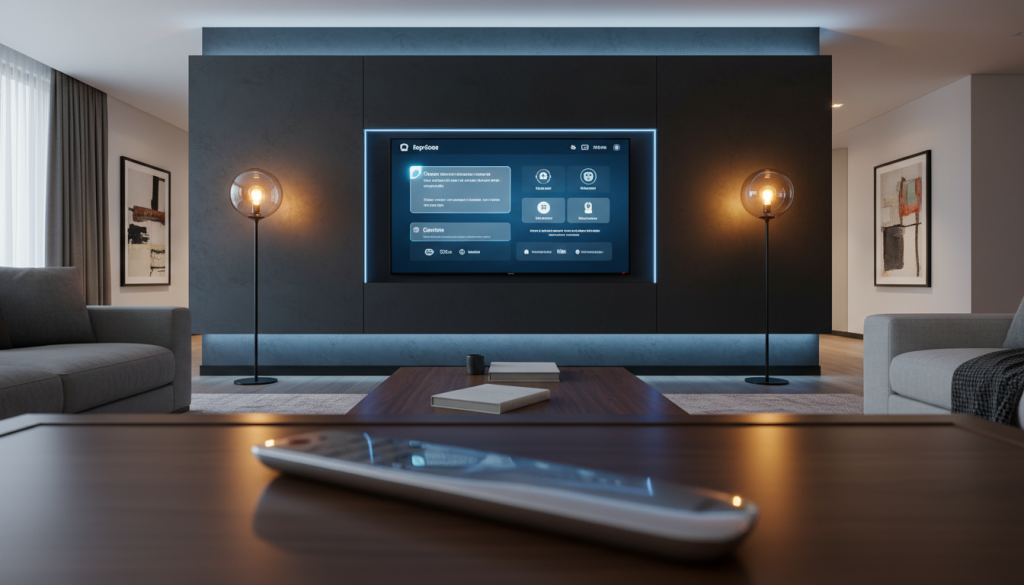
For years, the Fire TV was viewed simply as a delivery mechanism for Netflix and Prime Video. However, the ecosystem has evolved. With the integration of Matter, Thread, and sophisticated UI overlays, your Fire TV is no longer just a streaming stick—it is the visual command center of your intelligent home.
This guide is a master class in transforming your television into a high-performance fire tv smart home dashboard setup. Whether you are looking for seamless native controls or advanced sideloaded interfaces, we will bridge the gap between “out-of-the-box” features and “power user” automation.
Phase 1: Hardware Hierarchy & Protocol Support
Before configuring software, you must ensure your “brain” is capable of the task. Not all Fire TV devices are created equal. As we move into late 2024 and 2025, hardware selection is the most critical step due to a major shift in Amazon’s operating system architecture.
CRITICAL INTELLIGENCE: The “Vega OS” Shift
> ⚠️ WARNING: Amazon is transitioning newer devices (specifically the “Fire TV Stick 4K Select” and “Plus” 2025 models) to Vega OS, a Linux-based system that removes Android APK support.
>
> If you intend to follow the “Power User” sections of this guide (sideloading custom dashboards or launchers), you must use Fire OS (Android-based) devices. Do not buy a “2025” model unless you have confirmed it runs Fire OS 8.
The Hardware Tier List
To build a responsive dashboard, you need processing power and specific radio protocols.
| DEVICE TIER | MODEL RECOMMENDATION | DASHBOARD SUITABILITY | SMART HOME PROTOCOLS |
|---|---|---|---|
| Command Center (Best) | Fire TV Cube (3rd Gen) | High. Octa-core processor handles overlay PiP and 4K streams simultaneously without lag. | Matter Controller, Thread Border Router, Zigbee, Wi-Fi 6E, Ethernet. |
| Streamer Pro (Value) | Fire TV Stick 4K Max (Gen 2) | High. 16GB storage is crucial for dashboard apps and cache. | Matter Controller, Thread (via Wi-Fi 6E radio), Wi-Fi 6E. |
| Avoid for Dashboards | Fire TV Stick 4K Select / Plus (2025) | Zero. Vega OS likely prevents sideloading essential dashboard tools. | Likely Matter-only; locked ecosystem. |
Why Thread and Matter Matter
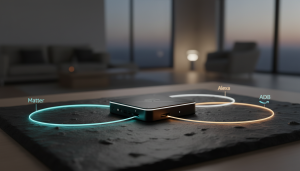
The Fire TV Cube (3rd Gen) and Stick 4K Max (2nd Gen) act as Matter Controllers. This allows them to communicate directly with smart devices locally. By utilizing a Thread mesh network, you reduce latency and ensure your dashboard remains responsive even if your ISP goes down.
Pro Tip: For the lowest latency in security camera feeds, we strongly recommend the Fire TV Cube hardwired via Ethernet. Wi-Fi congestion is the #1 cause of dashboard buffering.
Phase 2: Mastering the Native Visual Dashboard
Amazon has overhauled the visual interface to provide a “Smart Home” panel that is accessible even while you’re mid-movie. This is the “Zero-Setup” route for family-friendly control.
Navigating the Modern UI
Forget digging through settings menus. Use these shortcuts to summon the dashboard instantly:
Firestick vs. Mi TV Stick: The Ultimate Comparison Guide for Smart Streamers
Read More →- The Remote Shortcut: On newer remotes, a short-press of the Alexa button brings up a “Shortcut Panel” at the bottom of the screen; the dashboard is one click away.
- The Voice Command: Simply say, “Alexa, show my smart home dashboard.”
Visual Configuration & The “Favorites” Hack
A common frustration is that the Fire TV UI does not allow you to rearrange icons directly on the television screen. The interface mirrors your Alexa App Favoriteson your phone.
* The Problem: Your dashboard might be cluttered with every smart plug you own.
* The Fix: Open the Alexa app on your mobile device > Home > Edit Favorites.
* Strategy: Move your front door camera, main living room lights, and thermostat to the top of the list on your phone. These will instantly sync to appear in the top row of your Fire TV dashboard for rapid access.
Note on Camera Thumbnails: The “Cameras Row” on the native dashboard provides a horizontal scroll of connected feeds. Be aware that these are usually periodic snapshots (thumbnails), not live streams. You must click the thumbnail to initiate the live RTSP stream.
Phase 3: Security Command Center (PiP & Cameras)
One of the most powerful features of a Fire TV smart home dashboard setup is the ability to monitor your home without stopping your content.
Setting up Picture-in-Picture (PiP)
Native integration with Ring and Blink offers the smoothest experience.
Automated Trigger: Create a routine: “When [Doorbell] is pressed” -> “Custom Action: Alexa, show the front door camera.”* This forces the TV to switch to the feed instantly when a guest arrives.
Manual Control: If the feed takes over the whole screen, say “Alexa, minimize to Picture-in-Picture”* to push the video to the top-right corner so you can resume your movie.
How to Jailbreak Firestick: Ultimate Guide (Lite, 4K Max, Cube)
Read More →Bridging the Gap: Third-Party Cameras (Reolink, UniFi, Amcrest)
If you use non-Amazon cameras, native PiP often fails or suffers from 10–15 second buffering delays.
* The Solution: Use Monocle.
* How it Works: You install the “Monocle” Skill on Alexa and run the Monocle Gateway (a small Docker container) on a separate PC, NAS, or Raspberry Pi.
The Result: The Gateway acts as a bridge, converting your local RTSP camera streams into a format Alexa accepts instantly. This reduces lag significantly and allows you to say “Alexa, show the driveway”* with near-native speeds.
Phase 4: Advanced ‘Movie Mode’ Automation
A true “Master Class” setup involves the TV responding to you, not just you controlling the TV. The “Holy Grail” is having lights dim automatically when you press play and brighten when you pause.
The “Native” Problem
Standard Alexa Routines cannot natively see “Play/Pause” button presses on the remote as triggers. They only recognize voice commands (e.g., “Alexa, pause”).
The Workaround (Home Assistant + ADB)
To achieve this, you need a server running Home Assistant (HA).
- Integration: Install the Android TV / Fire TVintegration in HA. This uses ADB (Android Debug Bridge) to read the internal status of the Fire TV.
- State Detection: HA can now detect when the Fire TV state changes from
idletoplayingorpaused. - The Automation Logic:
* Trigger: Fire TV state changes to playing.
* Condition: Sun is down (or illuminance < 50 lux).
* Action: Activate Scene “Movie Dark” (Lights dim to 10%, Blinds close).
* Trigger: Fire TV state changes to paused.
* Action: Activate Scene “Snack Time” (Lights brighten to 40% warm white).
The #1 List: Best Free Live TV Apps for Firestick 2026 (Stream Smarter, Save Money)
Read More →Phase 5: Power User Sideloading (Beyond Native Limits)
If the native Amazon dashboard feels too restrictive (or too ad-heavy), it’s time to unlock the device’s full potential via sideloading.
* Prerequisite: Go to Settings > My Fire TV > About. Click the device name 7 times to reveal Developer Options. Enable “Install Unknown Apps” for the Downloader app.
The Custom Launcher: Project Ivy
Amazon aggressively blocks custom launchers (like Wolf Launcher), but as of 2025, Project Ivy is the resilient choice for power users.
* Why use it? It intercepts the “Home” button press cleanly, loads instantly, and supports “Wallpaper Mode.”
* Setup: Sideload via Downloader. In Project Ivy settings, enable “Override Default Launcher.” This removes the ad-cluttered Amazon interface entirely, leaving you with a clean grid of your essential apps.
The Dedicated Kiosk (Fully Kiosk Browser)
For those who want their TV to act as a massive Home Assistant Lovelace or ActionTiles board:
- The Tool: Sideload the Fully Kiosk Browser APK.
- The Config: Point the browser URL to your dashboard’s local IP address.
- The Automation: Enable “Launch on Boot” inside Fully Kiosk settings.
- The Result: Your TV boots directly into a futuristic home control panel, bypassing the Amazon UI completely.
Phase 6: Troubleshooting & Network Optimization
A smart home dashboard is only useful if it is reliable. If your camera feeds buffer or lights respond slowly, check these factors:
- Wi-Fi 6E Segregation: Smart home dashboards are bandwidth-heavy. If you have the Fire TV Stick 4K Max Gen 2 or Cube Gen 3, connect them exclusively to your router’s 6GHz band. This prevents interference from your dozens of 2.4GHz smart bulbs and plugs.
- Debloating Maintenance: Fire Sticks have limited storage. We recommend sideloading the TDUK (TechDoctorUK) Cache Cleaner. Run this weekly to clear hidden app cache that slows down dashboard overlays.
- HDMI-CEC Conflicts: If your “Movie Mode” automation turns the TV off instead of just dimming lights, check Equipment Control settings. Ensure “Power Control” is set to the TV, but consider disabling “Auto-Off” if your dashboard keeps putting the TV to sleep while you are monitoring security cameras.
Frequently Asked Questions
Can I use the Fire TV dashboard without an Alexa remote?
Yes. You can use the Fire TV Remote App on your smartphone. It includes a specific “Smart Home” tab that functions as a touch-screen controller for your dashboard, which is often faster than navigating with a D-Pad.
Does sideloading void my warranty?
No. Sideloading is a native capability of the Android-based Fire OS intended for developers. It does not “root” the device or modify the system partition, so it does not void the hardware warranty.
Will my current Fire TV Stick 4K Max stop working with the Vega OS update?
No. The transition to Vega OS applies to new hardware models manufactured for the late 2024/2025 cycle. Existing devices running Fire OS 7 or 8 will not be “upgraded” to Vega OS; they will remain on Android-based firmware.
Final Thought
The fire tv smart home dashboard setup is the final piece of the home automation puzzle. By combining the local processing power of the Fire TV Cube with the customization of Home Assistant and Matter, you move from a “smart” home to an “intelligent” one. Your TV is no longer a passive screen—it is the central nervous system of your household.