Deep Dive: “USB Drive Not Recognized/Showing Up”
If your Fire TV isn’t detecting your external drive, it’s one of the most common frustrations. Here’s a systematic approach to get it working:
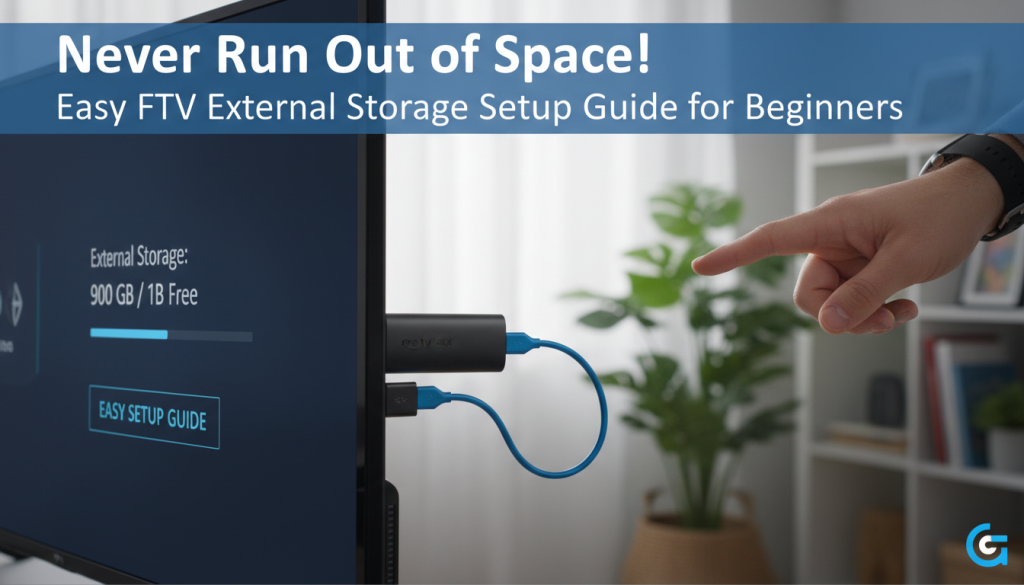
- Check Physical Connection: Is everything plugged in securely? For Fire TV Sticks, double-check that the OTG cable is firmly seated in the Fire Stick, the USB drive in the OTG, and the power cable in the OTG.
-
Reboot Fire TV: A simple restart can often resolve minor recognition glitches. Go to
Settings > My Fire TV > Restart. - Try Another Port/Cable: The culprit could be a faulty USB port on a hub, or a damaged OTG cable. If possible, try connecting the drive to a different port, or swap out the OTG cable with another one.
- Verify Drive Format on PC (Pre-formatting): If the Fire TV doesn’t even prompt you to format, it might not recognize the drive’s initial file system. Connect the USB drive to a computer and ensure it’s formatted as FAT32. Many new drives come formatted as NTFS, which Fire TV might not recognize initially for its “internal storage” formatting option. After formatting to FAT32 on a PC, reconnect it to your Fire TV and try the “Format to Internal Storage” option again.
- Address Power Supply Issues: This is especially relevant for external hard drives or if you’re experiencing “boot loops.” If the drive isn’t getting enough power, it won’t show up. Switch to a powered OTG cable, a Mission power cable, or a powered USB hub.
- Test the Drive on Another Device: Connect your USB drive to a computer or another device to ensure the drive itself is not faulty.