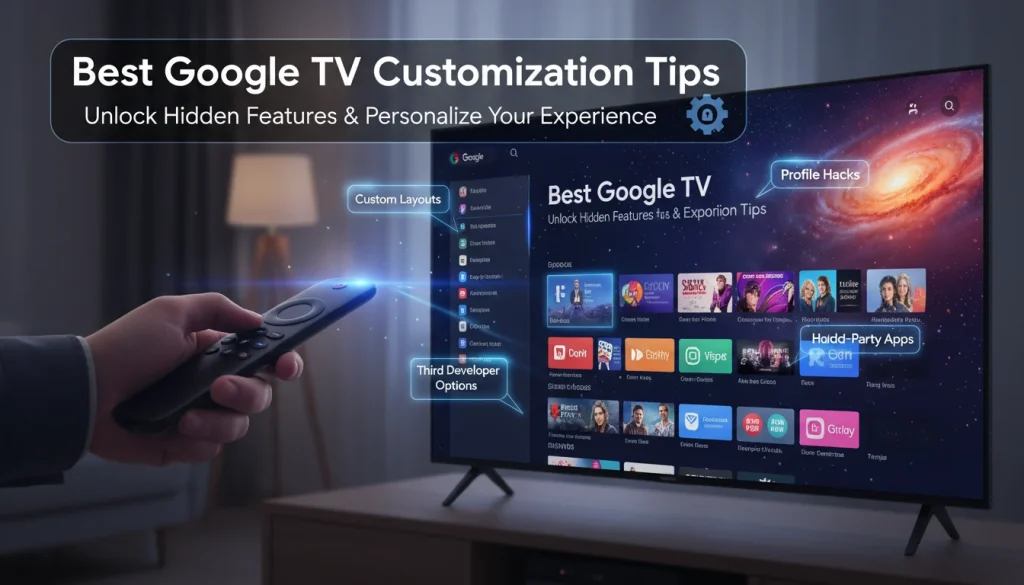
Are you ready to transform your Google TV from a generic streaming device into a personalized entertainment hub that truly understands you? Google TV is a powerful platform, but many users only scratch the surface of its capabilities.
With the right best Google TV customization tips, you can unlock hidden features, streamline your content discovery, and create a user experience that’s tailored precisely to your preferences.
Customizing your Google TV isn’t just about aesthetics; it’s about efficiency, ease of use, and ensuring you get the most out of your entertainment. Studies show that user satisfaction with streaming services is strongly linked to personalized experiences, with a whopping 81% of viewers expecting highly personalized content. Without personalization, you might find yourself navigating a cluttered home screen filled with ads and recommendations for services you don’t even subscribe to. This poor content discovery can be frustrating, leading to 31% of users exiting an application, 37% switching to another streaming service, or even 31% switching to another activity entirely.
This comprehensive guide will walk you through every step, from basic settings to advanced power-user tips. We’ll explore how to personalize Google TV home screen, dive into Google TV interface tips and tricks, and offer a deep dive into Google TV settings personalization to make your device uniquely yours. Get ready to empower your entertainment experience!
Section 1: Basic Google TV Customization Tips for New Users
Getting started with customize Google TV for beginners is surprisingly straightforward, allowing you to tailor the basic interface to your liking right from the start. Newer Google TV models, like the Hisense 2025 U7 and U8 series, even offer quicker mobile-based setups, where Android phones automatically display a notification, and iOS users can scan a QR code.
How to Rearrange, Add, and Remove Apps on Your Home Screen
Your app lineup is central to your Google TV personalization. Keeping your favorite streaming services and utilities easily accessible is key.
* Rearranging Apps: On the Google TV home screen, navigate to the “Your apps” row. Highlight the app you want to move and hold down the “Select” or “Enter” button on your remote until a “Move” option appears. Use the directional arrows to reposition the app, then press “Select” to confirm. Alternatively, scroll to the end of the “Your apps” row and select “Reorder” for a batch organization option.
* Adding Apps: Access the Google Play Store directly on your Google TV. You can type the app name or use Google Assistant (“Hey Google, open Play Store”) to find and install new applications.
* Removing Apps: To uninstall an app, you can usually long-press its icon on the home screen and select “Uninstall.” For system apps or more control, go to Settings > Apps > See all apps, select the app, and choose “Uninstall.” Remember, some pre-installed system apps cannot be uninstalled.
Customizing the ‘For You’ Tab: Tailoring Content Recommendations
The “For You” tab is designed to provide personalized show and movie recommendations. Google TV personalization ideas often start here. To get better content recommendations, Google TV considers:
* The streaming services you selected during setup.
* Movies and TV shows added to your Watchlist.
* Titles you’ve rated “Like” or “Dislike.”
You can refine these recommendations by going to the “For You” tab, scrolling to the bottom, and selecting “Get Better Recommendations” to toggle services on or off. This ensures the content suggestions are relevant to your subscriptions and interests.
Managing Your Watchlist: Adding, Removing, and Organizing Movies & Shows
Your Watchlist is a powerful tool for content discovery. You can add titles from a Google Search on any device or directly on your Google TV by highlighting a title, holding down the “Select” button, and choosing “Add To Watchlist.” This makes it easy to keep track of shows and movies you want to watch across all your devices.
Personalizing Ambient Mode: Choosing Photos, Art, and Information for Your Screensaver
Transform your idle TV into a dynamic display with Ambient Mode, also known as your screensaver. Go to Settings > System > Ambient mode.
* Personal Photos: Link your Google Photos account via the Google Home app on your phone to display your personal albums.
* Curated Art: Choose from various art galleries.
* Custom AI Art: Display unique, AI-generated images.
* Settings: Within Ambient Mode settings, you can adjust the slideshow speed, choose whether to show portrait photos, and display the time and weather.
At a Glance: Google TV Personalization Benefits
To illustrate the impact of these tips, here’s a quick comparison of a default versus a personalized Google TV experience:
| Feature/Aspect | Default Google TV Experience | Personalized Google TV Experience | Impact on User |
| Home Screen | Cluttered with ads, generic recommendations, and a fixed app order. | Organized apps and relevant recommendations; “Apps Only Mode” available. | Saves time and reduces frustration during navigation. |
| Recommendations | Based on broad trends; includes services you don’t use. | Tailored to your specific services, Watchlist, and ratings. | Meets the 81% of viewers who expect personalized content. |
| Watchlist | Non-existent or requires manual tracking outside the OS. | Centralized, easily managed list of all desired content. | Prevents “content amnesia” and streamlines planning. |
| Screensaver | Generic stock photos or a simple blank screen. | Ambient Mode featuring personal photos, curated art, and weather. | Enhances home aesthetics and smart home integration. |
| User Experience | High abandonment: 31% exit or 37% switch services due to poor discovery. | Streamlined, efficient, and enjoyable interface. | Higher satisfaction; supports the 41% of viewers who start TV without a plan. |
Key Takeaway
The shift from a default to a personalized experience isn’t just about aesthetics—it’s about efficiency. By tailoring the interface, users spend less time “searching” and more time “watching,” which directly addresses the high abandonment rates seen in generic setups.
Section 2: Optimizing Your Viewing & Sound – Enhancing User Experience
Beyond the home screen, optimizing your viewing and sound settings can dramatically enhance your overall user experience Google TV. These Google TV interface tips are crucial for getting the best picture and audio quality from your device.
Adjusting Display Settings for Optimal Picture Quality
While specific options may vary by your TV manufacturer, Google TV generally provides robust display controls.
* Picture Modes: Explore modes like Cinema, Sport, Vivid, or Standard. “Cinema” often provides the most color-accurate picture, while “Vivid” boosts saturation and contrast.
* Brightness, Contrast, Color, Sharpness: Adjust these to suit your room lighting and personal preference. For HDR content, ensure your TV is correctly recognizing and processing HDR signals for the best dynamic range.
* Motion Smoothing: Often called “MotionFlow” or “TruMotion,” this can make fast-paced action look smoother but can also introduce a “soap opera effect.” Experiment to see what you prefer.
Fine-Tuning Audio Output: Sound Modes, Surround Sound, and Bluetooth Device Management
Crisp, clear audio is just as important as a great picture.
* Sound Modes: Similar to picture modes, sound modes like Standard, Music, Movie, or Speech can optimize audio for different content types.
* Bass & Treble: Fine-tune these levels to your liking.
* Advanced Audio Options: Look for settings like virtual surround sound, dialogue enhancement, or night mode (which reduces sudden loud sounds).
* Bluetooth Device Management: Connect Bluetooth headphones or speakers for private listening or enhanced sound. Navigate to Settings > Remote & Accessories > Pair accessory.
Managing Privacy & Permissions: Controlling App Access to Data and Microphone
Your privacy matters. Google TV allows you to manage what information your apps and services can access.
* Go to Settings > Privacy. Here you can review and revoke permissions for apps, suchs as access to your microphone or device storage.
* Under “Usage & Diagnostics,” you can decide whether to send anonymous data to Google to help improve the platform.
Optimizing Notifications: Reducing Clutter and Staying Informed
Notifications can be helpful but also intrusive.
* Navigate to Settings > Apps > See all apps. Select an app, and you’ll often find options to manage or disable its notifications, helping to reduce on-screen clutter.
Section 3: Tailoring Google TV for Every User – Profile-Specific Customization
Google TV truly shines in multi-user households, offering personalized profiles that cater to individual tastes, making it an excellent platform for Google TV personalization. Unlike platforms like Roku TV, which are primarily single-user, Google TV supports a robust multi-profile experience.
Setting Up and Managing Multiple User Profiles
Each personalized profile provides:
* Unique TV show and movie recommendations: Your “For You” tab will be genuinely yours.
* Access to a personal Watchlist: Keep your individual queue separate.
* Google Assistant support: Personalized responses and routines.
Setting up a new profile is straightforward. Go to your profile icon in the top-right corner of the home screen, select “Add account” or “Manage accounts.” Downloaded apps and login details are often shared across profiles, eliminating the need to start from scratch for each user.
Customizing Content Restrictions and Parental Controls for Kids Profiles
For families, Google TV offers enhanced parental controls, ensuring a safe and age-appropriate viewing experience.
* Kids Profiles: Set up dedicated profiles for children that restrict access to age-appropriate movies and shows.
* Content Restrictions: Limit content based on ratings.
* Watch Limits & Bedtime Settings: Configure how long and at what times kids can watch TV, providing peace of mind for parents.
Personalizing Profiles: Unique App Layouts, Watchlists, and Recommendations for Each User
Beyond recommendations, profiles offer deeper Android TV customization.
* Each user can have their own home screen layout Google TV, organizing apps in their preferred order.
* Ambient Mode also integrates profile-specific customization, displaying contextual information such as Google Photos memories, weather reports, and content recommendations tailored to the active profile. In the U.S., the screensaver can even show personalized updates like calendar reminders or weather alerts.
Section 4: Advanced Customization & Power User Features – Unlocking Hidden Potential
For those who want to push their Google TV beyond the standard experience, these advanced Google TV customization tips offer deeper control and expand functionality. This is where you truly start to explore the hidden features and become a power user.
Deep Dive: Diving into Developer Options
Unlocking Developer Options can grant you access to powerful, often hidden, system settings. While the immediate benefits for a typical Google TV user might be subtle, it’s a gateway for advanced troubleshooting and customization.
How to Enable Developer Options:
- Go to Settings (from your profile icon in the top-right).
- Select System > About.
- Scroll down to “Android TV OS build” and repeatedly press the “Select” button on your remote 7 times.
- You’ll see a toast notification confirming that “You are now a developer!”
Common Developer Options & Their Uses:
- USB Debugging: Essential for sideloading apps via ADB (Android Debug Bridge) from a computer, or for developers testing applications.
- Animation Scales: You can speed up or turn off “Window animation scale,” “Transition animation scale,” and “Animator duration scale.” Setting these to “.5x” or “Off” can make the interface feel much snappier.
- Force GPU Rendering: Forces apps to use the GPU for 2D drawing, potentially improving UI performance in some cases.
- Background Process Limit: Restricts the number of processes that can run in the background, which might free up RAM but could also impact multitasking.
Caution: Exercise caution when changing settings in Developer Options, as some changes can affect device stability or performance. Only modify settings if you understand their function.
Sideloading Apps for Expanded Functionality
Sideloading apps allows you to install applications from sources other than the official Google Play Store. This is incredibly useful for accessing apps not officially available on Google TV, expanding your device’s capabilities.
How to Sideload an App (General Steps):
1. Enable Unknown Sources: Go to Settings > Apps > Security & Restrictions > Unknown sources. You’ll need to enable this for the app you’ll use to sideload (e.g., a file manager or web browser).
2. Download APK: Use a web browser on your Google TV (like Google Chrome, which you might need to sideload first) or a PC to download the desired APK (Android Package Kit) file.
3. Transfer APK:
* USB Drive: Copy the APK file to a USB flash drive and plug it into your Google TV device.
* Cloud Storage: Upload the APK to a cloud service (Google Drive, Dropbox) and access it via a file manager app on your TV (e.g., File Commander, FX File Explorer).
* Downloader App: Install a dedicated “Downloader” app from the Play Store, which lets you download files directly using URLs.
4. Install APK: Use a file manager app to navigate to the APK file and select it to install. Follow the on-screen prompts.
Installing Custom Launchers & Icon Packs: A Unique Selling Proposition for Deeper Personalization
One of the most powerful best apps for Google TV customization is the ability to install a third-party launcher. This allows you to completely overhaul the home screen layout Google TV, bypassing the default Google TV interface, which some find cluttered.
* FLauncher: This free, open-source launcher offers a clean interface, lets you organize apps into custom categories, hide/uninstall apps directly, and set custom wallpapers from a gallery or USB drive.
* Projectivy Launcher: Another popular choice for those looking to escape the barrage of ads and gain more control over their Google TV user interface guide.
While a third-party launcher won’t be the system default, you can often remap an unused button on your Google TV remote (sometimes a star button or a programmable input button) to quickly launch your preferred custom launcher or even the Google Home panel or a favorite app.
Integrating with Smart Home Routines & Voice Commands
Chromecast with Google TV interface seamlessly integrates with the Google Home ecosystem. With Google Assistant built-in, you can use voice commands to:
* Adjust Lights: “Hey Google, dim the living room lights.”
* Control Thermostats: “Hey Google, set the thermostat to 72 degrees.”
* Play Music: “Hey Google, play chill music on the living room speaker.”
* Control TV Functions: “Hey Google, turn up the volume,” or “Hey Google, open Netflix.”
These integrations allow you to automate and control your smart home devices directly from your Google TV, creating a truly connected and personalized entertainment and living space.
Section 5: Keeping Your Google TV Optimized & Up-to-Date
To ensure you’re always experiencing the best performance and have access to the latest features and Google TV display customization options, maintaining your Google TV with regular optimization and updates is essential.
Ensuring Your Google TV Software is Always Updated
Google is continuously working on improving the user experience Google TV. They roll out performance upgrades, bringing faster load times and other enhancements.
* Checking for Updates: Go to Settings > System > About > System update. Your device will check for and install any available updates. It’s a good practice to do this periodically.
* New Features: Google is also rolling out visual overhauls, including circular app icons, increased app capacity in the “Your apps” section, and new reorder and add app buttons for better customization. The Material 3 Expressive redesign is coming, bringing new customization options, animations, system colors, and dynamic typography, aiming to make your Android TV experience feel “unique to you.”
Clearing Cache & Data for Improved Performance and Troubleshooting
Just like your phone, apps on your Google TV can accumulate temporary data (cache) that can slow down performance or cause issues.
* Clear Cache: Go to Settings > Apps > See all apps. Select a specific app, then choose “Clear cache.” This can often resolve minor glitches without losing app data.
* Clear Data: If clearing the cache doesn’t help, “Clear data” (or “Clear storage”) will reset the app to its original state, deleting all user data for that app (e.g., login information, settings). You’ll need to log back in.
* Uninstall Unused Apps: Free up valuable storage space and improve performance by uninstalling apps you no longer use (Settings > Apps > See all apps > Select app > Uninstall). Remember, some pre-installed system apps cannot be uninstalled, but you can uninstall their updates if needed.
* Expand Storage: If you consistently run low on storage, some Google TV devices allow you to expand storage with a USB flash drive.
Factory Reset as a Last Resort: When and How to Reset Your Google TV
If your Google TV is experiencing persistent problems, freezing, or significant performance degradation that can’t be resolved by clearing cache or uninstalling apps, a factory reset might be necessary.
* When to Reset: Use this as a last resort, as it will erase all your data, settings, and installed apps, returning the device to its factory defaults.
* How to Reset: Go to Settings > System > About > Factory reset. You’ll be prompted to confirm this action.
Conclusion: Master Your Google TV Experience
Mastering your Google TV experience is all about taking control and actively leveraging its powerful customization features. From the initial setup to deep-diving into power-user settings, you now have the best Google TV customization tips to create a truly personalized and efficient entertainment hub.
We’ve covered everything from how to personalize Google TV home screen by organizing apps and enabling “Apps Only Mode,” to enhancing your viewing with display and sound optimizations. You’ve learned about the power of multi-user profiles, kids’ controls, and even advanced techniques like sideloading apps and using custom launchers for a unique Google TV user interface guide. By keeping your device updated and optimized, you’ll ensure a smooth and feature-rich experience.
Don’t settle for a generic streaming experience. Experiment with these Google TV personalization ideas, streamline content discovery, reduce clutter, and tailor your viewing environment for every individual in your household. Your Google TV is a versatile device—make it truly yours!
What are your favorite Google TV customization tips? Share them in the comments below! Stay updated for new features and keep personalizing your smart TV experience.