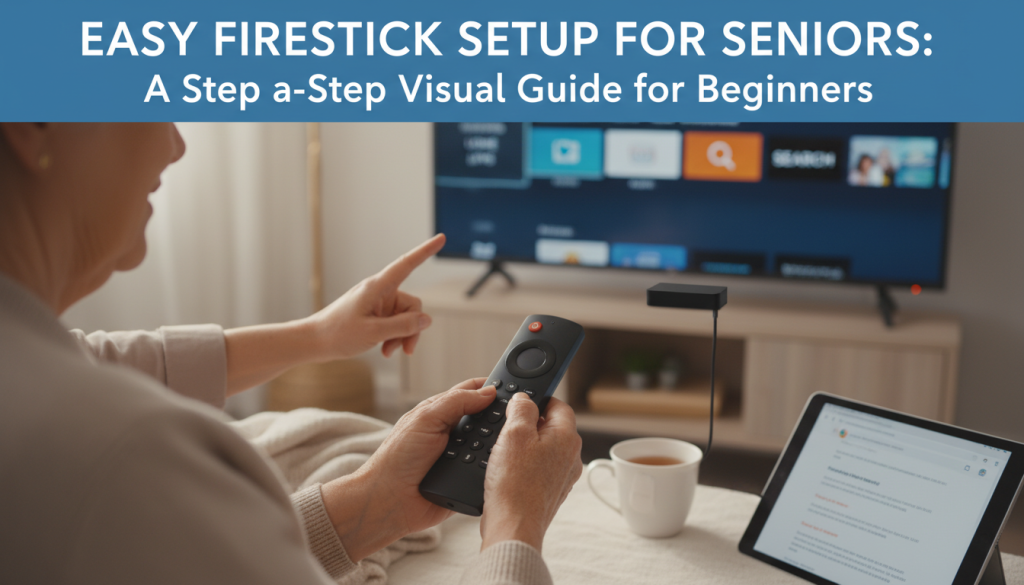
Are you an older adult looking to simplify your home entertainment? Or maybe you’re helping a loved one set up their new Amazon Fire TV Stick for seniors tutorial? You’ve come to the right place! This easy Firestick installation for beginners guide is designed with you in mind. We’ll walk through every step of how to set up Firestick for beginners seniors with patience, clear language, and plenty of visual aids.
The Amazon Fire TV Stick is a fantastic, affordable, and straightforward streaming device that brings a world of entertainment right to your existing television. It’s like turning your regular TV into a smart TV, giving you access to thousands of streaming apps for movies, TV shows, news, music, and even family photos – all without the need for complex cable menus. We understand that new technology can sometimes feel daunting, but we promise, this Firestick setup guide for seniors is easier than it looks. You’ll be enjoying your favorite shows in no time!
What You’ll Need Before We Start:
* Your New Amazon Fire TV Stick: This is the star of the show!
* Your Television: The TV you want to make “smart.”
* A Reliable Wi-Fi Connection: Your Firestick needs the internet to stream content.
* Your Amazon Account Information: Your email/phone number and password (or a helper to create one).
* Your TV’s Remote Control: Just for the initial setup.
Let’s begin this step-by-step Firestick setup for first-time users over 60!
Understanding Your Firestick Remote: A Simple Button Guide
Your Firestick remote control, often called an Alexa Voice Remote, is designed to be simple and intuitive. It’s your main tool for navigating the Firestick’s user interface. Don’t worry about memorizing everything; we’ll focus on the most important buttons.

Here’s a quick rundown of the buttons you’ll use most often:
* Navigation Ring (Up, Down, Left, Right, Select): This large, circular button is your primary way to move around the screen and choose items. Press the outer edges to move and the center button to ‘Select’ or ‘OK’.
* Back Button: Looks like a bent arrow. Press this to go back to the previous screen or menu.
* Home Button: Looks like a house. Press this to instantly return to the main Fire TV home screen from anywhere.
* Menu Button: Looks like three horizontal lines. This often brings up extra options for whatever you’re currently viewing.
* Play/Pause Button: The familiar triangle and two vertical lines.
* Fast Forward/Rewind Buttons: Arrows pointing right and left, with vertical lines.
* Volume Buttons: For controlling your TV’s sound (if you’ve set up “equipment control”).
* Microphone Button (Alexa Voice Control): This is a key feature for seniors! Press and hold this button to speak commands to Alexa. You can say things like “Open Netflix” or “Play the news,” which is much easier than typing or navigating through menus. This enables convenient voice commands.
Tip for Comfort: Hold the remote so your thumb comfortably rests on the navigation ring. You’ll mostly be using your thumb to move around.
Step 1: Plugging In Your Firestick – The Easiest Part!
This is where your Firestick comes to life! We’ll make three simple connections.
1. Find an HDMI Port on Your TV:
The Ultimate Android TV Media Library Guide: Organize Your Content
Read More →* Look at the back or side of your TV for ports labeled “HDMI” (or “HDMI 1,” “HDMI 2,” etc.). These ports usually look like a wide, flat slot.
* Choose an easily accessible one. If space is tight, your Firestick might come with a short HDMI extender cable – feel free to use it!

2. Connect the Firestick to the HDMI Port:
* Gently push your Firestick directly into one of these HDMI ports. It should slide in snugly.
3. Connect the Power:
* Take the small end of the USB power cable and plug it into the Firestick itself.
* Plug the other end of the USB cable into the provided power adapter.
Crucial Tip: Plug the power adapter into a wall outlet, not* into a USB port on your TV. The Firestick needs enough power to run smoothly, and a wall outlet ensures it gets it. This prevents many common issues!

4. Turn on Your TV and Select the Right Input:
* Turn on your television using your TV’s remote control.
* Now, use your TV’s remote to find the “Input” or “Source” button. Press this button repeatedly until your TV screen shows the Fire TV logo. It might cycle through “HDMI 1,” “HDMI 2,” “TV,” “AV,” etc. Stop when you see the Firestick screen!

Congratulations! The hardest physical part is over.
Step 2: Connecting Firestick to Wi-Fi: Step-by-Step for Non-Techies
Think of Wi-Fi as your home’s invisible internet connection. Your Firestick needs to connect to it to access movies, shows, and apps.
1. Pair Your Firestick Remote (If Needed):
* After the Firestick powers on, your remote should automatically connect. If it doesn’t, or if you see a message on screen about the remote, simply press and hold the Home button on your Firestick remote for about 10 seconds. This usually pairs it up!

2. Select Your Language:
* The Firestick will first ask you to select your preferred language. Use the navigation ring to highlight your language and press the “Select” button.
3. Find Your Wi-Fi Network:
* The Firestick will automatically search for available Wi-Fi networks nearby. You’ll see a list of network names (these are called SSIDs).
* How to find your Wi-Fi network name and password: Look on the bottom or side of your internet router – there’s usually a sticker with the “Network Name” (or “SSID”) and “Password” (or “Network Key”). If not, it might be on your internet bill or a note from your internet provider.

Fire TV Smart Home Integration: The Ultimate 2025 Master Guide (Alexa, ADB & Matter)
Read More →4. Select Your Home Wi-Fi Network:
* Use the navigation ring to scroll down and find your home Wi-Fi network name from the list.
* Press the “Select” button to choose it.
5. Enter Your Wi-Fi Password:
* An on-screen keyboard will appear. This is the trickiest part for many!
* Use the navigation ring to move the cursor to each letter, number, or symbol of your Wi-Fi password. Press “Select” for each character.
* Important: Pay close attention to uppercase letters, lowercase letters, and any special symbols (like !, @, #) in your password. It needs to be exact!
* Once you’ve typed the entire password, navigate to the “Connect” or “Submit” button and press “Select.”

Troubleshooting Wi-Fi Issues (Simple Solutions):
* “My network isn’t showing up!”:
* Make sure your Wi-Fi router is turned on.
* Try moving the Firestick closer to your router if possible, or restarting your Firestick and router.
* “Incorrect password!”:
* Double-check your password carefully, paying attention to capital letters and symbols.
* If you’re unsure, try restarting your router, or ask a family member who knows the password.
* “Slow connection!”:
* Restart your Firestick (unplug it from power for 30 seconds, then plug it back in).
* Restart your Wi-Fi router (unplug it for 30 seconds, then plug it back in).
Once connected, the device will confirm the connection, and you can press the Home button to go to the main screen.
Step 3: Registering Your Firestick with Your Amazon Account
To access all the wonderful apps and content, your Firestick needs to know who you are! This links it to your Amazon account.
1. Sign In to Your Amazon Account:
* After connecting to Wi-Fi, the Firestick will prompt you to sign in.
* Use the on-screen keyboard (just like you did for the Wi-Fi password) to enter your Amazon email address or phone number.
* Then, enter your Amazon password.

2. What If You Don’t Have an Amazon Account?
The Ultimate Fire TV Smart Home Dashboard Setup Guide: Native Controls, Automation & Sideloading
Read More →* The Firestick will offer you the option to create a new Amazon account during this step. This involves providing some basic information.
* Tip: If this feels complicated, this is a great moment to call a trusted family member or friend for assistance!
3. Device Activation Code (Sometimes):
* Occasionally, instead of a direct sign-in, you might see a screen with a unique “device activation code” (e.g., “ABCD-1234”).
* If this happens, you’ll need to go to amazon.com/code on a computer or a smartphone’s web browser.
* Sign in to your Amazon account on that device, and then enter the code shown on your TV screen. This tells Amazon, “Yes, this is my Firestick!”

Once successfully registered, your Firestick will confirm it’s linked to your account, and you’re ready for the next step!
Step 4: Basic Settings & Personalization for Seniors
Let’s make your Firestick even easier to use!
1. Choosing Your Language:
* You already did this during Wi-Fi setup, but you can always change it later in “Settings.”
2. Parental Controls:
* The Firestick might ask about parental controls. For most seniors, you won’t need these, so you can likely skip or turn them off unless there’s a specific need to restrict content.
3. Enhancing Accessibility Features:
The Firestick offers excellent accessibility features that are perfect for older adults:
* Increasing Text Size and Contrast: You can make menus and text larger and easier to read.
* Screen Magnifier: This allows you to zoom in on parts of the screen for better visibility.
* Text Banner: A really helpful feature! This displays important on-screen text in a large, high-contrast banner at the bottom of the screen.
* VoiceView (Screen Reader): If you have difficulty seeing, VoiceView can read aloud the names of menus and apps, and you can adjust its speed, volume, and pitch.
* Closed Captions: You can turn on captions for shows and movies if you prefer to read along.
* How to find these: Go to “Settings” (the gear icon on the home screen) > “Accessibility.” Explore these options to find what works best for you!

4. Understanding the Home Screen Icons:
25+ Best Kodi Addons 2026: Working, Tested & Compatible (Omega/Nexus)
Read More →Your Firestick home screen is your starting point. It’s designed to be simple!

* Home: This is where you’ll land every time you turn on your Firestick. It shows recommended content and your favorite apps.
* Find (Magnifying Glass Icon): This is where you go to search for movies, shows, or new apps.
* Apps: This section shows all the apps you have installed.
* Live TV: If you have apps that offer live TV (like certain news apps or Sling TV), they’ll appear here.
* Movies/TV Shows: These sections suggest content available from your installed apps.
* Settings (Gear Icon): Where you can adjust everything from Wi-Fi to accessibility features.
5. Setting Up Equipment Control:
* This is a neat trick! You can set up your Fire TV remote to control your TV’s power and volume, meaning fewer remotes on your coffee table. You can usually find this in “Settings” > “Equipment Control.”
* Voice Control: Remember the microphone button? Using voice commands via Alexa is highly recommended for seniors as it’s often much easier than typing or navigating menus. Give it a try!
Step 5: Installing Your First Apps – Let’s Watch Something!
Now for the fun part: getting your favorite shows and movies! This is how to install Firestick apps for elderly users.
1. Navigate to the “Find” Section:
* From your Fire TV home screen, use the navigation ring to move over to the “Find” option (the magnifying glass icon) at the top of the screen.
* Press “Select.”

2. Search for an App:
* You’ll see options like “Search” or “Appstore.” Select “Search.”
* Using Voice Search (Easiest!): Press and hold the microphone button on your Alexa Voice Remote. Say the name of the app you want (e.g., “Netflix,” “YouTube,” “Prime Video,” “Hulu”).
* Typing (If you prefer): An on-screen keyboard will appear. Use the navigation ring to type the name of the app.

3. Find and Select Your App:
* As you search (or after you speak the name), the app’s icon should appear in the search results.
* Use the navigation ring to highlight the app icon and press “Select.”
4. Download and Install:
* On the app’s page, you’ll see a button that says “Get” or “Download.” Press “Select” on this button.
The Ultimate Kodi Keyboard Shortcuts List (2025): Essential Commands for v21 Omega & v22
Read More →* The app will begin downloading and installing. You’ll see a progress bar.

5. Open and Enjoy!
* Once installed, the button might change to “Open.” Press “Select” to launch your new app!
* The app will also appear on your Firestick home screen, usually in the “Your Apps & Channels” row. You can even reorganize apps to place your favorites front and center by holding the Menu button on an app icon.
Firestick for Grandparents: Simple Entertainment & Connection Ideas
The Firestick is more than just movies; it’s a gateway to connection and discovery. Here are some great ideas:
* Easy-to-Access Content: Install apps for classic movies and TV shows (many streaming services have dedicated sections for older films). You can also find apps for specific religious content, news channels, or nostalgic programming.
* News and Weather Updates: Easily access local and national news apps to stay informed. Just press the microphone button and say, “Open CBS News” or “What’s the weather?”
* Photo Sharing: Install apps like Amazon Photos to view family pictures and videos on the big screen! It’s a wonderful way to bring memories to life.
* Simplified Video Calling: While more advanced, some Fire TV models or compatible apps (like Zoom) can facilitate video calls with family, using the TV and a connected webcam (sold separately). This is a fantastic way to connect!
* Music Streaming: Apps like Amazon Music or Spotify offer easy access to favorite artists and genres. Say “Play classical music” or “Play songs by [Artist Name].”
* Simple Games: Explore the Appstore for easy, mentally engaging games that don’t require complex controls.
* Simplify the Home Screen: Caregivers can install only essential apps initially and then move the most-used apps to the front of the home screen. This makes the user interface less overwhelming.
* Custom Profiles: You can create different user profiles to customize content access, ensuring a senior-friendly selection for each individual.
Basic Firestick Maintenance & Updates: Keeping It Running Smoothly
Just like anything else, a little care keeps your Firestick working great. This is a simple Firestick tutorial for older adults on maintenance.
* Automatic Updates: Your Firestick software and apps generally update automatically when connected to the internet. This ensures you have the latest features and security.
* Manually Check for Updates: It’s a good practice to check occasionally. Go to “Settings” (the gear icon) > “My Fire TV” (or “Device & Software” or “System”) > “About” > “Check for System Update.” If an update is available, download and install it.

* Restart Your Firestick: If things feel a little slow or glitchy, a restart is often the best fix.
* Go to “Settings” > “My Fire TV” > “Restart.”
* Easier Way: Just unplug the Firestick from the wall outlet, wait about 15-20 seconds, and then plug it back in.
* Remote Shortcut: Press and hold the “Select” button and the “Play/Pause” button on your remote simultaneously for about 10 seconds until the Firestick restarts.
* Freeing Up Space (Uninstalling Unused Apps): If you install many apps, your Firestick might slow down. To uninstall an app:
* Go to “Settings” > “Applications” > “Manage Installed Applications.”
* Select the app you want to remove and choose “Uninstall.” This frees up space.
* Why Regular Maintenance Helps: It simply keeps your Firestick performing at its best, preventing slowdowns and glitches so you can enjoy uninterrupted streaming.
Troubleshooting for Seniors: Common Issues & Easy Fixes
Don’t worry if something isn’t working perfectly! Most troubleshooting Firestick remote for older adults or device issues have simple solutions.
Fire TV Stick vs. Roku 2025: Real-World Speed Tests & Buyer’s Guide for New Streamers
Read More →Frequently Asked Questions (FAQ) & Troubleshooting Tips
Here’s a quick guide to common problems and their easy solutions:
| Problem | Easy Fix |
|---|---|
| Device not turning on. | Check if the device is correctly plugged in. Ensure the power cable is securely connected to both the device and the outlet. Try a different power source. |
| Slow performance. | Close unnecessary applications running in the background. Clear your browser’s cache and cookies. Consider restarting the device for a fresh start. |
| Troubleshooting Tip 3 | Corresponding Fix 3 |
* No Signal / Black Screen:
* First, ensure your TV is on the correct HDMI input (use your TV’s remote’s “Input” or “Source” button, as explained in Step 1).
* Check that the Firestick is fully plugged into the HDMI port and that the power cable is securely connected to the Firestick and a wall outlet.
* If stuck on the Fire TV logo, unplug the Firestick for 30 seconds, then plug it back in. Try a different HDMI port if possible.
* Remote Not Working:
* Check Batteries: This is the most common culprit! Replace them with fresh AAA batteries.
* Remove Obstructions: Make sure nothing is blocking the path between your remote and the Firestick.
* Restart Firestick: Restart your Firestick as described in the “Maintenance” section.
* Re-pair Remote: Hold the “Home” button on your remote for 10-20 seconds. This forces it to try and reconnect with the Firestick.
* Wi-Fi Connectivity Issues:
* Password Check: Double-check your Wi-Fi password. It must be exact (capital letters, symbols).
* Router Proximity: Move your Wi-Fi router closer to the Firestick if possible, or try relocating the Firestick.
* Restart Router: Unplug your internet router from its power source for 30 seconds, then plug it back in. Wait a few minutes for it to fully restart.
* Forget Network: In Firestick settings, you can “forget” your Wi-Fi network and then reconnect to it, entering the password again.
* Apps Not Opening / Crashing:
* Restart Firestick: A simple restart often fixes misbehaving apps.
* Clear App Cache: This clears temporary data that might be causing issues. Go to “Settings” > “Applications” > “Manage Installed Applications” > Select the problematic app > “Clear cache.” Don’t worry, this won’t delete your login information.
* Reinstall App: If clearing the cache doesn’t work, try uninstalling the app (as in the maintenance section) and then reinstalling it.
* Sound Isn’t Working:
* Check your TV’s volume using your TV’s remote control.
* Ensure your TV isn’t muted.
* Check the Firestick’s own volume (if you set up equipment control, you can use the Firestick remote’s volume buttons).
* I Forgot My Password!
* Amazon Account: If you forgot your Amazon password, you’ll need to use a computer or smartphone to go to the Amazon website and follow their “Forgot Password” steps. You’ll usually need access to the email or phone number associated with the account.
* App-Specific Passwords: If it’s a password for an app like Netflix, you’ll need to go to that app’s website on a computer or phone and follow their password reset process.
Conclusion: Enjoy Your Firestick!
Setting up an Amazon Fire TV Stick, while it might seem like a big step at first, quickly becomes a simple and enjoyable part of daily life. This easy Firestick installation for beginners guide has walked you through everything you need to know, from plugging it in to installing your favorite apps. With features like convenient voice commands via Alexa and adaptable accessibility features, the Firestick truly empowers seniors to enjoy a vast world of streaming device content independently and confidently.
Don’t hesitate to explore the menus, try out the voice commands, and discover new shows and movies. You’ve successfully navigated how to set up Firestick for beginners seniors! Remember, help is always available from family, friends, or online resources if you ever get stuck. Now, sit back, relax, and enjoy your new entertainment hub!