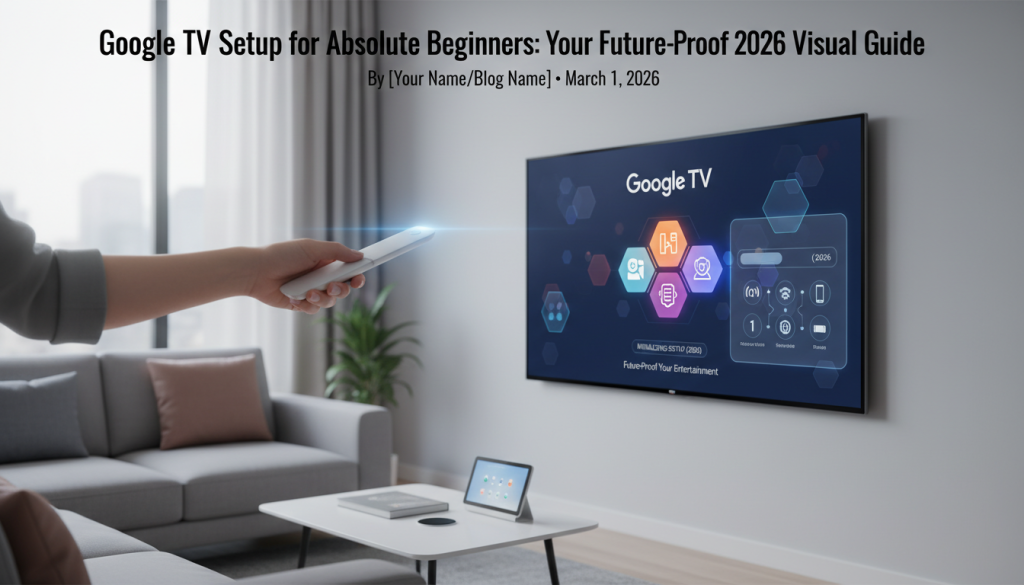
Welcome, future streaming enthusiast! Are you staring at a shiny new box with “Google TV” emblazoned on it, feeling a mix of excitement and a tiny bit of overwhelm? You’re in the perfect place. This comprehensive guide is designed for absolute beginners, new streamers, and anyone looking for a clear, jargon-free path to setting up their Google TV for a seamless, future-proof entertainment experience well into 2026 and beyond.
Imagine a world where all your favorite shows, movies, live TV, and even smart home controls are accessible from one intuitive screen, tailored just for you. That’s the magic of Google TV. Powered by Android, it’s an intelligent platform that aggregates content from various streaming services into a unified interface, making content discovery effortless. Recent updates in 2025 and leading into 2026 emphasize a cleaner home screen design and deeper integration of AI features, notably Gemini, to make your experience even smarter.
By the end of this Google TV initial setup guide for new users, you’ll go from unboxing your device to enjoying personalized recommendations, robust voice control via Google Assistant, and even managing your smart home. We’ll cover everything with empathetic, step-by-step instructions, preparing you for upcoming innovations like “Top Charts” for popular programming, AI-generated news briefs, enhanced genre browsing, and quick sports finds across multiple apps. Plus, you’ll discover new kids’ channels within its free streaming service, expanding the platform’s free live TV offerings with over 800 channels through its Live tab and Google TV Freeplay.
Let’s dive into how to set up Google TV for beginners with confidence!
[link_card url=”https://simturax.com/ultimate-guide-to-google-tv-android-tv/”]
Before You Begin: Your Essential Pre-Setup Checklist
Before we begin the physical setup of your home entertainment system, let’s make sure you have everything you need. Think of this as your personal checklist for a smooth streaming device configuration.
* Your Google TV Device: This could be a stand-alone device like a [Chromecast with Google TV](media:chromecast-with-google-tv-device) or a smart TV with Google TV built-in (e.g., a Hisense or Sony TV).
* A TV with an Available HDMI Port: Look for ports labeled “HDMI” on the back or side of your television. Most modern TVs have multiple.

* Power Outlet: You’ll need a nearby electrical outlet for your Google TV device.
* Reliable Wi-Fi Network & Password: A stable internet connection is crucial. Make sure you know your Wi-Fi network name (SSID) and its password.
* A Google Account: This is essential for accessing personalized features, downloading apps, and integrating with Google services. If you don’t have one, you can easily create one for free at accounts.google.com.
* Your Smartphone (Recommended): An Android phone (OS 9.0+) or iPhone (iOS 14+) with the Google Home app (version 3.19+) installed is highly recommended. Newer devices, like Hisense’s 2025 U7 and U8 series, support quicker phone-based setup via QR code scanning, making getting started with Google TV setup much faster. Ensure your phone has Bluetooth and Wi-Fi enabled.


Master Guide: Install The Crew Kodi (Latest Version) + Fix Common Errors
Read More →* Optional: Ethernet Cable: For an even more stable internet connection, some Google TV devices (like the Chromecast with Google TV with Ethernet adapter) allow for a wired connection.
Having these items ready will simplify the easy steps to configure Google TV for the first time.
Step 1: Physical Setup – Connecting Your Google TV to Your TV
This is where your Google TV installation guide for novices truly begins! Don’t worry, it’s simpler than it sounds.
Unboxing Your Google TV Device and Its Components
Carefully open the box. You’ll typically find the Google TV device itself, a remote control, a power adapter, and possibly an HDMI extender.

Connecting the Google TV Device to an HDMI Port on Your TV
Locate an available HDMI input on your television. Gently plug your Google TV device into one of these ports. If your device is a Chromecast with Google TV, it plugs directly into the HDMI port. If your TV has Google TV built-in, you can skip this step, as the device is already integrated.

Connecting the Power Adapter to Your Google TV and a Power Outlet
Next, connect the power adapter cable to your Google TV device (there’s usually a dedicated port for it). Then, plug the other end of the power adapter into an available wall outlet. It’s crucial to use the power adapter that came with your device for optimal performance.

Inserting Batteries into Your Google TV Remote Control
Open the battery compartment on the back of your Google TV remote and insert the provided batteries, paying attention to the positive (+) and negative (-) indicators.

Turning on Your TV and Selecting the Correct HDMI Input/Source
Turn on your television. Using your TV’s remote control, press the “Input,” “Source,” or “HDMI” button to cycle through the available inputs until you see the Google TV interface appear on your screen. This might be HDMI 1, HDMI 2, or whatever port you plugged your Google TV device into.

Step 2: Initial On-Screen Setup & Remote Pairing (The Digital Journey Begins!)
With your device powered on and the correct input selected, your new user Google TV configuration steps now move to the digital realm.
Cord Cutting Services vs Devices 2026: Ultimate Guide
Read More →Pairing Your Google TV Remote Control with Your Device
Upon powering on, your Google TV device will usually guide you to pair the remote. Most remotes pair automatically. If yours doesn’t, or if you see a prompt, simply press and hold the “Back” and “Home” buttons simultaneously on your Google TV remote until a light on the remote pulses. Then, follow any on-screen instructions.

Selecting Your Preferred Language
You’ll be prompted to choose your preferred language from a list. Use your remote’s navigation buttons to select it and press the center “Select” button.

Connecting to Your Wi-Fi Network: Finding Your Network and Entering the Password
This is a critical step for your smart TV features. Your Google TV will scan for available Wi-Fi networks.
* Using your smartphone for quick sign-in (recommended): If you have your phone ready, your TV might display a QR code. Open the Google Home app on your phone, tap the “+” icon, and select “Set up device.” Follow the prompts to scan the QR code, which will quickly transfer your Wi-Fi details and Google Account information. This is part of the “Connecting Google TV to Wi-Fi and accounts explained” process.
* Manual Entry: If you prefer or if your phone setup isn’t working, select your Wi-Fi network from the list on your TV screen. Use the on-screen keyboard (navigating with your remote) to enter your Wi-Fi password. Passwords are case-sensitive!

Troubleshooting Tip: If Wi-Fi isn’t showing up or you can’t connect, restart your Google TV device and your Wi-Fi router. Double-check your Wi-Fi password. Ensure your Google TV software and router firmware are up to date. If encountering a “limited connection” issue, verify that “Automatic date and time” (using network-provided time) is enabled in your TV’s system settings. You can also try forgetting the network and reconnecting, or try connecting to a 5 GHz network if your router supports it for better performance. Ensure the router is within range and consider disabling MAC filtering on your router if enabled.
Signing in with Your Google Account
Your Google Account is your gateway to the full Google TV experience.
* Using your smartphone for quick sign-in (recommended): After Wi-Fi setup, your TV will likely offer a quick sign-in option using your phone. Open the Google Home app, and it will guide you through connecting your Google Account.
* Manual Entry: Alternatively, you can choose to sign in directly on the TV using your email address and password, navigating the on-screen keyboard with your remote.

Troubleshooting Tip: If you have common Google Account login problems, ensure you’re using the correct account. If you’ve forgotten your password, use Google’s account recovery tools on a separate device. Sometimes, a temporary glitch can be resolved by simply restarting your Google TV device.
Reviewing and Accepting the Terms of Service and Privacy Policy
Finally, you’ll be asked to review and accept Google’s Terms of Service and Privacy Policy. Read through them and accept to proceed.
Step 3: Personalizing Your Google TV Interface
Now that your Google TV is connected, let’s make it truly yours! This is where the Android TV interface really shines.
The Ultimate Guide to Google TV & Android TV: Future-Proof Your Entertainment for 2026
Read More →Choosing Your Favorite Streaming Services and Apps During the Initial Setup
Google TV will prompt you to select the streaming services you use (e.g., Netflix, Hulu, Disney+, Prime Video). This helps Google TV tailor its recommendations and allows you to quickly access your preferred apps. You can always add more later.

Understanding and Customizing the ‘For You’ Tab for Personalized Content Recommendations
The ‘For You’ tab is the heart of Google TV, offering personalized recommendations based on your viewing habits across all your connected services. It’s an intelligent system that learns what you like, now enhanced with deeper AI features like Gemini. You can further customize it by indicating genres you like or dislike.
Creating and Managing User Profiles for Different Family Members
Google TV offers extensive personalization options, including creating individual user profiles for each household member. Each profile gets tailored recommendations, a personal watchlist, and dedicated Google Assistant support. This is a fantastic way to keep everyone’s viewing habits separate.

Organizing Your Apps and Creating a Personalized Watchlist
You can easily rearrange your app icons on the home screen by long-pressing an app with your remote and dragging it. Add movies and shows you want to watch later to your universal watchlist, which aggregates content from all your services.
Step 4: Advanced Setup & Future-Proofing for 2026 (Beyond the Basics)
You’ve mastered the basics of setting up Google TV from scratch for beginners. Now, let’s explore advanced features and ensure your Google TV is ready for the future.
Integrating with Google Home/Nest Smart Devices
Google TV isn’t just a streaming hub; it’s a central part of your smart home.
* Connecting Google TV to your Google Home app for centralized control: Ensure your Google TV is linked to the same Google Account as your other Google Home/Nest devices. You can control your TV from the Google Home app on your phone.
* Utilizing Google Assistant for voice commands: Google Assistant is pre-installed. Activate it during initial setup or later. Press the Assistant button on your remote and say commands like, “Hey Google, open YouTube on Google TV,” “Play Stranger Things,” or even “Dim the living room lights.”

* Setting up custom routines: Create routines in the Google Home app that include your Google TV. For example, a “Good Morning” routine could turn on your TV, open a news app, and adjust your smart lights. You can even view security camera feeds picture-in-picture on your TV.
Advanced Parental Controls & Content Restrictions for Families
For families, Google TV offers robust parental controls, making it a great home entertainment system for all ages.
How to Install La Deportes APK on Firestick, Android TV & Google TV
Read More →* Setting up dedicated Kids Profiles with age-appropriate content: For children, you can set up “Kids Profiles.” This restricts content based on ratings, manages app access, and implements screen time limits, including daily limits and bedtimes.

* Managing content ratings, app access, and setting watch time limits: Within Kids Profiles, you have granular control over what your children can watch and for how long, ensuring a safe viewing environment.
Optimizing Picture & Sound Settings
Get the best out of your display and audio.
* A quick guide to adjusting display settings (HDR, resolution, color) for the best visual experience: Navigate to your Google TV’s settings menu (usually a gear icon). Under “Display & Sound,” you can often adjust picture modes, brightness, contrast, color saturation, and HDR settings to suit your preferences and room lighting. Your TV automatically tries to display content in its optimal resolution, including 4K.
* Exploring audio output options and sound modes: Here, you can select your audio output (e.g., TV speakers, soundbar, AV receiver) and often choose between different sound modes like “Movie,” “Music,” or “Sport” for an enhanced audio experience.
Software Updates & Maintenance for Longevity
To ensure your device remains a future-proof hub, especially with the upcoming 2026 changes:
* Ensuring automatic software updates are enabled for new features and security patches: Regularly updating your Google TV software is crucial for accessing the latest features, performance improvements, and security patches. You can typically check for updates under Settings > System > About > System update. Make sure automatic updates are enabled.
* Best practices for keeping your Google TV running smoothly into 2026 and beyond:
* 64-bit App Architecture: A significant future-proofing step is Google’s transition of its TV platforms to 64-bit app compatibility, effective August 2026. This change is expected to deliver faster performance, reduced lag, and better support for high-resolution content like 4K and 8K, while also enabling more advanced AI-driven features. While older 32-bit devices will still function, new devices released in 2026 and beyond will fully leverage 64-bit capabilities.
* Gemini AI Integration: Google is heavily integrating its Gemini AI into Google TV, promising improved photo gallery features, enhanced recommendations, and more intelligent search capabilities. Upcoming features on some devices, such as the TCL QM9K, include presence sensing, which can wake the TV to display content like artwork or AI-created images when someone enters the room.
* Clear cache: Periodically clear the cache for frequently used apps to improve performance.
* Uninstall unused apps: Free up storage space by removing apps you no longer use.
* Restart regularly: A simple restart can resolve many minor glitches.
Easy Android TV Media Server Setup 2026: Your Guide to Seamless Streaming
Read More →Common Beginner Troubleshooting Steps & FAQs During Initial Setup
Even with an easy steps to configure Google TV for the first time guide, sometimes things don’t go perfectly. Here are solutions for common setup issues for novices.
My remote isn’t working or won’t pair
* Check batteries: Ensure they are inserted correctly and have charge.
* Re-pair manually: If the remote doesn’t pair automatically, press and hold the “Back” and “Home” buttons simultaneously until a light on the remote pulses, then follow on-screen prompts.
* Obstruction: Ensure there’s no obstruction between the remote and your Google TV device.
* Restart: Try restarting your Google TV device by unplugging it from power for a minute and plugging it back in.
I can’t connect to Wi-Fi
* Restart everything: Restart your Google TV device and your Wi-Fi router. Unplug them both for 60 seconds.
* Check password: Double-check the Wi-Fi password for accuracy. Remember, it’s case-sensitive.
* Software updates: Ensure your Google TV software and router firmware are up to date.
* Automatic date and time: If encountering a “limited connection” issue, verify that “Automatic date and time” (using network-provided time) is enabled in your TV’s system settings.
* Forget and reconnect: Try forgetting the network in your Google TV settings and reconnecting.
* 5 GHz vs. 2.4 GHz: If your router supports it, try connecting to a 5 GHz network for better performance if your device is compatible, or a 2.4 GHz network for better range.
* MAC filtering: Ensure MAC filtering is disabled on your router if you have it enabled.
* Proximity: Ensure the router is within range of your Google TV.

Google Account login problems
* Correct account: Ensure you are using the correct Google Account email and password.
* Password recovery: If you’ve forgotten your password, use Google’s account recovery tools on a separate device (phone or computer).
* Two-Factor Authentication: If you have 2FA enabled, ensure you have access to your verification method.
The ONLY Essential Streaming Apps Guide You’ll Need for 2026
Read More →* Temporary glitch: Restarting your Google TV can often resolve transient login issues.
No signal on my TV
* Correct HDMI input: Confirm your TV is set to the correct HDMI input (e.g., HDMI 1, HDMI 2) where your Google TV device is connected. Use your TV remote’s “Input” or “Source” button.
* Power check: Ensure the Google TV device is properly plugged into power, using the provided adapter.
* Cable connections: Check that all HDMI cables are firmly connected and undamaged.
* Reboot device: Reboot your Google TV device by unplugging it for a minute and plugging it back in.
* “Idle standby” (Chromecast with Google TV): If issues persist with a Chromecast with Google TV, disabling “Idle standby” in Power management settings (Settings > System > Power and Energy > When Inactive > Never) might help prevent “no signal” issues upon waking.

My apps are slow or crashing
* Restart device: Restarting your Google TV can resolve many common glitches and unresponsiveness.
* Clear cache: Go to Settings > Apps > [Problematic App] > Clear cache.
* Free up storage: Uninstall unnecessary apps to free up storage.
* Internet connection: Ensure your internet connection is stable and fast enough for streaming.
How to restart your Google TV device safely
The safest way to restart your Google TV device is to go to Settings > System > Restart. Alternatively, you can unplug the power cable from the device (or wall outlet) for about 60 seconds and then plug it back in.
Conclusion: Enjoy Your Fully Set Up & Future-Ready Google TV!
Congratulations! You’ve successfully navigated the beginner’s guide to Google TV setup, from unboxing to advanced personalization, and even gained insights into future-proofing your device for 2026. You’re no longer wondering what do I need to set up Google TV as a beginner; you’ve done it!
A properly set up Google TV offers a highly personalized and integrated entertainment experience. With continuous updates, the upcoming transition to 64-bit app architecture for faster performance, and deeper Gemini AI integration, your Google TV device is poised to remain a future-proof hub for content discovery, smart home control, and seamless streaming well into 2026 and beyond.
Embrace its features, from personalized profiles and parental controls to powerful voice commands via Google Assistant and an ever-expanding library of free live TV. You now have a truly “future-ready” entertainment system at your fingertips.
Now, sit back, relax, and explore the endless entertainment possibilities Google TV has to offer. We hope this guide has built your confidence and made how to set up Google TV for beginners an enjoyable experience.
What are you most excited to watch first on your new Google TV? Share your favorite Google TV features or tips in the comments below!