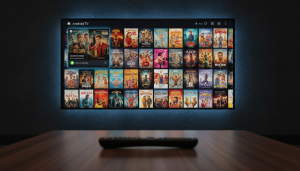
Welcome to the definitive kodi setup guide 2026 for harnessing the full potential of Kodi! As digital entertainment evolves at an unprecedented pace, so too does our beloved open-source media player. This isn’t just another Kodi guide; it’s a forward-thinking blueprint designed to future-proof your entertainment hub, integrating the latest advancements, including the burgeoning power of AI.
Gone are the days of static setups. In 2026, your Kodi experience should be dynamic, intuitive, and seamlessly integrated into your digital lifestyle. We’ve meticulously researched and compiled the most up-to-date information for this kodi setup guide 2026, cutting through the noise of outdated tutorials, to bring you a resource that’s authoritative, helpful, and truly innovative.
Whether you’re a seasoned cord-cutter or a newcomer to the world of media organization, this kodi setup guide 2026 will empower you. From choosing the optimal hardware and installing the latest Kodi version (like Kodi 21 “Omega” and hints of the upcoming v22 “Piers”) to mastering advanced customizations and integrating with smart home systems and AI assistants, you’ll gain the confidence to build a robust, personalized, and future-ready entertainment hub.
This guide will demystify complex topics, positioning you at the forefront of home entertainment technology. Let’s dive in and transform your Kodi setup into an intelligent, high-performance media powerhouse.
Getting Started: The Foundation of Your 2026 Kodi Setup
Establishing a robust foundation is paramount for an optimal 2026 Kodi experience, and this kodi setup guide 2026 will walk you through the essential steps. This begins with selecting the right hardware, balancing performance, cost, and longevity, and then correctly installing the latest Kodi version.
Choosing the Right Device for Kodi in 2026
Kodi’s versatility means it runs on a vast array of devices. Your choice depends on your budget, desired performance, and specific use case.
#### Android TV Boxes
For smooth 4K streaming in 2026, a minimum of 2GB RAM and an Amlogic S905X3 CPU or higher is recommended. Devices boasting 3-4GB RAM are highly preferred for consistent 4K performance. Mid-range options with Amlogic S905X4 or S905Y4 processors offer reliable 4K streaming, HDR support, and a responsive UI. For ultimate future-proofing, including 8K playback, AV1 & H.266 support, and AI upscaling capabilities, high-range processors like the Amlogic S905X5/S905X5M are the gold standard.
#### NVIDIA Shield TV Pro
The NVIDIA Shield TV Pro remains a top contender, revered for its powerful NVIDIA Tegra X1+ processor. It delivers unmatched 4K HDR performance and its signature AI-enhanced upscaling, making it an ideal, premium choice for Kodi enthusiasts.
#### Raspberry Pi
For those seeking an economical yet capable solution, the Raspberry Pi continues to impress. The Raspberry Pi 4, when paired with a lightweight distribution like LibreELEC, offers excellent 4K 60 FPS capabilities. LibreELEC is a “just enough OS” that boots directly into Kodi, providing a highly optimized and efficient experience. XBian is another Linux-based option focusing on bleeding-edge updates.
#### General PC Requirements
If you’re using a dedicated PC for Kodi, prioritize a capable GPU for hardware video decoding (e.g., VAAPI or VDPAU for 1080p content). An x86 or x86-64 processor (Intel Pentium 4/M, AMD Athlon 64/Opteron or newer with SSE2) with 1GB (for HTPC) or 2GB (for multipurpose) RAM is generally sufficient. OpenGL 3.3 or newer (preferably 4.0 for full features) or OpenGL ES 3.2 is required for Kodi’s rich UI. For a dedicated Kodi/Plex server, an Intel Core i3 (720p), i5 (1080p), or i7 (4K transcoding) at 3.0 GHz or better is recommended, with 4GB-8GB+ RAM. Solid-state drives (SSDs) are essential for the OS and applications to ensure responsiveness.

Step-by-Step Installation Guide for Various Platforms
Kodi 21 “Omega” was released in early 2024, with point releases like 21.2 focusing on bug fixes and performance. The next major version, Kodi v22 “Piers,” is already in alpha. Always download the latest stable version from the [official Kodi website](https://kodi.tv/download).
#### Windows/macOS/Linux
1. Download: Visit the official Kodi download page, select your operating system, and download the appropriate installer.
2. Install: Run the installer. Follow the on-screen prompts, typically accepting the license agreement, choosing installation components (default is fine for most), and selecting an installation directory.
3. Launch: Once installed, launch Kodi from your applications folder or desktop shortcut.
#### Android TV/Firestick
1. Enable Unknown Sources: On your Android TV box or Firestick, navigate to Settings > Security & Restrictions > Unknown Sources and enable it. (Exact path may vary).
2. Downloader App: Install a ‘Downloader’ app from your device’s app store.
3. Download Kodi: Open Downloader, enter kodi.tv/download in the URL field, navigate to the Android section, and select the appropriate ARM (32-bit or 64-bit) APK for your device.
4. Install: Once downloaded, Downloader will prompt you to install. Confirm the installation.
5. Launch: Kodi will now appear in your apps list.
#### Raspberry Pi (LibreELEC)
1. Download LibreELEC: Go to the LibreELEC website and download the LibreELEC USB-SD Creator tool for your computer’s OS.
2. Flash SD Card: Use the creator tool to select your Raspberry Pi model and the latest stable LibreELEC image. Insert an SD card (minimum 8GB, class 10 recommended) into your computer and follow the tool’s instructions to write the image.
3. Boot: Eject the SD card, insert it into your Raspberry Pi, and power it on. LibreELEC will boot directly into Kodi.
Initial Setup and First Run: Navigating the New Interface
Upon launching Kodi for the first time, you’ll be greeted by the default Estuary skin. This interface is clean and intuitive, but highly customizable.
1. Interface Language: If needed, go to Settings (gear icon) > Interface > Regional > Language to change the language.
2. Time Zone: Adjust your time zone under Settings > Interface > Regional > Timezone country/Timezone.
3. Enable Unknown Sources (for Add-ons): To install third-party add-ons (which we’ll discuss later), you’ll need to enable this. Go to Settings > System > Add-ons > Unknown sources and toggle it on. Acknowledge the warning.
4. Appearance Customization: While we’ll delve deeper into skins, familiarize yourself with Settings > Interface > Skin to see options.
5. Network Settings: If you need to configure specific network proxies or settings, find them under Settings > System > Network.
Take some time to explore the main menu items like Movies, TV Shows, Music, Videos, and Add-ons. Understanding this basic navigation will make subsequent steps much smoother.
Essential Add-ons & Repositories for 2026: Building Your Content Library
Kodi’s true power lies in its vast add-on ecosystem, allowing you to extend its functionality and access diverse content. This section of the kodi setup guide 2026 will help you navigate this ecosystem wisely, which is key to a future-proof setup.
Understanding Kodi Add-ons and Repositories
* Add-ons: These are small applications that run within Kodi, providing access to various content sources or enhancing functionality (e.g., video streaming services, music players, weather apps, subtitle services).
* Repositories: These are online storage locations that host multiple add-ons. Installing a repository allows you to browse and install add-ons from that source directly within Kodi, and it also enables automatic updates for those add-ons.
#### Official vs. Unofficial
* Official Add-ons: Always prioritize add-ons from the Official Kodi Add-on Repository. These are generally well-maintained, legal, and safer to use. They often provide access to metadata, subtitles, and content from legitimate, subscription-based services like MLB.TV or Disney Plus (requiring your existing subscription). Kodi 21.2 Omega includes support for new PVR backend client add-ons like Zattoo PVR Client, Teleboy PVR Client, and Sledovanitv.cz PVR Client, expanding live TV options.
* Unofficial (Third-Party) Add-ons: These are developed by independent communities. While some offer valuable functionalities, many provide access to copyrighted content without authorization, which is illegal in most countries. We strongly advise against using such add-ons for illegal streaming.
Top Recommended Official Add-ons for Movies, TV Shows, Music, and Live TV
To access official add-ons:
1. From the Kodi home screen, navigate to Add-ons.
2. Click on Download (or the package installer icon in the top left).
3. Select Video add-ons, Music add-ons, Program add-ons, etc., to browse the Official Kodi Add-on Repository.
Here are examples of valuable official add-ons:
* YouTube: For accessing YouTube content directly within Kodi.
* Twitch: For live game streaming.
* Various PVR Clients: For live TV integration (e.g., PVR IPTV Simple Client, Zattoo PVR Client, Teleboy PVR Client, Sledovanitv.cz PVR Client – requires a compatible PVR backend service and subscription).
* Metadata Scrapers: Add-ons like TheMovieDb, TheTVDb, or Universal Scrapers help fetch movie/TV show information, posters, and fan art for your local library.
* Subtitle Services: OpenSubtitles.org or Subscene allow you to download subtitles for your content.

Safe Installation of Third-Party Repositories and Add-ons (with Warnings and Disclaimers)
While we advocate for legal and safe content consumption, the open-source nature of Kodi means third-party options exist.
WARNING: Proceed with caution. Installing unofficial add-ons or repositories can expose your system to security risks, malware, or legal issues if used to access copyrighted content illegally. Always use a VPN (discussed later) if venturing into third-party content.
#### Kodi Builds
These are pre-made packages that bundle add-ons, skins, integrations, and settings. They offer an “all-in-one” solution for cord-cutters. Popular builds in late 2025/early 2026, compatible with Kodi 21 Omega, include Diggz Xenon, Enigma Silvo, Doomzday, Grindhouse, and Aspire. Many offer “Debrid” versions that require premium services like Real-Debrid or Premiumize for higher-quality streaming links and reduced buffering. These services come with an additional cost and primarily cater to links from file hosters, which may include copyrighted material.
To install a third-party repository:
1. Ensure “Unknown sources” is enabled (Settings > System > Add-ons).
2. Go to Settings > File manager > Add source.
3. Enter the URL for the repository’s source ZIP file (e.g., http://example.com/repo). Give it a memorable name.
4. Go back to Add-ons > Install from zip file.
5. Select the source you just added and choose the repository ZIP file to install it.
6. Once the repository is installed, go to Install from repository, select the newly installed repository, and browse its add-ons.
How to Identify and Avoid Deprecated or Broken Add-ons
In the fast-paced world of online streaming, add-ons can break or become unsupported quickly.
* Check Dates: Look for recent update dates in the add-on’s information.
* Community Forums: Consult reputable Kodi forums (like the official Kodi forum) for discussions on add-on status.
* “Failed to install dependency” errors: These are common signs of broken add-ons or repositories, often meaning a required component is missing or outdated. If you encounter these, it’s best to remove the add-on/repo and seek alternatives.
* Empty lists or no streams: If an add-on installs but provides no content, it’s likely broken or deprecated.
Always remove unused or broken add-ons and their associated repositories to keep your Kodi installation lean and functional.
Mastering Kodi’s Interface & Settings: Personalizing Your Experience
Kodi’s greatest strength, beyond its content capabilities, is its unparalleled customizability. Personalizing its appearance and optimizing its settings will elevate your entertainment experience.
A Comprehensive Tour of the Kodi 2026 User Interface
The default Estuary skin provides a clean, modern interface.
* Main Menu: Located on the left (or bottom for some skins), categorizes your media (Movies, TV Shows, Music, Videos, Games, Add-ons, Weather, Pictures).
* Widgets: Many skins allow for customizable widgets on the home screen, displaying recently added content, recommended items, or shortcuts.
* Settings Icon (Gear): Your gateway to all configuration options.
* Power Icon: For shutting down Kodi or your system.
* Search Icon: For finding content across your libraries.

Master Guide: Install The Crew Kodi (Latest Version) + Fix Common Errors
Read More →Navigating with a remote or keyboard is intuitive: arrow keys for movement, Enter/OK to select, Back/Esc to go back.
Customizing Skins and Themes for a Personalized Look
Skins are the primary way to transform Kodi’s appearance, moving beyond the default Estuary. They change background images, cover art display, information layouts, and menu structures, providing a fresh, interactive feel.
#### Popular Skins for Kodi 21 “Omega” (and likely 2026):
* Aeon Nox (SiLVO): A highly popular choice known for its large visuals, grid of posters, and deep customization options.
* Amber: Excellent for deep-level customization, allowing you to tweak almost every aspect.
* Eminence: Offers a colorful interface with large widgets and well-arranged menu sections, ideal for a modern art touch with easy navigation.
* Arctic: Zephyr Reloaded: A minimalist and appealing display with simple yet effective customization options.
* Confluence: A good choice if you’re upgrading from a simpler interface, offering a balanced look and allowing customization of home menu categories and add-on shortcuts.
* Fentastic: Retains a familiar navigation style based on Kodi’s default skin but with a modern, streamlined aesthetic and widget support.
* Estouchy: Specifically designed for touchscreen devices, featuring large, easy-to-click buttons and clear cover art, perfect for tablets or touch-enabled displays.
To change your skin:
1. Go to Settings (gear icon) > Interface > Skin.
2. Click Skin again, then Get more... to browse available skins.
3. Select a skin, click Install, and then Yes to confirm the change.
#### Optimizing Skins
While skins enhance the experience, some can be resource-intensive, potentially slowing down Kodi on less powerful hardware. If performance is a concern, choose lighter skins or disable animations and excessive background art within the skin’s settings.

Configuring Video, Audio, and Network Settings for Optimal Performance
#### Video Settings (Settings > Player > Videos)
* Adjust display refresh rate: On start/stop or Always for smoother playback, especially for films (24p).
* Allow hardware acceleration: Enable this for optimal performance on most devices, as it offloads video decoding to your GPU. Options like DXVA2, VAAPI, VDPAU depend on your OS/hardware.
* Sync playback to display: Essential for eliminating judder and ensuring smooth video.
* Video Super Resolution: Kodi 21.0 “Omega” added support for “Video Super Resolution” on NVIDIA RTX and Intel ARC hardware for upscaling older content. Ensure this is enabled if your hardware supports it.
#### Audio Settings (Settings > System > Audio)
* Audio output device: Select your HDMI receiver or preferred audio output.
* Number of channels: Match this to your speaker setup (e.g., 2.0 for stereo, 5.1 for surround sound).
* Allow passthrough: Enable this if you have an AVR or soundbar that can decode Dolby Digital, DTS, TrueHD, or DTS-HD MA for the highest quality audio. Select the relevant passthrough devices.
* Kodi 21.0 “Omega” brought improved audio processing on Linux.
#### Network Settings (Settings > System > Network)
* Generally, Kodi automatically detects your network.
* Internet access: Ensure this is enabled for add-ons and online content.
* Proxy server: Only configure if you use a proxy.
* UPnP/DLNA: If you want Kodi to discover content from other media servers or act as a server itself, ensure Allow control of Kodi via UPnP, Allow remote control via HTTP, and Announce services to other systems are enabled. Kodi 21.2 “Omega” improved UPnP server playback.
Setting Up Media Sources and Library Management for Local and Network Content
Kodi excels at organizing your local and network media.
1. Add Video/Music Sources:
* From the home screen, go to Movies or TV Shows (or Music).
* Click Enter files section (or Files).
* Click Add videos... (or Add music...).
* Click Browse and navigate to your local drive or network share (SMB, NFS, UPnP, WebDAV).
* Select the folder containing your media, click OK, then give it a name.
* Crucially, set the Content type (e.g., Movies, TV Shows, Music Videos) and choose your preferred scraper (e.g., TheMovieDb, TheTVDb). This tells Kodi how to fetch metadata.
* Click OK and confirm to scan the library.
2. Library Management:
* Kodi will automatically scrape metadata, cover art, and fan art.
* Regularly cleaning your library (Settings > Media > Library > Clean library...) helps remove entries for deleted files. Kodi 21.2 “Omega” restored movie addition performance to the level of v20 “Nexus.”
* Use the context menu (C on keyboard, menu button on remote) on specific items to refresh information, mark as watched, or manage.
The Future is Now: Integrating Kodi with AI Assistants & Smart Home Systems
The convergence of media centers with AI and smart home technology is no longer a futuristic concept. In 2026, while direct official native Kodi integration with all AI assistants is still evolving, a powerful ecosystem of third-party solutions and AI-enhanced hardware makes intelligent control a reality.
Introduction to AI Integration with Kodi: What’s Possible in 2026
AI’s role in your Kodi experience extends beyond simple voice commands. It’s about creating a more intuitive, automated, and immersive entertainment environment.
* AI-Enhanced Hardware: Devices like the NVIDIA Shield TV Pro already offer sophisticated “AI-enhanced upscaling,” using machine learning to improve the visual quality of older, lower-resolution content to near-4K fidelity. Kodi directly benefits from these hardware-level AI capabilities.
* Voice Control: Command your Kodi library with natural language.
* Smart Home Automation: Integrate Kodi into complex scenes, syncing it with lighting, audio, and other smart devices.
* Future Possibilities: While still maturing, predictive content suggestions based on viewing habits, personalized content curation, and even AI-driven enhancement of media (like dynamic audio adjustments) are on the horizon through community-driven developments and advanced hardware.

Connecting Kodi with Google Assistant for Voice Commands
While not officially native, community-developed add-ons and smart home platforms like Home Assistant provide robust integration.
Method (via Home Assistant – Recommended):
1. Set up Home Assistant: Install Home Assistant on a compatible device (Raspberry Pi, Docker, VM).
2. Integrate Kodi with Home Assistant:
* In Home Assistant, go to Settings > Devices & Services > Add Integration.
* Search for “Kodi” and follow the prompts to connect your Kodi instance (you’ll need Kodi’s IP address and potentially a web server password).
3. Integrate Google Assistant with Home Assistant:
* Utilize Home Assistant’s Google Assistant integration (requires Home Assistant Cloud or manual setup with Google Actions).
* Expose your Kodi media player entity to Google Assistant.
4. Voice Commands: Once connected, you can use commands like:
* “Hey Google, play [movie name] on Kodi.”
* “Hey Google, pause Kodi.”
* “Hey Google, turn up the volume on Kodi.”
* “Hey Google, open YouTube on Kodi.”
This method leverages Home Assistant as a powerful intermediary, allowing for more complex automation.
Integrating Kodi with Amazon Alexa for Smart Home Control
Similar to Google Assistant, Alexa integration is best achieved via a smart home hub.
Method (via Home Assistant – Recommended):
1. Ensure Kodi is integrated with Home Assistant (as described above).
2. Integrate Amazon Alexa with Home Assistant:
* Set up Home Assistant’s Alexa integration (requires Home Assistant Cloud or manual setup with AWS Lambda).
* Expose your Kodi media player entity to Alexa.
3. Voice Commands: You can then use commands like:
* “Alexa, tell Kodi to play [TV show].”
* “Alexa, pause Kodi.”
* “Alexa, next episode on Kodi.”
* “Alexa, turn on the TV” (if Kodi is linked to a TV entity).
Leveraging Home Assistant for Advanced Kodi Automation and Routines
Home Assistant truly unlocks the potential for Kodi in a smart home ecosystem.
* “Movie Night” Scene: Create a scene in Home Assistant that, when activated, dims the lights, closes smart blinds, sets your AVR to the correct input, and starts Kodi playing a specific movie or playlist.
* “TV Show Marathon” Automation: Automatically queue the next episode of a TV show after the current one finishes, without manual intervention.
* Dynamic Lighting: Sync smart lights to Kodi’s playback state, dimming them when playback starts and brightening them when paused.
* Guest Mode: Create a simplified Kodi interface or specific playlists accessible only when “Guest Mode” is active in Home Assistant.
Best Kodi Addons No Debrid-Still Working in 2026: Free Streaming Guide
Read More →Future Possibilities: Predictive Content Suggestions and Personalized Experiences
While full-fledged AI-driven content recommendations within Kodi are still largely in the realm of advanced community projects or external services, the trend points towards:
* Enhanced Metadata Scraping: AI could improve the accuracy and richness of scraped metadata, even for niche content.
* Contextual Recommendations: Integration with smart home sensors could allow Kodi to suggest content based on time of day, weather, or even who is present in the room.
* Adaptive Playback: AI could dynamically adjust video and audio settings in real-time based on network conditions, content type, and even room acoustics for an optimized experience.
These advancements will largely come from either Kodi’s open-source community or through deeper integration with AI-powered external services and hardware.
Advanced Kodi Usage & Customization in 2026
Once you’ve mastered the basics, Kodi offers a wealth of advanced features for those looking to truly take control of their media center. This kodi setup guide 2026 provides insights into these advanced features for a truly customized experience.
Exploring Advanced Settings and Hidden Features
Delving into Kodi’s expert settings can unlock new levels of control.
* Settings Level: In Kodi’s settings menu (the gear icon), change the level from “Standard” to “Advanced” or “Expert” to reveal more granular options across all categories.
* Profiles: Create separate user profiles for different family members, each with their own watched status, favorites, and even skin settings. This is found under Settings > Profile.
* Event Log: The System > Logging section provides an event log that can be useful for diagnosing issues.
* Service Add-ons: These run in the background and can provide additional functionality, such as web servers for remote control, custom event triggers, or advanced library management tools.
Setting Up PVR/Live TV Functionality with Backend Services
Kodi’s Personal Video Recorder (PVR) capabilities allow you to integrate live television and recorded content seamlessly. This typically requires a PVR backend service running on another device or a dedicated server.
Common PVR Backends:
* Tvheadend: A popular, robust Linux-based backend for DVB (digital TV tuners), ATSC, and IPTV.
* NextPVR: A Windows-based backend with support for various tuners.
* Plex Media Server (with Plex Pass): Can act as a PVR backend, recording live TV.
* Specific IPTV Providers: Some IPTV services offer M3U playlists that can be used with the PVR IPTV Simple Client add-on.
Kodi PVR Client Add-ons:
1. Go to Add-ons > Install from repository > Kodi Add-on repository > PVR clients.
2. Install the client appropriate for your chosen backend (e.g., PVR IPTV Simple Client, Tvheadend HTSP Client, NextPVR Client).
3. Configure the client with your backend’s IP address and port details.
4. Once configured, a “TV” or “Live TV” menu item will appear on your Kodi home screen, offering channel guides, live streaming, and recording management.
* Kodi 21.2 Omega introduced new PVR client add-ons like Zattoo PVR Client, Teleboy PVR Client, and Sledovanitv.cz PVR Client.

Using External Players for Specific Media Types
While Kodi’s internal player is excellent, some users prefer external players for specific codecs or advanced features. For example, some may opt for MPC-HC on Windows for madVR integration.
1. Configure playercorefactory.xml: This XML file, located in your Kodi userdata folder, tells Kodi which external player to use for which file types.
* You’ll define rules (e.g., for .iso files, or specific video codecs) that trigger an external player.
* The file specifies the path to the external player and any command-line arguments.
2. Example entry:
<!-- wp:paragraph -->
<p> <code></code>`xml</p>
<!-- /wp:paragraph -->
<!-- wp:paragraph -->
<p> <playercorefactory></p>
<!-- /wp:paragraph -->
<!-- wp:paragraph -->
<p> <players></p>
<!-- /wp:paragraph -->
<!-- wp:paragraph -->
<p> <player name="MPC-HC" type="ExternalPlayer" audio="false" video="true"></p>
<!-- /wp:paragraph -->
<!-- wp:paragraph -->
<p> <filename>C:\Program Files\MPC-HC\mpc-hc64.exe</filename></p>
<!-- /wp:paragraph -->
<!-- wp:paragraph -->
<p> <args>"{1}" /fullscreen /close</args></p>
<!-- /wp:paragraph -->
<!-- wp:paragraph -->
<p> <hidexbmc>true</hidexbmc></p>
<!-- /wp:paragraph -->
<!-- wp:paragraph -->
<p> <hideconsole>true</hideconsole></p>
<!-- /wp:paragraph -->
<!-- wp:paragraph -->
<p> <warpcursor>false</warpcursor></p>
<!-- /wp:paragraph -->
<!-- wp:paragraph -->
<p> </player></p>
<!-- /wp:paragraph -->
<!-- wp:paragraph -->
<p> </players></p>
<!-- /wp:paragraph -->
<!-- wp:paragraph -->
<p> <rules action="prepend"></p>
<!-- /wp:paragraph -->
<!-- wp:paragraph -->
<p> <rule filename=".*\.iso" player="MPC-HC"/></p>
<!-- /wp:paragraph -->
<!-- wp:paragraph -->
<p> </rules></p>
<!-- /wp:paragraph -->
<!-- wp:paragraph -->
<p> </playercorefactory></p>
<!-- /wp:paragraph -->
<!-- wp:paragraph -->
<p> <code></code>`</p>
<!-- /wp:paragraph -->* Note: This is an advanced customization and requires careful editing to avoid breaking playback.
Creating Custom Menus and Shortcuts for Quick Access
Many skins allow for deep customization of the home screen menus and shortcuts.
* Skin Settings: Most skins have a dedicated “Skin Settings” or “Customize Home Menu” option accessible from Settings > Interface > Skin > Configure skin....
* Add Custom Items: You can typically add custom menu entries that point to specific add-ons, playlists, favorite media folders, or even run Python scripts.
* Widgets: Link custom widgets to show content from specific add-ons or library categories directly on your home screen.
* Smart Playlists: Create dynamic playlists based on rules (e.g., “All unwatched sci-fi movies,” “Music from 80s”). These smart playlists can then be added as menu items or widgets.
Optimizing Performance & Advanced Troubleshooting for 2026
A truly future-proof Kodi setup demands consistent performance and the ability to quickly resolve issues. This section of the kodi setup guide 2026 focuses on maintaining a lean, fast Kodi installation and tackling common problems.
Common Kodi Errors in 2026 and How to Fix Them
* “Failed to install dependency”: This is one of the most frequent errors when installing add-ons.
* Fix: The required component is likely outdated or unavailable. Try installing a newer version of the add-on, find an alternative, or ensure the repository is still active and working. Sometimes, updating Kodi itself or other core dependencies can resolve this.
* “Check log for more information”: A generic error indicating a problem.
* Fix: This points to the log file. See “Understanding Log Files” below for how to interpret it.
* Add-on not working/No streams:
* Fix: The add-on is likely broken, deprecated, or its source is down. Check community forums for its status. Clear its cache/data. Consider finding an alternative.
* Kodi crashes/freezes:
* Fix: Often due to corrupted cache, too many background add-ons, or conflicting settings. Try clearing cache, disabling hardware acceleration (temporarily for testing), or performing a clean reinstallation.
Comprehensive Buffering Fixes and Performance Optimization Tips for the Latest Hardware
Buffering is a common frustration, but several strategies can mitigate it.
* Internet Connection & Throttling:
* Bandwidth: Ensure your internet speed meets the requirements for the content you’re streaming (e.g., 25 Mbps for 4K).
* Wired Connection: Use Ethernet instead of Wi-Fi whenever possible for stability and speed.
* ISP Throttling: ISPs may throttle streaming speeds. Using a VPN (Virtual Private Network) can help bypass this by encrypting your traffic and masking its nature.
* Clear Cache and Data: Accumulated cache is a leading cause of buffering, crashes, and slowdowns.
* On Android: Go to Device Settings > Apps > Kodi > Clear cache and Clear data.
* Other Platforms/Advanced: Maintenance add-ons can help. Manually, you can delete specific files like Addons27.db (which stores add-on data) from your Kodi userdata folder, but this will reset add-on settings.
* Hardware Acceleration:
* Enable: For most modern devices, enabling hardware acceleration (Settings > Player > Videos) offloads decoding to the GPU, significantly improving performance for 1080p, 4K, and 8K content. Ensure DXVA2 (Windows), VAAPI (Linux), VDPAU (Linux/NVIDIA), or MediaCodec (Android) is enabled and correctly configured. Kodi 21.0 “Omega” added support for DXVA2 AV1 hardware video decoding on Windows and “Video Super Resolution” for NVIDIA RTX and Intel ARC hardware.
* Disable (Troubleshooting): If you experience crashes or strange video artifacts, especially on Android or with outdated drivers, try disabling hardware acceleration as a troubleshooting step.
* AdvancedSettings.xml: For granular control over buffering, you can manually create an advancedsettings.xml file in your Kodi userdata folder. This allows you to define a cachemembuffersize to allocate more RAM for buffering.
xml
<advancedsettings>
<cache>
<buffermode>1</buffermode>
<cachemembuffersize>157286400</cachemembuffersize> <!-- 150MB -->
<readbufferfactor>20</readbufferfactor>
</cache>
</advancedsettings>
` * Note: cachemembuffersize should be adjusted based on your device’s available RAM. Too large can cause issues.
* Add-on Management: Remove outdated, unused, or problematic add-ons and repositories to prevent conflicts and improve overall performance. Ensure critical add-on dependencies like ‘URL Resolver’ are updated.
* Storage Space: Ensure your device has adequate free storage space. Insufficient space can lead to performance issues and prevent updates.
* Operating System Choice: For dedicated Kodi devices like Raspberry Pi, lightweight operating systems like LibreELEC or OpenELEC are designed to run Kodi efficiently and can significantly boost performance compared to general-purpose OSes.

Clearing Cache, Purging Packages, and Maintaining a Lean Kodi Installation
* Routine Cache Cleaning: Make it a habit to clear Kodi’s cache regularly. Use maintenance add-ons (if preferred) or manual methods.
* Purge Packages: Kodi stores installation files for add-ons in its packages folder. Over time, this can accumulate. Manually deleting files from Kodi/userdata/addon_data/packages (or Kodi/temp/packages depending on OS) can free up space.
* Review and Prune: Periodically go through your installed add-ons and repositories (Add-ons > My add-ons and Add-ons > My repositories). Uninstall anything you no longer use or that seems broken.
* Disable Autostart Add-ons: Some add-ons start automatically in the background. If you don’t need them constantly running, disable their autostart option in their settings to free up resources.
Understanding Log Files for Effective Self-Diagnosis
Kodi generates log files that record its activity, errors, and warnings. These are invaluable for troubleshooting.
1. Access Logs:
* Within Kodi: Install the “Kodi Logfile Uploader” add-on from the Official Kodi Repository (Program add-ons). It can upload your log to a public pastebin and give you a URL.
* Manually: The kodi.log file is located in your Kodi userdata folder (~/.kodi/temp/kodi.log on Linux, %APPDATA%\Kodi\kodi.log on Windows, etc.).
2. Interpreting Logs: Look for lines marked “ERROR,” “CRITICAL,” or “WARNING.” These often point to the root cause of an issue. The lines immediately preceding an error can also provide context.
3. Share with Community: If you’re seeking help on a forum, providing a clear description of the problem along with a link to your uploaded log file (using the Logfile Uploader add-on) is essential.
Backup and Restore Strategies for Your Kodi Setup
Regular backups are crucial before major updates or experimenting with new builds/add-ons.
1. Use a Backup Add-on: The “Kodi Backup” add-on (from the Official Kodi Repository, under Program add-ons) is highly recommended. It can back up your entire Kodi profile (settings, add-ons, library data) to a local folder or network share.
2. Manual Backup: Copy your entire Kodi userdata folder to a safe location. This folder contains all your settings, databases, add-on data, and artwork.
3. Restoration:
* Backup Add-on: Use the same add-on to restore from a backup.
* Manual: On a fresh Kodi installation, delete its new userdata folder and replace it with your backed-up copy.
Staying Safe & Legal: Essential Best Practices for Cord-Cutters

Kodi 20 Nexus Install Guide: All Devices & Troubleshooting
Read More →The convenience of Kodi must always be balanced with a commitment to safety and legality. As you future-proof your entertainment hub for 2026, adhere to these critical best practices. This kodi setup guide 2026 emphasizes adhering to these critical best practices.
Understanding Copyright Implications and Legal Streaming Practices
* Kodi is Legal: The Kodi software itself is 100% legal, free, and open-source. It is merely a media player, an empty shell.
* Legality Depends on Content: The legality depends entirely on the content you stream and the add-ons you use. Streaming copyrighted material (movies, TV shows, music) without proper authorization through unofficial third-party add-ons is illegal in most countries.
* Official Add-ons are Safe: Stick to add-ons from the Official Kodi Repository and those that require a verified, paid subscription to legitimate services (e.g., Netflix, Amazon Prime Video, Disney Plus, MLB.TV). These are typically legal and safe.
* Respect Copyright: Always be aware of local copyright laws and ensure your streaming practices comply. Ignorance is not a defense against legal action.
The Importance of VPNs for Privacy and Security in 2026
A Virtual Private Network (VPN) is not just recommended; it’s an essential tool for all Kodi users in 2026, regardless of your content sources.
* Privacy & Security: A VPN encrypts your entire internet traffic, creating a secure tunnel between your device and the internet. This hides your online activities from your Internet Service Provider (ISP), government agencies, and potential snoopers. Your ISP cannot monitor what you watch or which add-ons you use.
* Bypass ISP Throttling: ISPs often throttle internet speeds for streaming services, leading to frustrating buffering. A VPN masks your streaming activity, preventing your ISP from identifying and throttling your connection, thus improving playback quality.
* Access Geo-restricted Content: VPNs allow you to bypass geo-restrictions by routing your traffic through servers in different countries. This means you can access region-locked content from legitimate streaming services or official Kodi add-ons that might not be available in your physical location.
* Protection Against Malicious Actors: While using official add-ons reduces risk, a VPN adds an extra layer of security, making it harder for malicious actors to track your activity or target your device.

How to Choose and Set Up a Reliable VPN for Kodi
Choosing the right VPN is crucial for performance and security.
#### Recommended VPNs for Kodi Users:
* ExpressVPN: Known for its blazing-fast speeds, strong encryption, vast server network, and user-friendly apps across various devices.
* NordVPN: Offers a strong balance of security, features (like CyberSec for ad/malware blocking), and speed, with a massive server count.
* Surfshark: Excellent value, unlimited simultaneous connections, strong security features, and reliable performance.
#### Key Features to Look For:
* No-Logs Policy: Ensures your VPN provider doesn’t track or store your online activity.
* Strong Encryption: AES-256 encryption is the industry standard.
* Kill Switch: Automatically disconnects your internet if the VPN connection drops, preventing accidental data leaks.
* Fast Speeds: Crucial for uninterrupted 4K streaming.
* Server Network: A wide selection of servers in various countries.
* Device Compatibility: Ensure it has apps for your Kodi device (Android, Firestick, PC, etc.).
#### Setting Up a VPN:
1. Subscribe: Choose a reputable VPN service and subscribe.
2. Install App: Download and install the VPN app on your Kodi device (e.g., Android TV box, Windows PC). If your Kodi device doesn’t support VPN apps directly (like some older Firesticks or Raspberry Pi), you can set up the VPN on your router to protect all devices on your network.
3. Connect: Open the VPN app, log in, and connect to a server location. For general streaming, choose a server geographically close to you for best speeds, or a specific country to access geo-restricted content.
4. Verify: You can use a website like whatismyipaddress.com (accessed via Kodi’s web browser, if available, or a companion browser on the same device) to confirm your IP address has changed.
Identifying and Avoiding Malicious Add-ons or Repositories
* Stick to Official: Again, the Official Kodi Repository is your safest bet.
* Research: Before installing any third-party add-on or repository, do your research. Check reputable tech sites, Kodi communities, and user reviews.
* Beware of “Free Everything”: If an add-on promises free access to every new movie and TV show, it’s almost certainly illegal and carries higher risks of malware or being shut down.
* Check Permissions: Be mindful of the permissions an add-on requests. If it asks for excessive or unrelated access, be suspicious.
* Remove Old/Broken Repos: Deprecated or abandoned repositories can become security risks if they’re no longer maintained. Periodically clean them out.
General Internet Security Tips for Kodi Users
* Antivirus Software: Install reliable antivirus/anti-malware software on any device running Kodi (especially Windows/macOS/Android).
* Strong Passwords: Use unique, strong passwords for any services connected to Kodi (e.g., media server logins, cloud storage).
* Keep OS Updated: Ensure the operating system running Kodi is always updated to the latest version to patch security vulnerabilities.
* Firewall: Enable and properly configure a firewall on your Kodi device/network.
Maintaining Your Kodi System for Longevity
A well-maintained Kodi system will run smoothly for years, providing consistent entertainment. Implementing a routine maintenance schedule is key to ensuring longevity and peak performance.
Keeping Kodi Updated to the Latest Stable Version
* Routine Updates: Regularly check for and install updates for Kodi itself. Kodi 21 “Omega” was released in early 2024, with subsequent point releases like 21.2 “Omega” focusing on critical bug fixes and performance enhancements. The upcoming Kodi v22 “Piers” is already in alpha, promising new features.
* Benefits: Updates bring bug fixes, performance improvements (e.g., Kodi 21.2 improved library management speed and UPnP playback), new features, security patches, and compatibility with newer codecs and hardware.
* How to Update:
* Windows/macOS/Linux: Download the latest installer from kodi.tv and run it. It will typically update your existing installation.
* Android/Firestick: You might need to use the “Downloader” app again to download the latest APK and install it over the old version.
* LibreELEC: LibreELEC usually has an internal update mechanism that can be found in Settings > LibreELEC > System.
Regular Add-on and Repository Maintenance
* Update Add-ons: Go to Add-ons > My add-ons > Check for updates. Most add-ons update automatically if their repository is active, but manual checks are good.
* Prune Unused Add-ons: Regularly review Add-ons > My add-ons. If you haven’t used an add-on in months, uninstall it. Unused add-ons can consume resources, cause conflicts, or become security risks if unmaintained.
* Remove Old Repositories: Just like add-ons, old or broken repositories should be removed (Add-ons > My repositories).
Scheduled Backups and System Hygiene
* Automated Backups: Use the “Kodi Backup” add-on to schedule regular backups of your entire Kodi configuration (settings, library data, add-ons). Store these backups on a separate network drive or cloud service. This is invaluable for quick recovery from issues or when moving to new hardware.
* Clear Cache & Thumbnails: Regularly clear Kodi’s cache (Settings > File manager > Profile directory > Thumbnails context menu Clean artwork, or use maintenance add-ons). This prevents performance degradation and frees up storage.
* Monitor Storage: Keep an eye on the storage space on your Kodi device, especially if it’s a low-storage device like a Firestick. Clear unnecessary files (including old downloaded subtitles, fan art, or temporary files) to ensure smooth operation.
* Database Management: Regularly clean your media library database (Settings > Media > Library > Clean library...) to remove references to content that no longer exists. Ensure correct metadata scraping for optimal library organization.

Troubleshooting Common Update Issues
* Lost Settings after Update: If you update Kodi and find settings or add-ons missing, it’s often due to a corrupted update or profile. Try restoring from your latest backup.
* Add-ons Breaking: Sometimes, a major Kodi update (e.g., from v20 to v21) can temporarily break older add-ons that haven’t been updated for the new version. Give developers time to update, look for alternatives, or revert to a backup if critical functionality is lost.
* “Error: Can’t connect to repository”: Check your internet connection. If the connection is fine, the repository itself might be down or deprecated.
* Slow Performance after Update: If Kodi feels slower, clear the cache and check if any new settings were enabled by default that might be resource-intensive (e.g., new GUI animations).
Conclusion: Your Definitive Kodi Journey Continues
Congratulations! You’ve just traversed the most comprehensive and forward-looking Kodi setup guide available for 2026. By following the steps in this kodi setup guide 2026, you’ve not only established a powerful entertainment hub but also future-proofed it against the rapidly evolving digital landscape.
Kodi’s continuous evolution, exemplified by releases like Kodi 21 “Omega” and the eagerly anticipated Kodi v22 “Piers,” ensures its enduring relevance as a versatile and customizable media player. Your journey now is one of continuous discovery and enjoyment.
Recap of Your Empowered Kodi Experience
We’ve covered everything from:
* Smart Hardware Choices: Selecting the perfect device for 4K/8K, AI upscaling, and robust performance.
* Legal & Safe Content: Prioritizing official add-ons and understanding copyright implications.
* Personalization: Mastering skins, settings, and media library management for an experience tailored to you.
* AI & Smart Home Integration: Leveraging third-party solutions and AI-enhanced hardware for voice control and seamless automation.
* Peak Performance: Implementing advanced troubleshooting and optimization techniques to keep Kodi running flawlessly.
* Longevity: Establishing a maintenance routine that ensures your system remains stable and up-to-date.
Looking Ahead: The Evolving Landscape of Kodi and Home Entertainment
The future of Kodi is bright and interconnected. Expect to see:
* Deeper AI Integration: While currently relying on third-party solutions, the open-source community will likely push for more direct AI functionalities within Kodi, from smarter recommendations to more intuitive voice control.
* Enhanced Codec Support: Continued adoption of cutting-edge codecs like AV1 and H.266 will ensure breathtaking visual quality.
* Seamless Smart Home Synergy: Kodi will become an even more integral part of comprehensive smart home ecosystems, reacting to your environment and preferences.
* Community-Driven Innovation: The strength of Kodi lies in its passionate community, continually developing new add-ons, skins, and features that keep it at the forefront of media centers.
Final Tips for Enjoying Your Future-Proofed Kodi Setup
1. Stay Curious: Experiment with new skins, add-ons (from official sources!), and settings. There’s always something new to discover.
2. Backup Regularly: This cannot be stressed enough. It’s your safety net.
3. Use a VPN: Protect your privacy and bypass throttling – it’s a non-negotiable for a secure Kodi experience.
4. Engage with the Community: The official Kodi forums and reputable subreddits are fantastic resources for troubleshooting, discovering new features, and staying updated.
5. Share Your Experience: Help others by sharing your optimized setup and insights.
By embracing these principles, your future-proofed Kodi setup will continue to provide a rich, personalized, and cutting-edge media experience well into 2026 and beyond. Enjoy your definitive Kodi journey!
`